Apple Watch Ultra User Guide
- Welcome
- What’s new
-
- Apple Watch Ultra gestures
- Use double tap to perform common actions
- Set up and pair your Apple Watch Ultra with iPhone
- Set up more than one Apple Watch
- Pair Apple Watch Ultra with a new iPhone
- Choose a function for the Action button on Apple Watch Ultra
- The Apple Watch app
- Charge Apple Watch Ultra
- Turn on and wake Apple Watch Ultra
- Lock or unlock Apple Watch Ultra
- Change language and orientation on Apple Watch Ultra
- Remove, change, and fasten Apple Watch bands
-
- Apps on Apple Watch Ultra
- Open apps
- Organize apps
- Get more apps
- Tell time
- Status icons
- Control Center
- Use Focus
- Adjust brightness, text size, sounds, and haptics
- See and respond to notifications
- Change notification settings
- Use the Smart Stack to show timely widgets
- Manage your Apple ID
- Use shortcuts
- See time in daylight
- Set up Handwashing
- Connect Apple Watch Ultra to a Wi-Fi network
- Connect to Bluetooth headphones or speakers
- Hand off tasks from Apple Watch Ultra
- Unlock your Mac with Apple Watch Ultra
- Unlock your iPhone with Apple Watch Ultra
- Use Apple Watch Ultra without its paired iPhone
- Set up and use cellular service on Apple Watch Ultra
-
- Get started with Apple Fitness+
- Subscribe to Apple Fitness+
- Find Fitness+ workouts and meditations
- Start a Fitness+ workout or meditation
- Create a Custom Plan in Apple Fitness+
- Work out together using SharePlay
- Change what’s on the screen during a Fitness+ workout or meditation
- Download a Fitness+ workout
-
- Alarms
- Blood Oxygen
- Calculator
- Calendar
- Camera Remote
- Contacts
- ECG
- Medications
- Memoji
- News
- Now Playing
- Reminders
- Stocks
- Stopwatch
- Timers
- Tips
- Voice Memos
- Walkie-Talkie
-
- About Wallet
- Apple Pay
- Set up Apple Pay
- Make purchases
- Send, receive, and request money with Apple Watch Ultra (U.S. only)
- Manage Apple Cash (U.S. only)
- Use Wallet for passes
- Use rewards cards
- Pay with Apple Watch Ultra on Mac
- Ride transit
- Use your driver’s license or state ID
- Use digital keys
- Use COVID-19 vaccination cards
- World Clock
-
- VoiceOver
- Set up Apple Watch Ultra using VoiceOver
- Apple Watch Ultra basics with VoiceOver
- Apple Watch Mirroring
- Control nearby devices
- AssistiveTouch
- Use a braille display
- Use a Bluetooth keyboard
- Zoom
- Tell time with haptic feedback
- Adjust text size and other visual settings
- Adjust motor skills settings
- Set up and use RTT
- Accessibility audio settings
- Type to speak
- Use accessibility features with Siri
- The Accessibility Shortcut
- Copyright
Connect Apple Watch Ultra to Bluetooth headphones or speakers
Play audio from Apple Watch Ultra on Bluetooth headphones or speakers without your iPhone nearby.
Tip: If you have AirPods that you set up with your iPhone, they’re ready to use with your Apple Watch Ultra—just press play.
Pair Bluetooth headphones or speakers
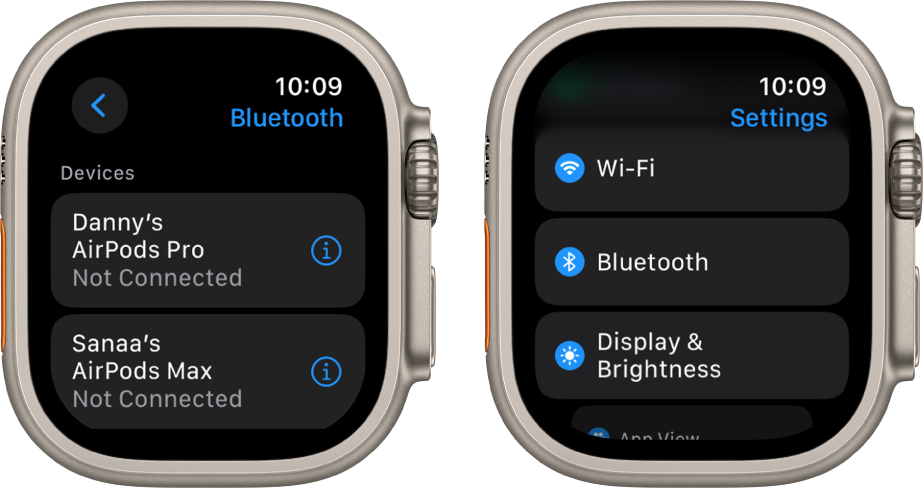
You need Bluetooth headphones or speakers to listen to most audio on your Apple Watch Ultra (Siri, phone calls, voicemail, and voice memos play through the speaker on Apple Watch Ultra). Follow the instructions that came with the headphones or speakers to put them in discovery mode. When the Bluetooth device is ready, follow these steps:
Open the Settings app
 on your Apple Watch Ultra, then tap Bluetooth.
Tap the device when it appears.
You can also tap  on the play screens of the Audiobooks, Music, Now Playing, and Podcasts apps to open the Bluetooth setting.
Choose an audio output
Press the side button to open Control Center.
Tap
 , then choose the device you want to use.
For important information about avoiding hearing loss, see Important safety information for Apple Watch Ultra.
Monitor and adjust your headphone volume
Press the side button to open Control Center.
While listening to your headphones, tap
 .
.A meter shows the current headphone volume.
Tap the volume controls below Headphone Volume or tap the slider, then turn the Digital Crown to adjust.
Reduce loud sounds
Apple Watch Ultra can limit the loudness of your headphone audio to a set decibel level.
Open the Settings app
on your Apple Watch Ultra.Go to Sounds & Haptics > Headphone Safety, then tap Reduce Loud Sounds.
Turn on Reduce Loud Sounds, then set a level.
View loud headphone audio notifications
If you listen to loud audio through your headphones for long enough that it could affect your hearing, Apple Watch Ultra sends you a headphone notification and automatically turns down the volume to a more moderate level to protect your hearing.
To view details about headphone notifications, follow these steps:
Open the Settings app
on your Apple Watch Ultra.Go to Sounds & Haptics > Headphone Safety, then tap Last 6 Months below Headphone Notifications.
You can also open the Health app on your iPhone, tap Browse, tap Hearing, tap Headphone Notifications, then tap a notification.