
Edit your video in Clips
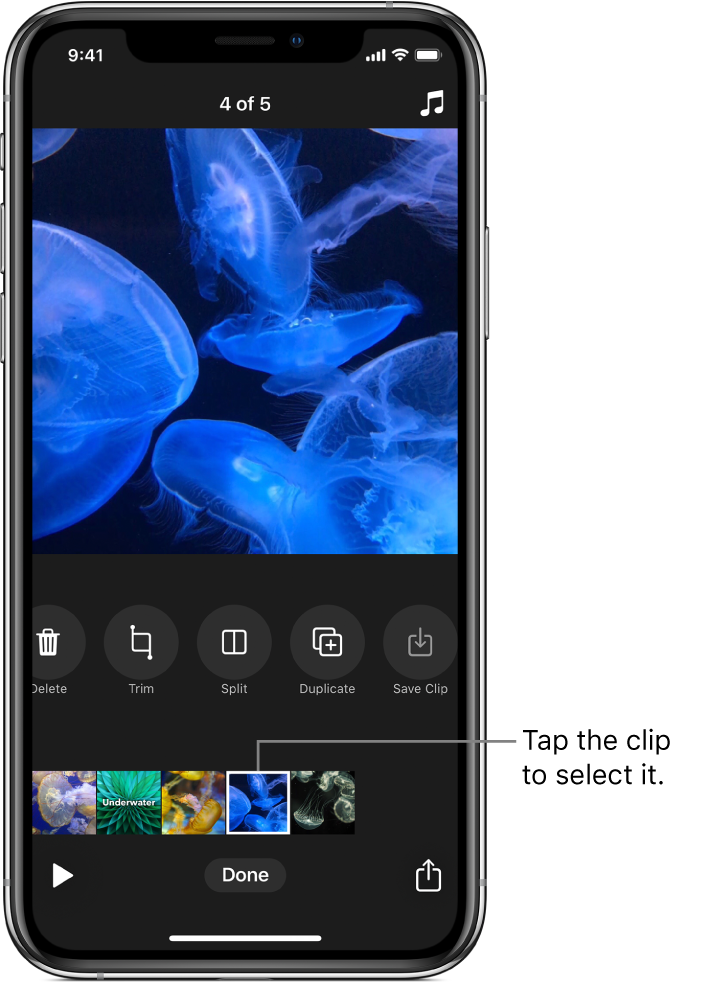
You can refine your video project by moving, trimming, splitting, duplicating, and deleting clips. You can turn off a clip’s sound, and you can save a copy of a clip to your Photos library.
After you select a clip in your project, swipe left and right to view tools you can use to edit the clip.

Reorder clips
With a project open in the Clips app
, touch and hold a clip until it floats.Drag it left or right.
Trim a clip
With a project open in the Clips app
, tap a clip.Tap Trim
 .
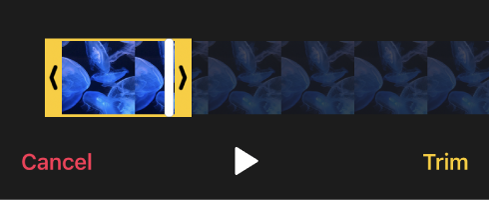
.Drag the start and end markers to set the beginning and end of the clip, then tap Trim.
Split a clip
With a project open in the Clips app
, tap a clip.Tap Split
 .
.Drag the playhead to where you want to split the clip, then tap Split.
Duplicate a clip
With a project open in the Clips app
, tap a clip.Tap Duplicate
 .
.The duplicate clip appears after the original clip, with any filters or graphics you added to the original clip.
Mute a clip
With a project open in the Clips app
, tap a clip.Tap Mute
 .
.If the clip has more than one kind of audio, you can choose whether to mute audio you added (such as a recorded voiceover) or the clip’s original audio.
To hear the sound again, tap Mute
 .
.
Delete a clip
With a project open in the Clips app
, tap a clip.Tap Delete
 .
.Tap Delete to confirm.
Save a copy of a clip to your library
With a project open in the Clips app
, tap a clip.Tap Save Clip
 .
.The clip is saved to a Clips album in your library.
Note: Clips copied to your library are saved without filters or graphics. To save a clip or photo with items you’ve added, see Save video with filters or graphics.