VoiceOver User Guide
- Welcome
- What’s new in VoiceOver
-
- Customize key commands and trackpad gestures
- Change what the VoiceOver rotor shows
- Change the VoiceOver voice
- Change how VoiceOver pronounces text and symbols
- Customize verbosity
- Use VoiceOver activities
- Change function key behavior
- Customize punctuation
- Create custom labels for UI elements
- Export, import, and reset VoiceOver preferences
- Use VoiceOver portable preferences
- Use the braille and caption panel
- Use the screen curtain
- Use tile visuals
- Learn about progress or status changes
- Copyright and trademarks

Use the VoiceOver Item Chooser to navigate on Mac
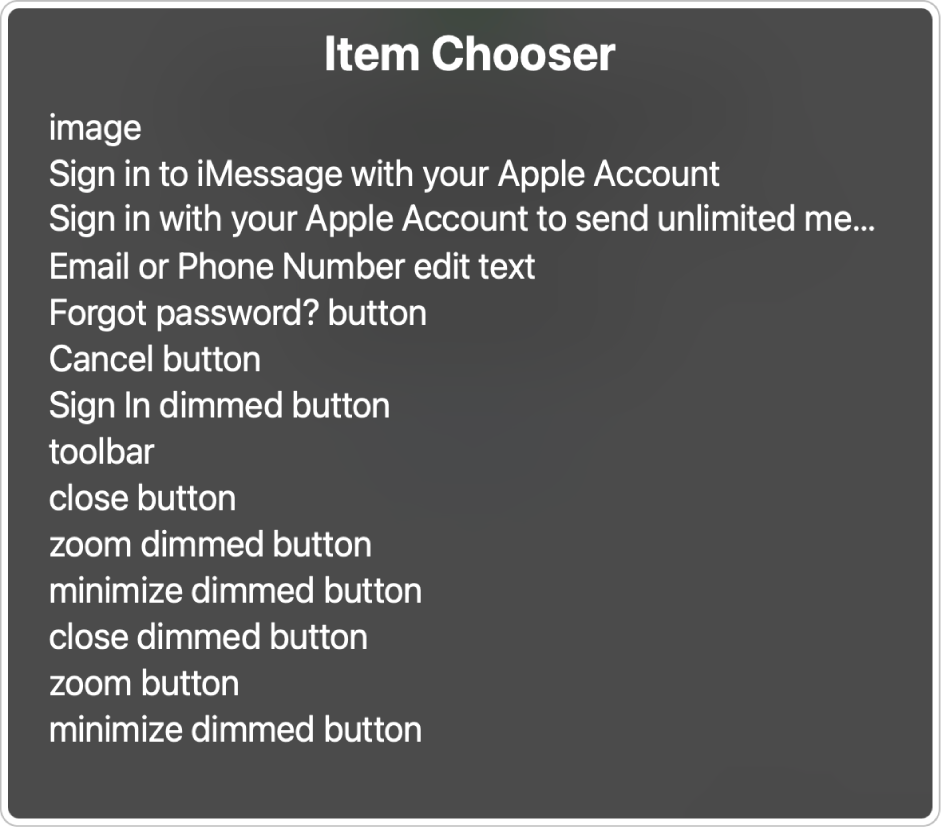
You can use the Item Chooser to quickly navigate to text, controls, links, or graphics on the screen.
Note: VO represents the VoiceOver modifier that you press with additional keys to enter VoiceOver commands. By default, you can press Control and Option together or just press Caps Lock.
To display the Item Chooser, press VO-I.
Navigate the items in the list using the Up Arrow or Down Arrow key.
If you know the name of an item, such as the Close button, start typing its name to narrow the list to only items that contain those letters. To list all the items again, press the Delete key.
If you don’t find the item you want, press the Escape key or Fn-Tab to exit the Item Chooser without making a selection.
When you’re ready, press Return or the Space bar to select an item and go to it.
The Item Chooser closes.
You can also use the VoiceOver rotor to quickly navigate to specific items in app windows and webpages. See Use the VoiceOver rotor.
Download this guide in Braille Ready Format: BRF (English)