Keynote User Guide for iPad
- Welcome
- What’s new
-
- Get started with Keynote
- Intro to images, charts, and other objects
- Create a presentation
- Choose how to navigate your presentation
- Open a presentation
- Save and name a presentation
- Find a presentation
- Print a presentation
- Customize the toolbar
- Copy text and objects between apps
- Use Apple Pencil with Keynote
- Create a presentation using VoiceOver
- Change Keynote privacy and analytics settings
-
- Send a presentation
- Intro to collaboration
- Invite others to collaborate
- Collaborate on a shared presentation
- See the latest activity in a shared presentation
- Change a shared presentation’s settings
- Stop sharing a presentation
- Shared folders and collaboration
- Use Box to collaborate
- Create an animated GIF
- Post your presentation in a blog
- Copyright

Use bidirectional text in Keynote on iPad
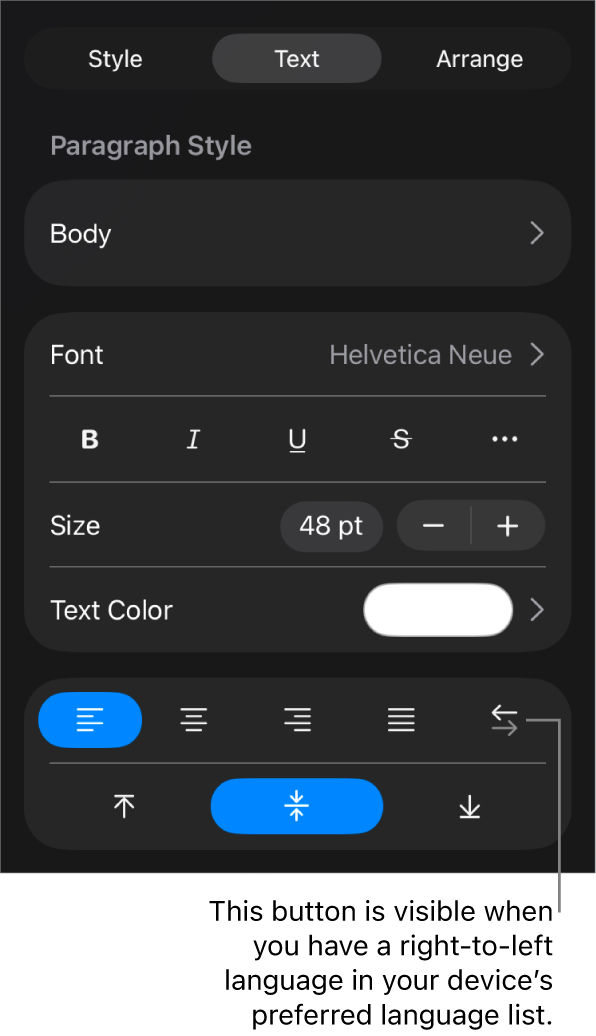
Keynote supports bidirectional text, so you can enter and edit text written from left to right (such as in English or Chinese) and from right to left (such as in Arabic or Hebrew) in the same presentation. To use bidirectional text, you must have at least one right-to-left language in your device’s preferred language list. To learn more, see Set up a keyboard or other input source for another language.
You can use any Keynote theme to create a bidirectional presentation, but to see themes designed specifically for another language, you must set the primary language of your device to that language. (Go to Settings  > General > Language & Region, then set the language.) When you create a new presentation, you see themes for that language.
Change paragraph direction
Go to the Keynote app
 on your iPad.
Open a presentation, then select text.
Tap
 , then tap Text (or Cell if the text is in a table).
Tap
 to the right of the alignment buttons.
The insertion point moves to the other side of the object, and the text direction changes.
Enter text, then tap Return at the end of the paragraph.
The next paragraph continues in the same direction. To change its direction, tap
.
If you select multiple paragraphs with different text directions and then tap , the paragraphs are formatted to match the first paragraph in the selection.
If you don’t see , you may not have a right-to-left language in your device’s preferred language list. To add a language to your preferred language list, go to Settings > General > Language & Region > Add Language, then select a language. You may need to quit and reopen Keynote to see the option to change paragraph directions.