Apple Vision Pro User Guide
- Welcome
-
- Change notification settings and device sounds
- Set the date, time, language, and region
- Change your device name
- Change the appearance of text and windows
- Unlock your iPhone with Apple Vision Pro
- See your keyboard, game controller, or iPhone while immersed
- See people around you while immersed
- Use Apple Vision Pro in Travel Mode
- Refresh apps in the background
- Set content restrictions in Screen Time
- Let others use your Apple Vision Pro
-
- Apple Music Classical
- Books
- Calendar
- Capture
- Clock
- Encounter Dinosaurs
- Home
- Maps
- Mindfulness
- News
- Numbers
- Pages
- Podcasts
- Reminders
- Shazam
- Shortcuts
- Spatial Gallery
- Stocks
- Tips
- Voice Memos
-
- Get started with Apple Intelligence
- Create original images with Image Playground
- Create your own emoji with Genmoji
- Use Image Wand
- Use Writing Tools to write, improve, and summarize content
- Use ChatGPT with Apple Intelligence
- Summarize notifications and reduce interruptions
- Apple Intelligence and privacy
- Turn off and restrict access to Apple Intelligence features
-
- Get started with accessibility features
- Turn on features with the Accessibility Shortcut
- Change Siri accessibility features
-
- Use AssistiveTouch
- Perform actions with sounds
- Perform actions with your eyes
- Perform actions with your voice
- Perform actions with face gestures
- Use Look to Drive
- Adjust settings for the Digital Crown
- Look up to open Control Center
- Use a pointer to navigate
- Control your device with an external keyboard
- Adjust AirPods settings
- Use Guided Access
- Copyright and trademarks
Use Environments on Apple Vision Pro
Environments let you transform your physical surroundings into a different place—like Yosemite, Mount Hood, or the Moon. You can use Environments while you’re using apps like Mail, Safari, and more.
Some apps also have exclusive Environments that are available only when using the app, such as a Conference Room for rehearsing a Keynote presentation.
Tip: You can use Siri with Environments. For example, say, “Siri, take me to the Moon.” See Use Siri with Environments.
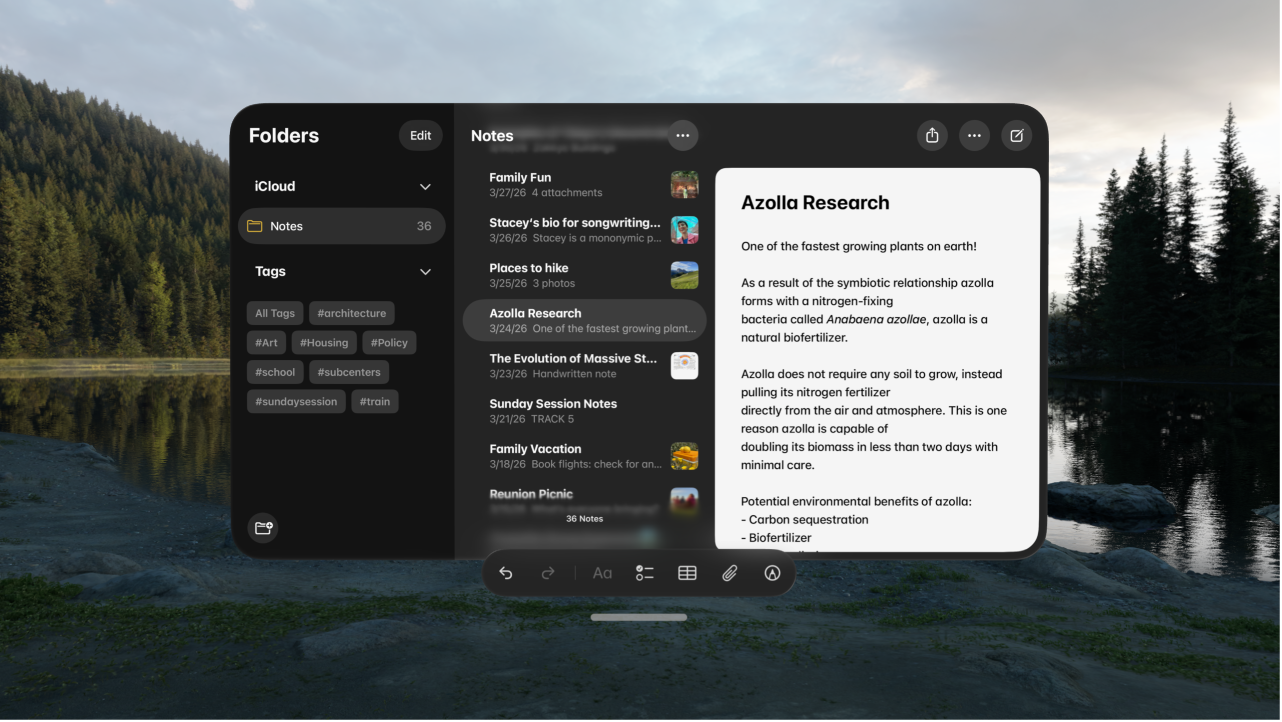
Choose an Environment
Tap an Environment (like White Sands, Yosemite, or Thórsmörk), or tap Seasons, then tap an option like Summer Light or Winter Light to subtly change the look of the room.
You might see and hear effects in Environments, like rain in Mount Hood. Some of these effects are only available if you don’t have apps open.

Create an Environment from a panorama
You can create your own Environment from a panorama in your photo library.
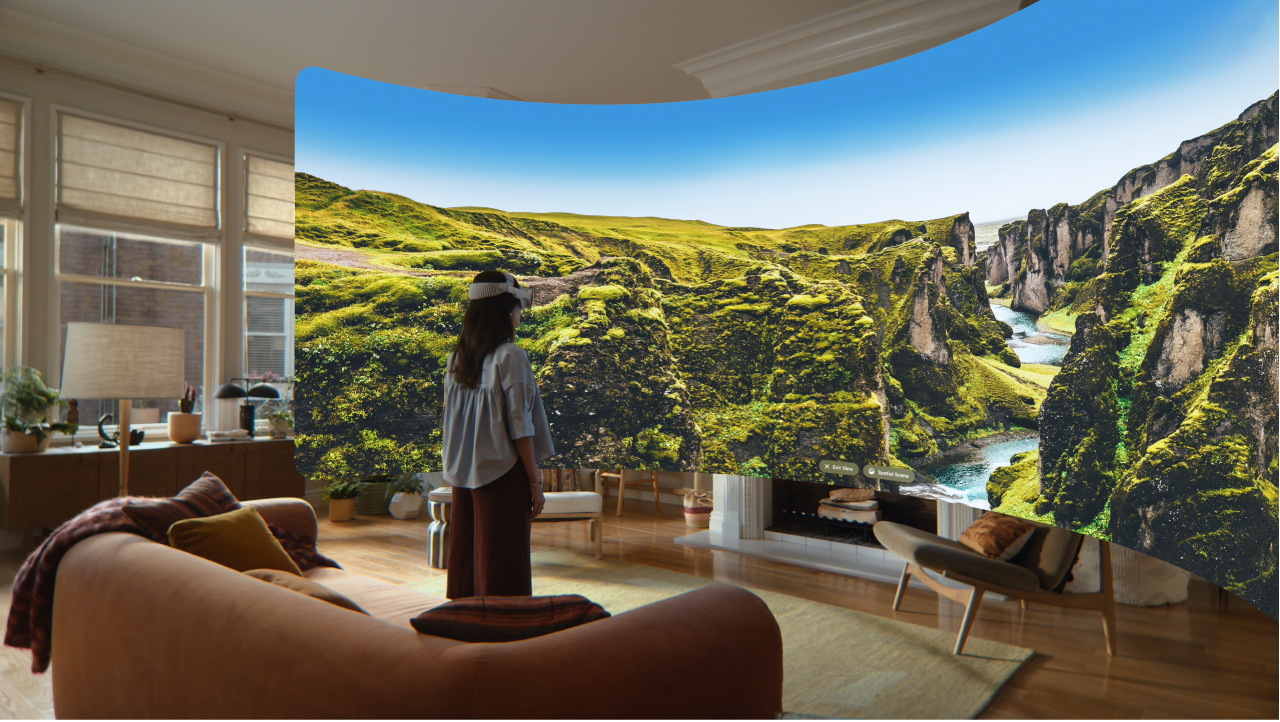
Tap My Environments, then tap Add Environment.
Tap a suggested panorama, or tap All to see all of your options, then tap the panorama you’d like to make into an Environment. It automatically becomes a spatial scene, giving it a lifelike sense of depth as you look around.
Environments you create are added to the My Environments folder. To delete an Environment you’ve created, pinch and hold the Environment, then tap


Change the appearance or volume of your Environment
You can choose a light or dark appearance for your Environment, or change the volume of the Environment sounds.
Note: These options don’t apply to the Seasons Environments or any panorama Environments you’ve created.
Open Control Center, then adjust any of the following Environment controls:
Adjust the immersion: Pinch and drag the immersion slider.
Adjust the volume of Environment sounds: Pinch and drag the volume slider.
Set the appearance: Tap
 to switch between Light and Dark.
You can set a default appearance for your Environments in the Settings app  . Tap Environments, tap Appearance, then choose Automatic, Light, or Dark.
Explore Jupiter
The Jupiter Environment has additional options to adjust the look and feel of your surroundings.
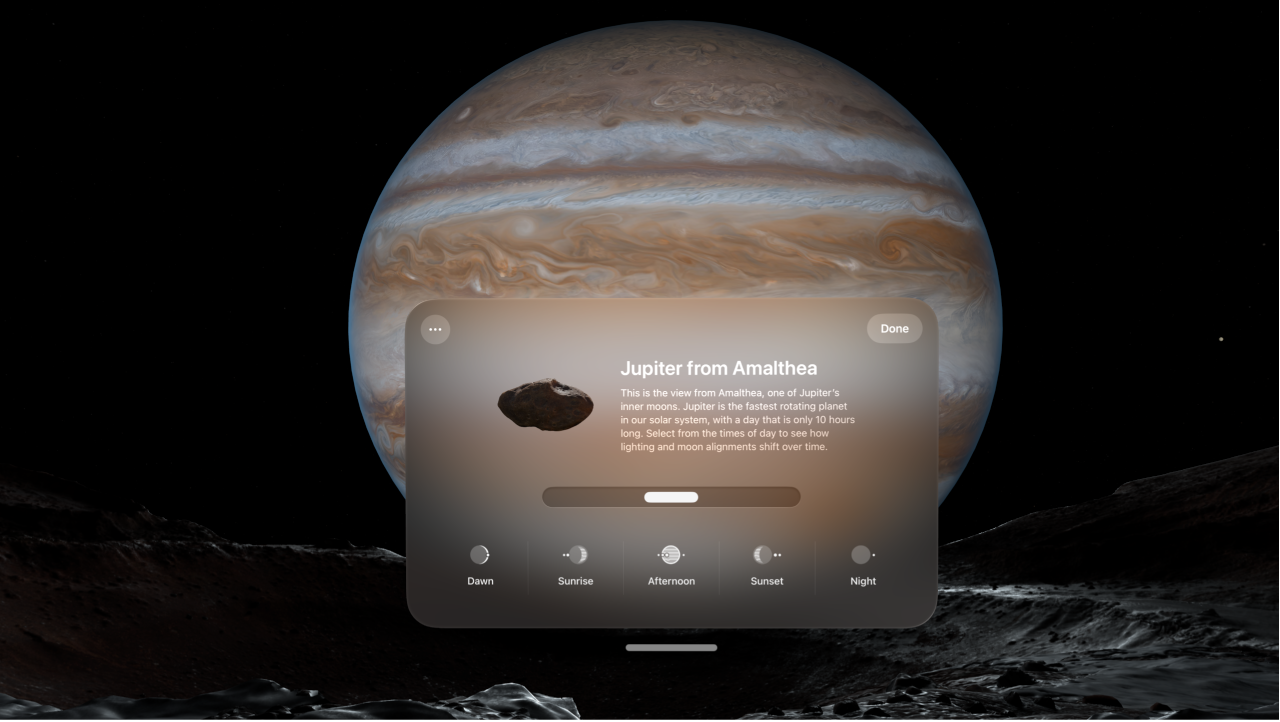
In Home View, tap Environments

While in the Jupiter Environment, open Control Center, tap Jupiter, then tap Explore Jupiter.
A window with more information about your view of Jupiter appears.
Do any of the following:
Change the time of day: Pinch and drag the slider, or tap a time of day at the bottom of the window.
Change the orbit speed around Jupiter: Tap

Tap Done.

Choose whether you want Environments to update automatically
Go to the Settings app
, then tap Environments.Turn Automatic Updates on or off.
You can also share an Environment during a FaceTime call. See Share an Environment.