
Search for emails in Mail on Mac
You can search, sort, or filter your emails to easily find a message.
Tip: To quickly find travel booking confirmations, enter the three-letter airport code of the city.

Search for emails
You can search for email messages in any or all mailboxes. Top Hits is listed first in the results, and reflects messages you’ve read and replied to recently, your VIP senders and contacts, and other factors.
Go to the Mail app
on your Mac.In the Mail toolbar, start typing a phrase in the search field (if it’s not shown, click
 in the toolbar), then choose a Mail suggestion.
Mail creates a search filter in the search field and lists the matching messages it found.
If there are no results in the current mailbox, click “Search all mailboxes” below the search field.
Refine the results in any of these ways:
Change search filters: If a search filter contains a down arrow, you can click it to change the filter. For example, you can change a search filter to search for messages to or from a certain person, or search subject lines or entire messages.
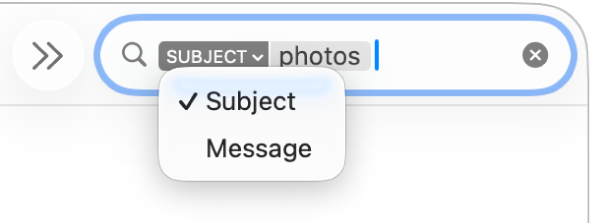
Use multiple search filters: Place the pointer after the first search filter, start typing search text, then choose a suggestion. Repeat as needed; the search field scrolls as you add more search filters.
Mail looks for messages that match all of the search filters; the more you use, the more focused the search. If you don’t get expected results, remove some of the search filters.
Search message headers: Type the name of a message header field, followed by a colon and the value you’re searching for—for example, “from: Ashley Rico” or “priority: high”—then choose a suggestion.
Search a timeframe or range of dates: Type a date range, such as “04/02/23 to 04/19/23.”
Search by email attributes: Type “flag” and select “Message is flagged” to find all flagged emails. Type “unread” and select “Message is unread” to find all unread emails. Type “attachment” and select “Message with attachments” to find all emails with attachments.
Search using AND, OR, NOT (Boolean operators): Type your search text using the operators (in uppercase).
For example, to search for messages that contain “yellowstone” and “cascades” but not “teton,” type “yellowstone AND cascades NOT teton” or “cascade AND yellowstone -teton.”
Search different mailboxes: Select one or more mailboxes in the Mail sidebar or the Favorites bar.
When you’re done, click
 in the search field.
Sort emails
You can sort email messages in the message list—for example, by person or date— so it’s easier to find messages.
Go to the Mail app
on your Mac.Choose View > Sort By, then choose an attribute, such as From or Size, and a sort order.
Set filters
You can use filters to show only certain email messages in a mailbox, such as those with attachments.

Go to the Mail app
on your Mac.Choose View > Filter, or click and hold
 .
.Do one of the following:
Set a filter: Choose a filter (such as Only from VIP) from the menu. A checkmark appears next to the filter.
If you use more than one email account in Mail, you can filter a mailbox by account—for example, you can filter the Inbox for just your iCloud account to show unread messages.
Remove a filter: Choose an active filter from the menu. The checkmark next to the filter is removed.
Turn filters on
Go to the Mail app
on your Mac.Click the Filter button
at the top of the message list, or choose View > Filter > Enable Message Filter. You can also click and hold , then choose Enable Message Filter from the menu that appears.The Filter button changes color
 to indicate that the default filter (Unread) or filters you previously set are applied to the current mailbox. The filters are shown in the toolbar above the message list.
If Apple Intelligence* is turned on, you can use Priority Messages to quickly view your most urgent emails. See Use Apple Intelligence in Mail.