
Add clips to your movie in iMovie on Mac
You build a movie by adding clips to it from your events.
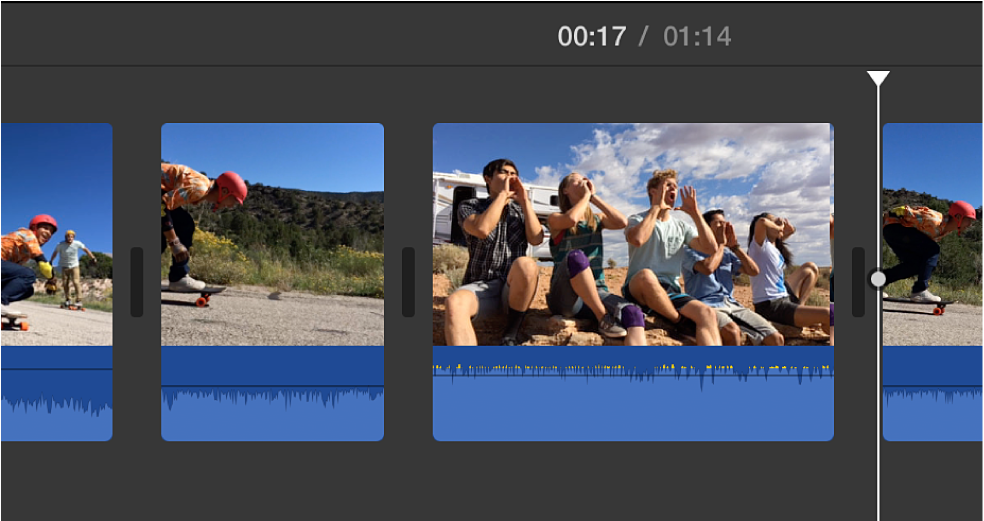
Drag a clip to the timeline
In the iMovie app
 on your Mac, select an event in the Libraries list containing footage you want to add to your movie.
Event clips appear in the browser to the right of the Libraries list.
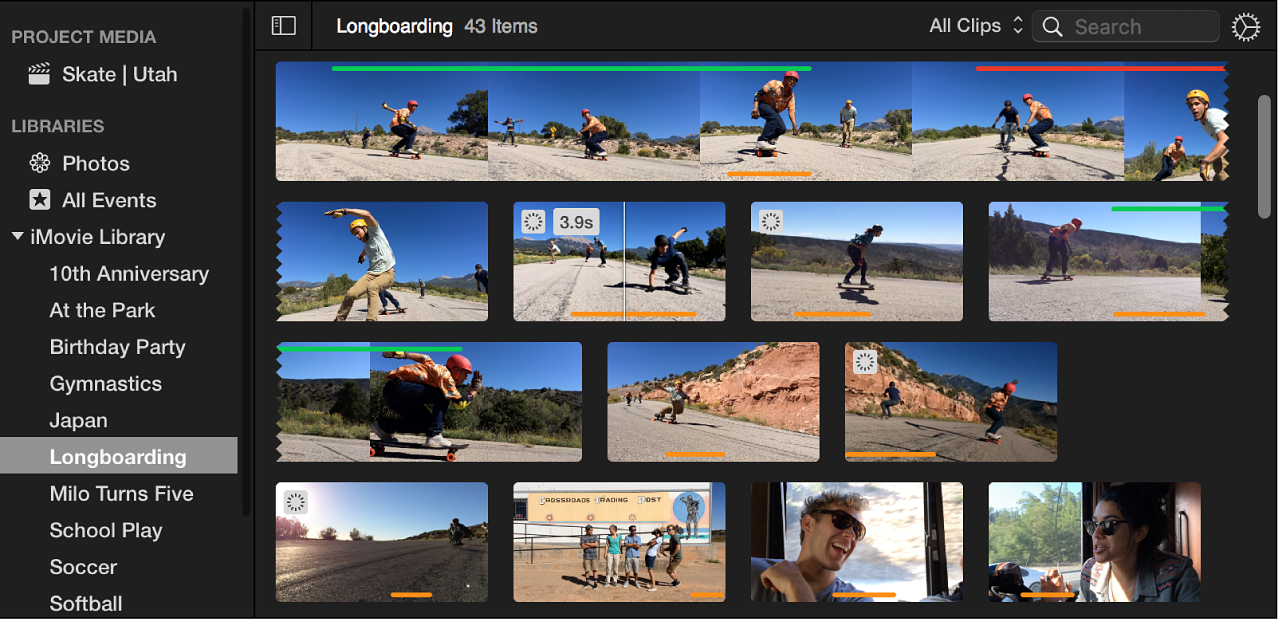
Drag a clip from the browser to the timeline.
To split a clip in your movie and insert the video between the two segments, drag the clip on top of an existing clip in the timeline, and choose Insert from the menu that appears.
Drag part of a clip to the timeline
In the iMovie app
on your Mac, select an event in the Libraries list containing footage you want to add to your movie.Event clips appear in the browser to the right of the Libraries list.
Press and hold the R key, and drag across a clip to select the range you want.
Drag the selected range to the timeline.
To split a clip in your movie and insert the video between the two segments, drag the selection on top of an existing clip in the timeline, and choose Insert from the menu that appears.
Add a clip to the end of your movie
In the iMovie app
on your Mac, select an event in the Libraries list containing footage you want to add to your movie.Event clips appear in the browser to the right of the Libraries list.
In the browser, do one of the following:
Select part of a clip: Press and hold the R key while dragging across the part of the clip you want to select.
Select an entire clip: Click the clip.
Do one of the following:
Choose Edit > Add to Movie.
Click the Add button (+) that appears on the clip in the browser.
The selection is added to the movie at the end of the timeline.
Replace a clip in the timeline
In the iMovie app
on your Mac, select an event in the Libraries list containing footage you want to add to your movie.Event clips appear in the browser to the right of the Libraries list.
In the browser, do one of the following:
Select part of a clip: Press and hold the R key while dragging across the part of the clip you want to select.
Select an entire clip: Click the clip.
Drag your selection on top of the clip you want to replace in the timeline.
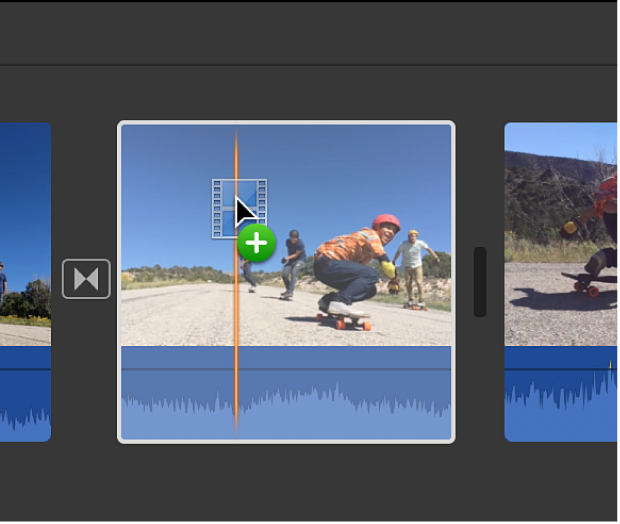
In the menu that appears, do one of the following:
Replace the clip, keeping the new clip’s duration: Choose Replace.
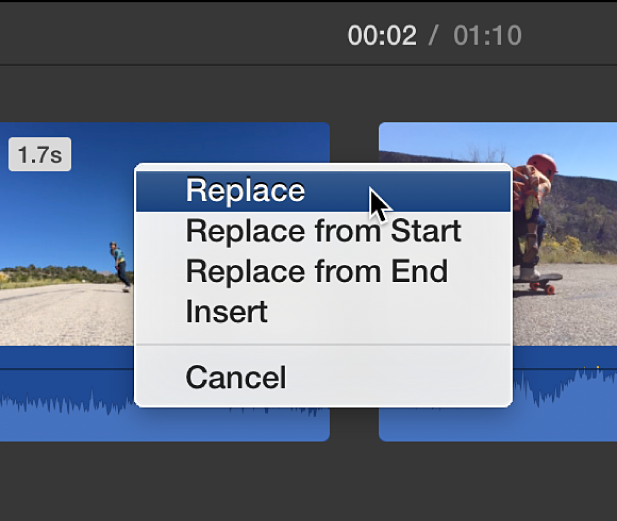
Replace the clip, keeping the original clip’s duration and using the new clip’s start point as the beginning: Choose Replace from Start.
Replace the clip, keeping the original clip’s duration and using the new clip’s end point as the end: Choose Replace from End.
Insert a clip in the timeline
In the iMovie app
on your Mac, select an event in the Libraries list containing footage you want to add to your movie.Event clips appear in the browser to the right of the Libraries list.
In the timeline, position the playhead where you want to insert the clip.
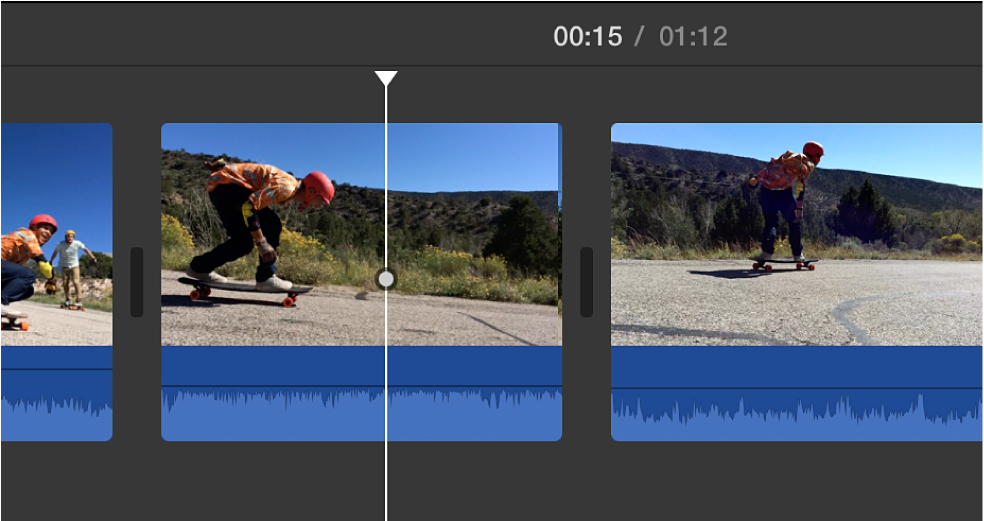
In the browser, do one of the following:
Select part of a clip: Press and hold the R key while dragging across the part of the clip you want to select.
Select an entire clip: Click the clip.
Choose Edit > Insert.
If the playhead is positioned on top of a clip, the clip in the timeline is split into two segments, and the new clip is inserted between the two segments.
Video that’s been added to a project is marked along the bottom with an orange stripe in the browser, so you can see at a glance which video you’ve used. You can add the same video to as many projects as you like.
Important: If you add 4:3 standard-definition video to a 16:9 high-definition project, iMovie automatically crops the video to fit the full 16:9 frame. To show the full 4:3 frame, see “Restore a clip’s original aspect ratio” in Crop clips in iMovie on Mac.