Work with projects in iMovie on Mac
You can browse, search, and open your movie and trailer projects in Projects view.
Browse, filter, and search for projects
In the iMovie app
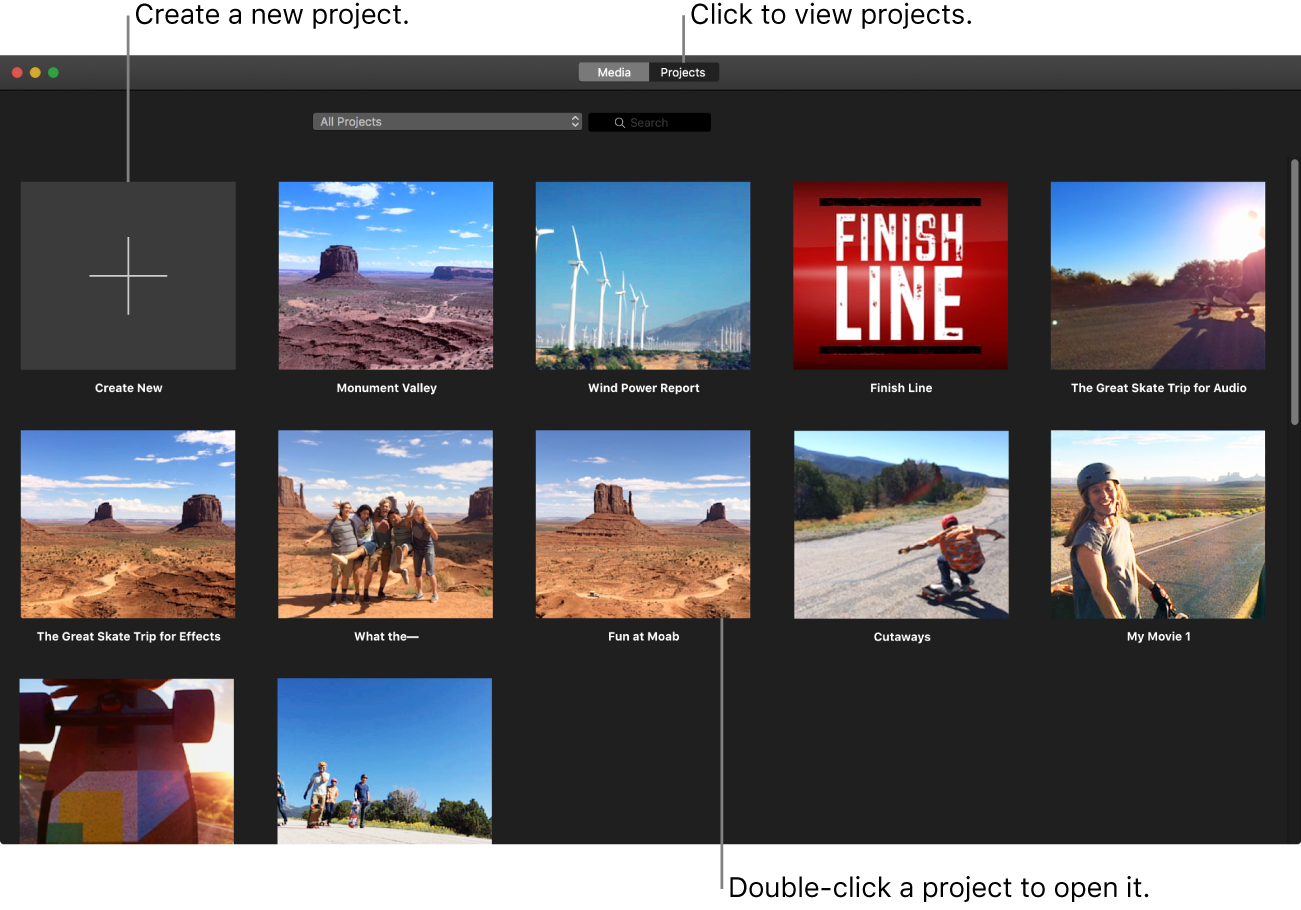
 on your Mac, open Projects view by clicking the Projects button in the toolbar.
If you’re editing a project, click the Projects back button on the left side of the toolbar.

In the search field, type part or all of a project name you want to search for.
Projects view displays the projects whose names match the text you typed. To display all projects again, clear the search field.

Do any of the following:
Display projects from a different library: Click the Library pop-up menu and choose a library.
Display projects in all open libraries: Click the Library pop-up menu and choose All Projects.
Display recently modified projects: Click the Library pop-up menu and choose an option.
Open a project for editing
In the iMovie app
on your Mac, double-click a project in Projects view.The project opens in the timeline. To return to Projects view, click the Projects back button on the left side of the toolbar.
Browse project media
You can browse video clips and photos used in the project you’re editing in the timeline. When you open a project, a Project Media section appears above the Libraries list. When you select the project name below Project Media, all the media in the open project appears in the browser. The same media also appears in the iMovie library; you can click the iMovie library to see the media in context.
In the iMovie app
on your Mac, double-click a project in Projects view to open it in the timeline.Select the project name below Project Media in the sidebar.
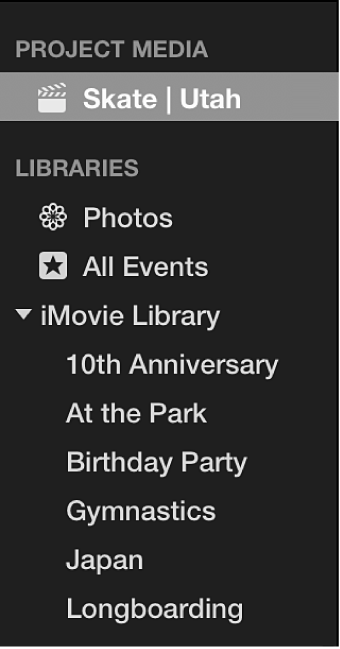
The clips used in the project appear in the browser.
Manage projects
In the iMovie app
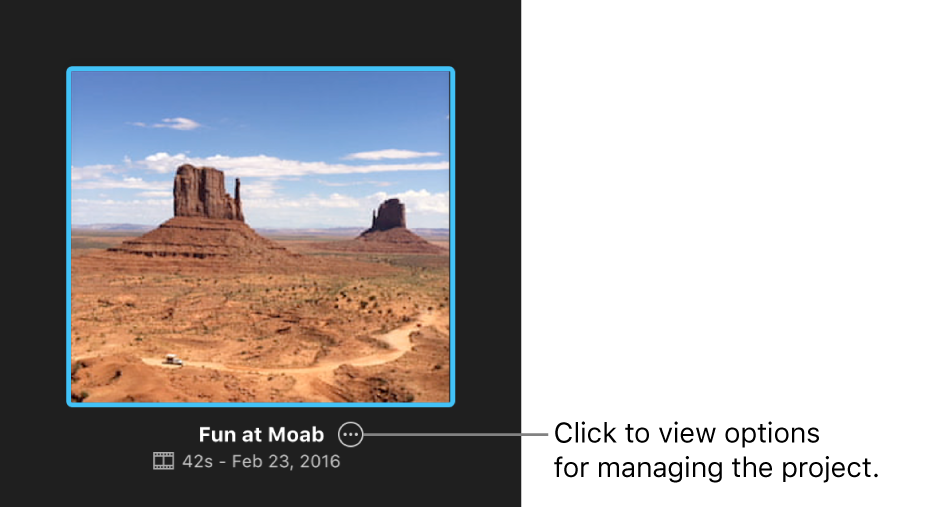
on your Mac, open Projects view, and then click the project you want to manage.Click the button to the right of the name of the project you want to manage, then do one of the following:
Play the project: Choose Play.
Open the project: Choose Open Project.
Share the project: Choose Share Project, then choose how you want to share the project.
Copy the project to another library: Choose Copy to Library, then choose the name of a library.
Move the project to another library: Choose Move to Library, then choose the name of a library.
Convert a trailer project to a movie project: Choose Convert Trailer to Movie.
Rename the project: Choose Rename Project, and then type a new name.
Duplicate the project: Choose Duplicate Project.
Delete the project: Choose Delete Project.
Note: If you delete a project that contains media, a new event with the same name as your project is created in the currently open library, containing the media from that project.