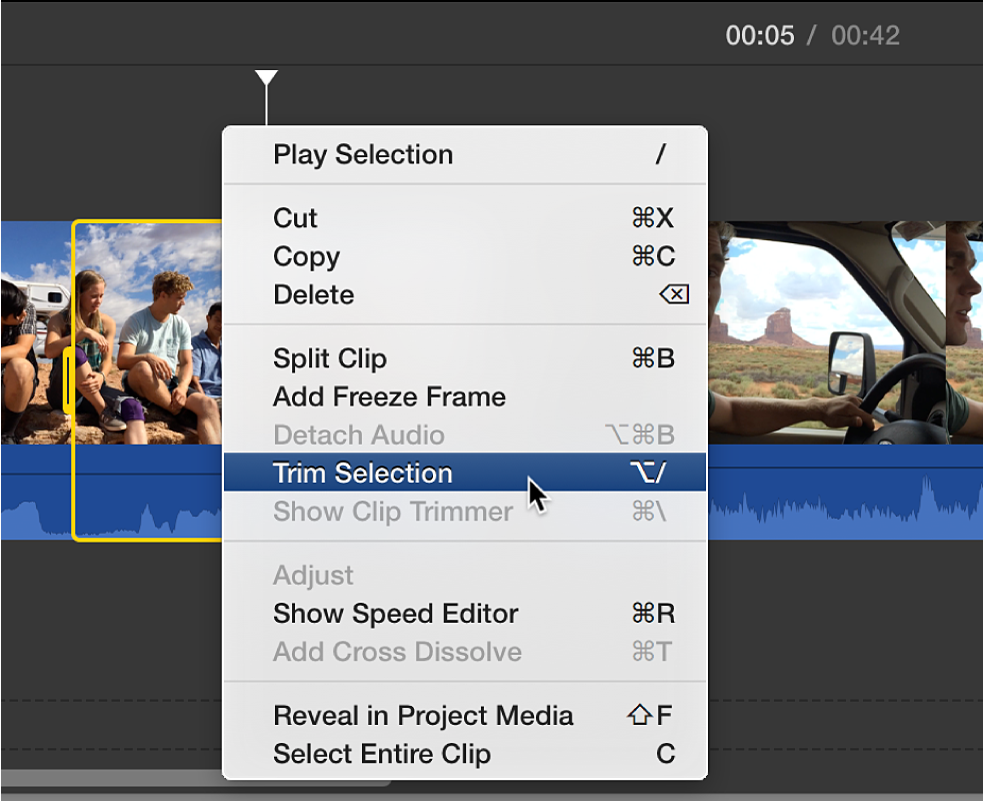
Trim clips in iMovie on Mac
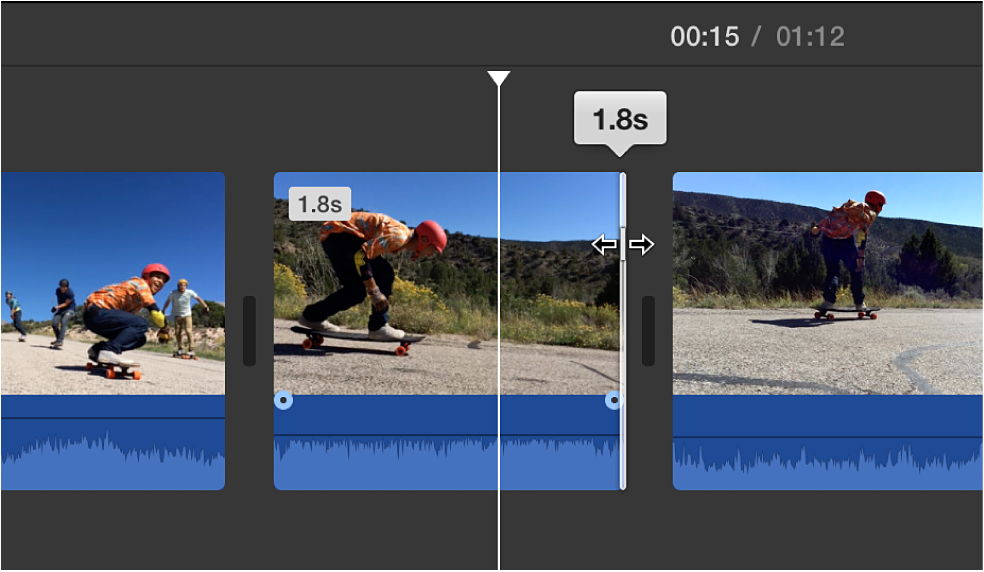
You can fine-tune the duration of a clip in your movie by moving the clip’s start point or end point, or by changing the duration of a range selection. Fine-tuning start and end points and changing clip durations is called trimming.
Extend or shorten a clip in the timeline by dragging
In the iMovie app
 on your Mac, skim to the beginning or end of a clip in the timeline that you want to extend or shorten.
Do one of the following:
Extend the clip: Drag the edge of the clip away from its center.
To extend a clip, there must be unused portions of the clip available.
Shorten the clip: Drag the edge of the clip toward its center.
Add or remove frames with the clip trimmer
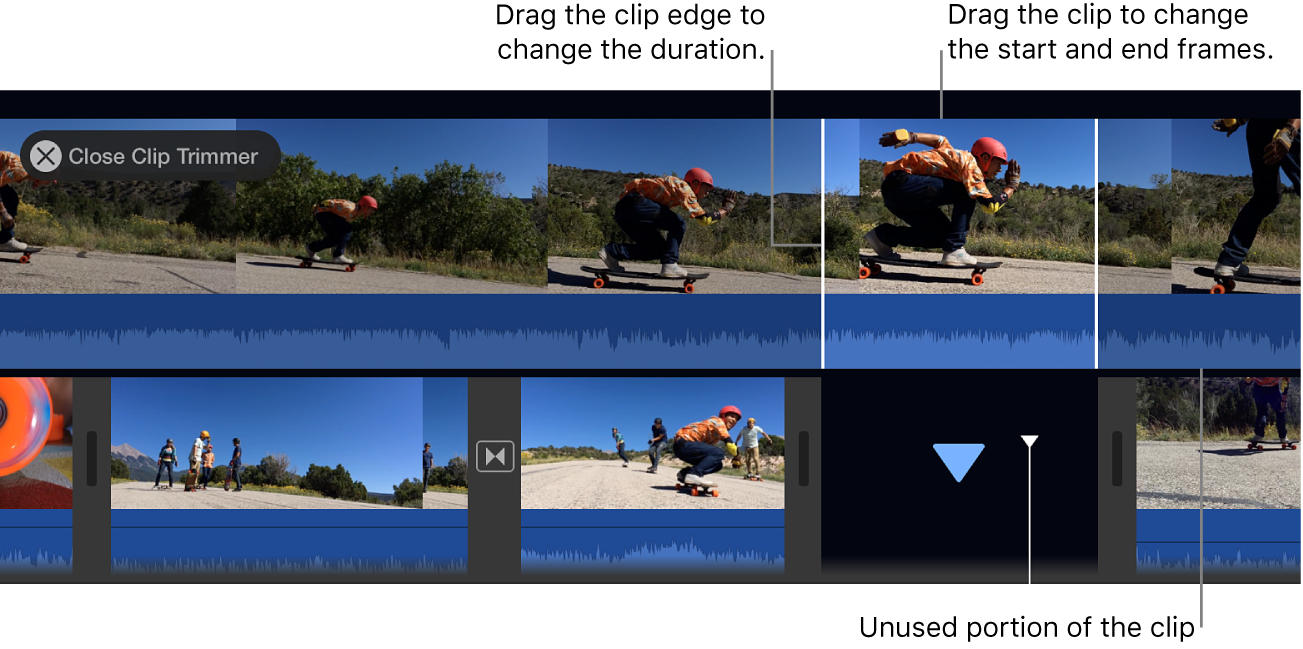
You can use the clip trimmer to add more frames to a clip or remove unwanted frames from a clip. You can also see how much of your clip is being used.
In the iMovie app
on your Mac, select a clip in the timeline that you want to trim.Choose Window > Show Clip Trimmer.
The clip trimmer appears over the timeline.
Do one of the following:
Extend the clip: Drag the edge of the clip away from its center.
Shorten the clip: Drag the edge of the clip toward its center.
Keep the length of the clip the same but change the start and end frames: Drag the clip from its center, and then move it left or right.
Press Return to close the clip trimmer.
Fine-tune start and end points and create split edits with the precision editor
You can use the precision editor to fine-tune when your clips begin and end, as well as the duration of transitions between clips. You can also use the precision editor to extend the audio in a clip beyond the boundaries of the video—for example, when you want the audio from an outgoing clip to continue during the next video clip, or when you want the audio from an incoming clip to start before the video. Edits in which a clip’s audio and video have different start or end points are called split edits.
In the iMovie app
on your Mac, do one of the following:Double-click the edge of a clip in the timeline.
Select the left or right edge of a clip in the timeline, and choose Window > Show Precision Editor.
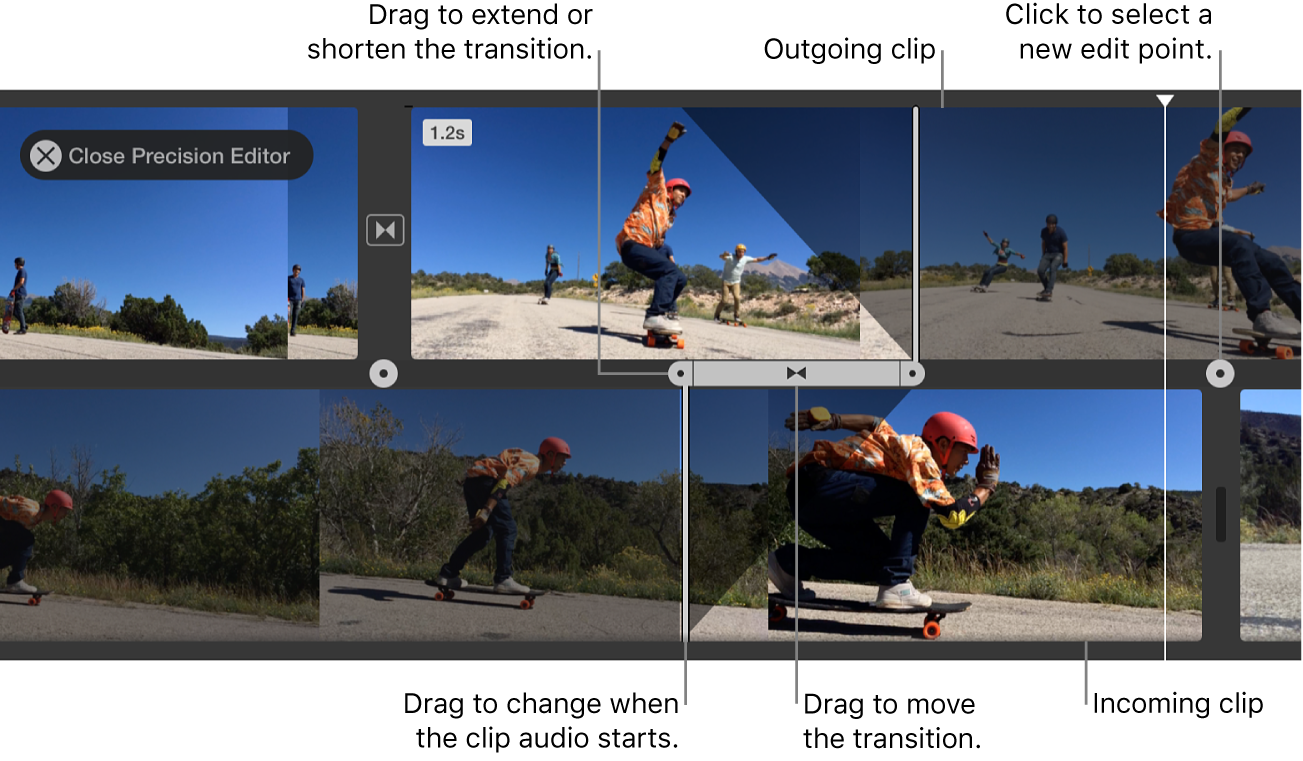
The precision editor appears, presenting an expanded view of your outgoing and incoming clips. The edit point—where the outgoing clip is replaced by the incoming clip—is represented by a gray vertical line in the center of the precision editor. The outgoing clip and the clips before it appear at the top of the precision editor, and the incoming clip and the clips after it appear below.
The dimmed portions of clips to the right and left of the edit line are the unused portions of the clips that are available for trimming. You can skim these areas to help you decide where to trim.
If the selected edit point has a transition attached to it, the duration of the transition is indicated by diagonal lines and a transition bar with handles.
To move the edit point, drag the edit line in the center of the precision editor, or drag either clip to extend or shorten its duration.
To modify a transition, do one of the following:
Shorten the duration of the transition: Drag the incoming transition handle to the right, or drag the outgoing transition handle to the left.
Lengthen the duration of the transition: Drag the incoming transition handle to the left, or drag the outgoing transition handle to the right.
To move an audio edit point, move the pointer to the blue waveform below the outgoing or incoming clip, and drag the audio edit point.
Note: To move an audio edit point, you must turn on Show Waveforms in the timeline. If your video and audio clips don’t appear with audio waveforms, click Settings in the upper-right corner of the timeline, and select the Show Waveforms checkbox.
When you’ve finished moving the clips, edit points, or transition handles, press Return to close the precision editor.
Tip: To select a different edit point in the precision editor, click one of the dots on the border between the ingoing and outgoing clips.