
Reset login passwords on Mac
Overview
There are multiple methods for resetting a forgotten login password on a Mac, depending on the account type and system setup. If the user has an Apple Account linked, they may be able to reset the password using that. For local accounts, options like using another administrator account or macOS Recovery might be needed.
Understanding methods like the following helps you quickly restore user access while maintaining system security:
Using another administrator account: To reset a user’s password on a Mac, log in with an administrator account first. Then choose Apple menu > System Settings, click Users & Groups in the sidebar, and locate the account. Select the user, and click Reset Password to create a new one.
Using an Apple Account: The login window might offer an Apple Account reset option. If it does, have the user click the reset option. They can then follow the onscreen instructions to create a new password. This method lets the user regain access without help from an administrator.
Using macOS Recovery (for administrator or FileVault users): If other password reset methods aren’t available, you can use macOS Recovery to reset a forgotten password. On a Mac, choose Apple menu > Shut Down. Start up the Mac by pressing and holding the power button until “Loading startup options” appears. Select the Options icon, then click Continue to start in macOS Recovery.
Using a FileVault recovery key: If FileVault is turned on, the user can reset their login password using their FileVault recovery key. This key is generated when FileVault is first turned on and needs to be stored in a safe place. To reset the password, the user starts in the login window and follows the onscreen instructions. If asked, they enter the recovery key. Entering the recovery key with Option-Shift-Return in the login window unlocks the disk, but it doesn’t reset the password. After the disk unlocks, an administrator can log in and reset the user’s password in Users & Groups settings. See Manage FileVault. It’s important to remind users to securely store their recovery key, because losing it can result in permanent data loss. Storing the FileVault recovery key with a device management service is a common best practice in managed environments. This ensures recovery keys aren’t lost and allows secure support for password resets, while still keeping the data protected.
If a user forgot their password to log in to their Mac user account, or the password doesn’t work, you can help the user try these steps to reset their password.
Important: Make sure FileVault is turned on. To check, choose Apple menu > System Settings, click Privacy & Security in the sidebar, then click FileVault. Keep the recovery key somewhere safe and away from the Mac. The key might also be in the Passwords app. See Manage FileVault.
Restart Mac
Every Mac has a power button. On a Mac laptop with Touch ID, press and hold the Touch ID button.
Restart the Mac. If no option to restart appears, press and hold the Mac power button for up to 10 seconds, until it turns off. Then turn it on again.
Enter the password of the Mac user account
When the Mac starts up and shows the login window, enter the password for the Mac user account. (This is the login password, not the password of the Apple Account.)
Use the correct uppercase or lowercase characters in the password. If the keyboard has Caps Lock turned on, the password field shows a Caps Lock symbol.
Check the Input menu in the corner of the login window to be sure that the keyboard is set for the correct language.
If the login password still doesn’t work, continue to the next steps.
Use the reset options in the login window
If a question mark appears next to the password field, have the user click it. A message appears with options to reset the password, such as with their Apple Account or FileVault recovery key.
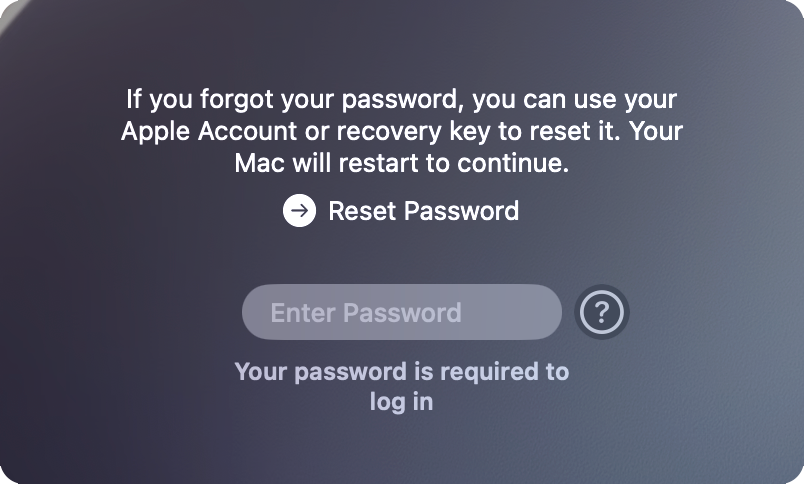
If a reset message doesn’t appear, check again after entering a password up to three times, then follow the steps below, depending on what appears: a reset message, a message that the account is locked, or no message.
If a reset message appears
If the login window shows a reset message, click the reset option to begin the reset process. The Mac restarts to continue.
Follow the onscreen instructions, which vary based on the Mac setup:
If asked to select a volume to recover, select the startup disk, such as Macintosh HD.
If asked to select a user with a known password, click “Forgot all passwords?”
If asked to enter the FileVault recovery key, enter the 24-character key. If the user doesn’t have it, check the Passwords app or the organization’s device management service.
If asked to select a user to reset the password for, select the user’s account.
If asked to deactivate the Mac, click Deactivate Mac, then click Deactivate. This is temporary, but the Mac needs an internet connection to reactivate.
If asked to create a new keychain to store the user’s passwords, allow Mac to create a new keychain.
After the user provides the information requested, they’re asked to create a new password for the account. They can then restart the Mac and log in with the new password.
If the user couldn’t use these steps to reset their password, skip to “Use the reset options in Recovery”.
Use an Apple Account to reset a local Mac user’s password
The login window might offer an option to reset the password with the user’s Apple Account. If it does, have the user click the reset option. Then they follow the onscreen instructions to sign in and create a new password. If asked, they enter the verification code from a trusted device or trusted phone number.
If a message that the account is locked appears
If the account becomes locked after repeated login attempts, wait until the stated time has elapsed, then restart the Mac and try again. If that doesn’t help, skip to “Use the reset options in Recovery.”
If no message appears
If a reset message doesn’t appear in the login window after entering a password up to three times, restart the Mac and try again. If that doesn’t help, continue to “Use the reset options in Recovery.”
Use the reset options in Recovery
If the user couldn’t reset their password using the reset options in the login window:
Start up from macOS Recovery.
While starting up from Recovery, you’re asked to select a user you know the password for. Click “Forgot all passwords?”
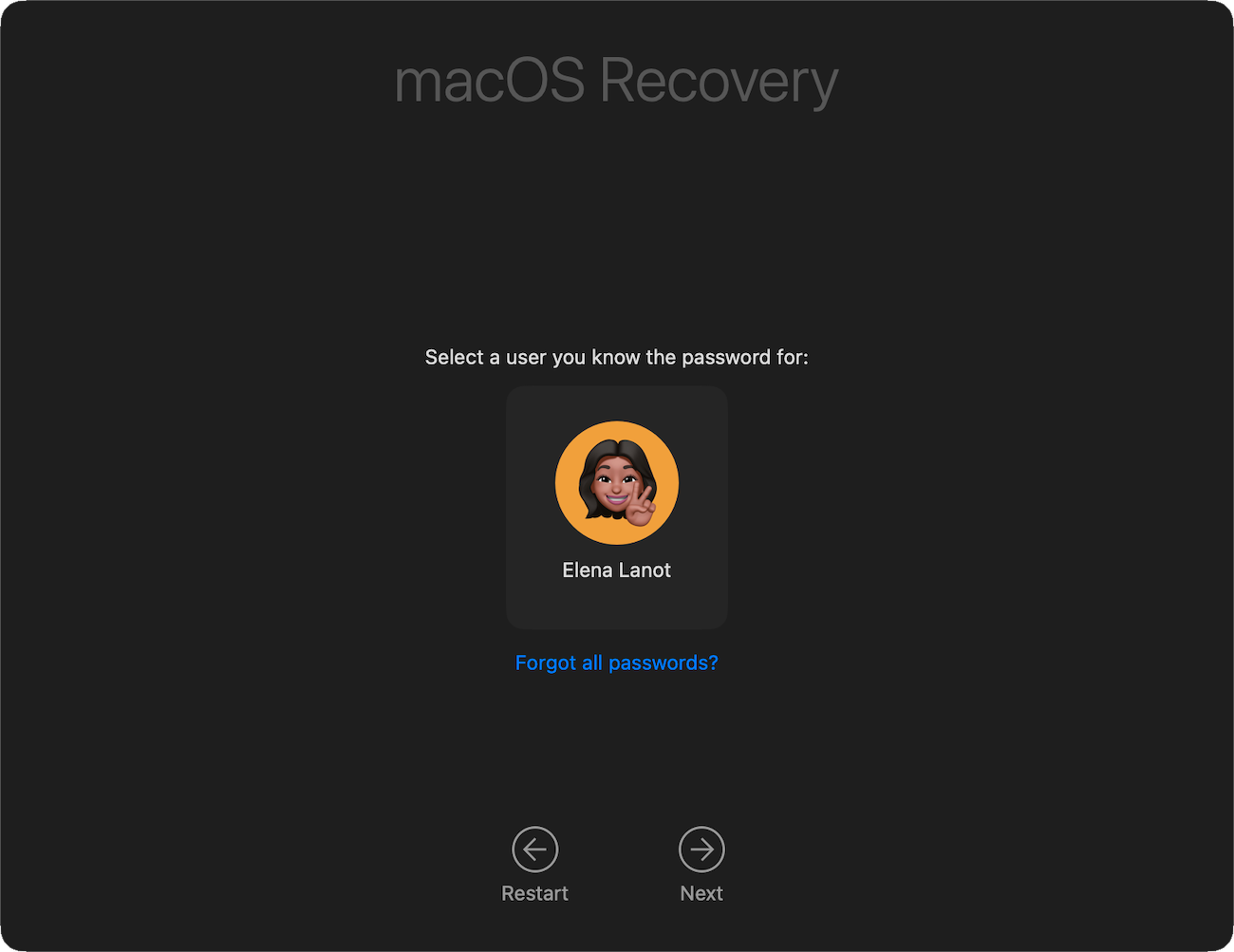
Follow the onscreen instructions, which vary based on the Mac setup.
After you provide the information requested, the user is asked to create a new password for their account. When done, click Exit to Recovery, restart the Mac, and have the user log in with the new password.
If you couldn’t use these steps to reset the password, follow the next steps while still in Recovery. You’re in Recovery when options to restore from Time Machine, reinstall macOS, and more appear.
Additional options in Recovery
There are additional options when using Recovery, as shown in the screenshot below:
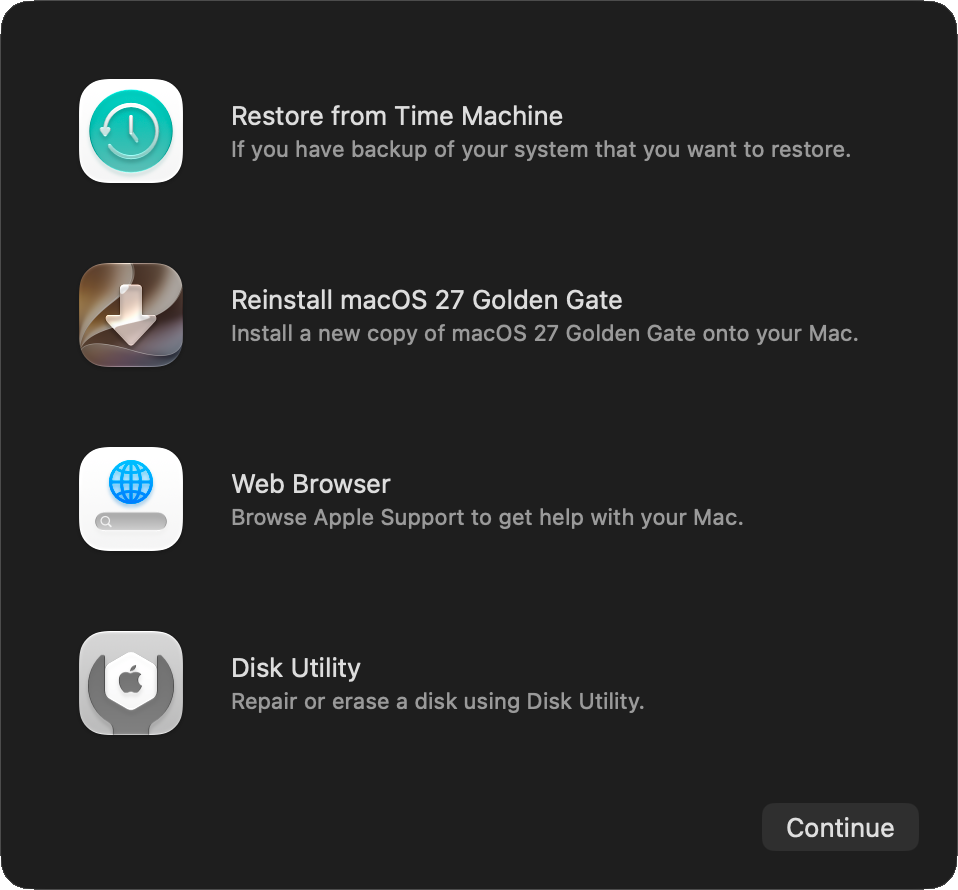
Before exiting to Recovery, if the user was asked to reset their password, they can now choose Apple menu > Restart, then log in with their new password. If they weren’t asked to reset their password, continue to the next step while still in Recovery.
In the Recovery app, choose Utilities > Terminal.
In the Terminal window that opens, type
resetpassword, then press Return: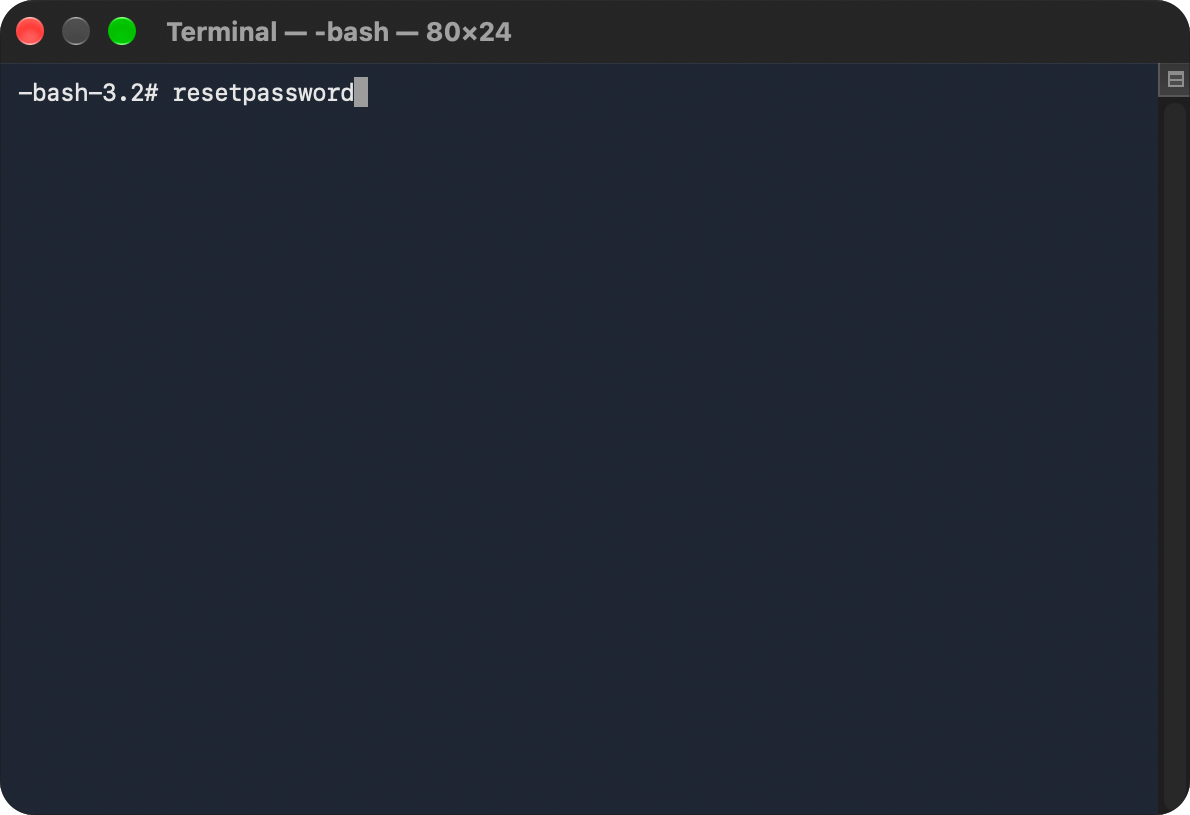
In the window that opens, choose a reset option, such as “I forgot my password” or “My password doesn’t work when logging in,” then click Next, and follow the onscreen instructions.
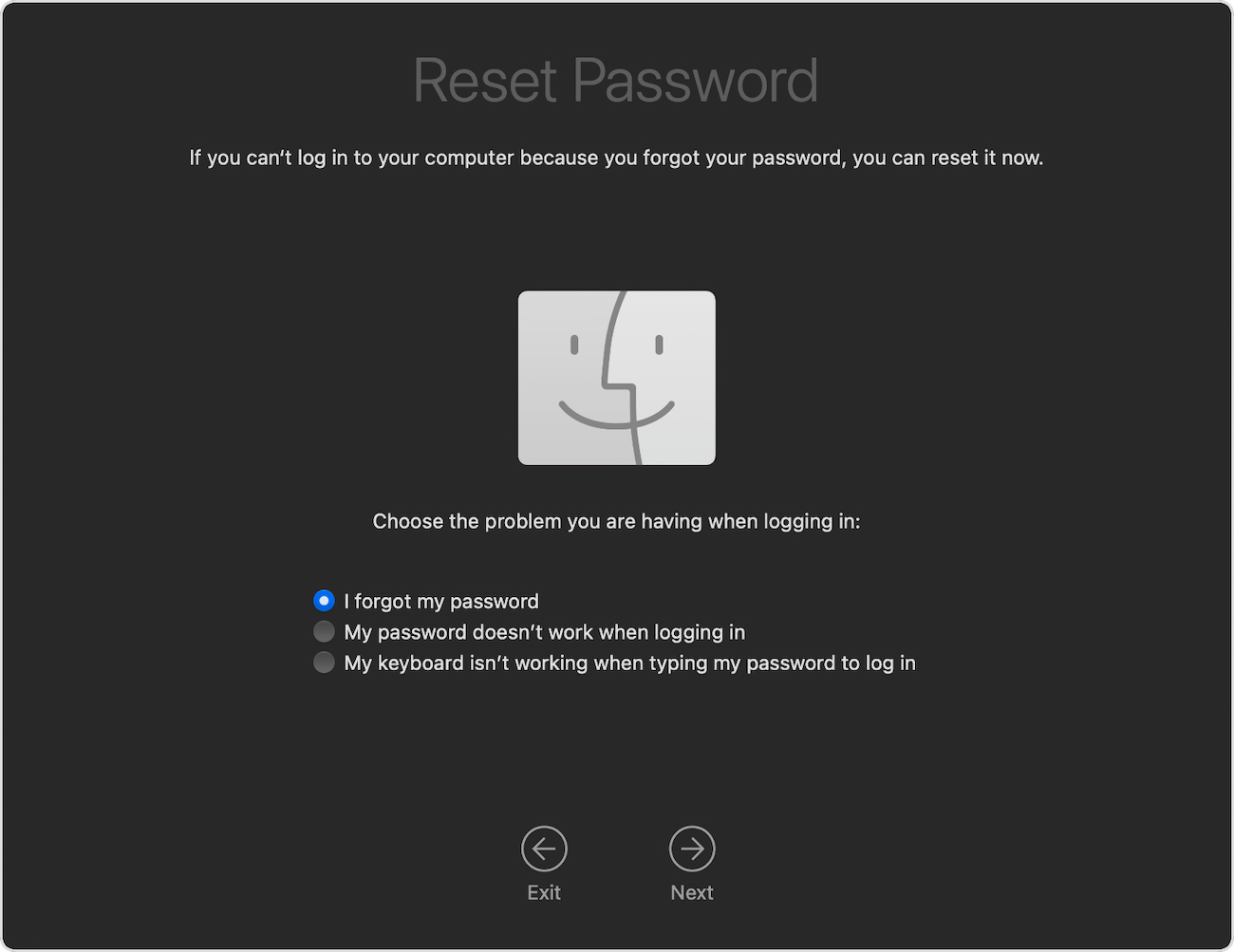
After the user provides the information requested, they’re asked to create a new password for their account. When done, click Exit to Recovery, restart the Mac, and have the user log in with the new password.
If the user couldn’t use these steps to reset their password, continue to the next section.
If the user can’t reset their login password
If no other solution works, you can regain access to Mac by erasing it. This permanently removes each user account, its password, and its data from Mac.
Shut down Mac, then start up from macOS Recovery again. When the user is asked to select a user they know the password for, have them choose Recovery Assistant > Erase Mac from the menu bar at the top of the screen.
In the window that opens, click Erase Mac, then click Erase Mac to confirm.
After Mac is erased, it automatically restarts.
If Mac starts up to a question mark, turn it off, start up from macOS Recovery again, then reinstall macOS from Recovery.
If Mac starts up to an Activate Mac window, choose a Wi-Fi network and enter the Apple Account information (not the login information) when asked. After Mac activates, click Exit to Recovery, then reinstall macOS from Recovery.