Apple Vision Pro User Guide
- Welcome
-
- Change notification settings and device sounds
- Set the date, time, language, and region
- Change your device name
- Change the appearance of text and windows
- Unlock your iPhone with Apple Vision Pro
- See your keyboard, game controller, or iPhone while immersed
- See people around you while immersed
- Use Apple Vision Pro in Travel Mode
- Refresh apps in the background
- Set content restrictions in Screen Time
- Let others use your Apple Vision Pro
-
- Apple Music Classical
- Books
- Calendar
- Capture
- Clock
- Encounter Dinosaurs
- Home
- Maps
- Mindfulness
- News
- Numbers
- Pages
- Podcasts
- Reminders
- Shazam
- Shortcuts
- Spatial Gallery
- Stocks
- Tips
- Voice Memos
-
- Get started with Apple Intelligence
- Create original images with Image Playground
- Create your own emoji with Genmoji
- Use Image Wand
- Use Writing Tools to write, improve, and summarize content
- Use ChatGPT with Apple Intelligence
- Summarize notifications and reduce interruptions
- Apple Intelligence and privacy
- Turn off and restrict access to Apple Intelligence features
-
- Get started with accessibility features
- Turn on features with the Accessibility Shortcut
- Change Siri accessibility features
-
- Use AssistiveTouch
- Perform actions with sounds
- Perform actions with your eyes
- Perform actions with your voice
- Perform actions with face gestures
- Use Look to Drive
- Adjust settings for the Digital Crown
- Look up to open Control Center
- Use a pointer to navigate
- Control your device with an external keyboard
- Adjust AirPods settings
- Use Guided Access
- Copyright and trademarks
Create and format notes on Apple Vision Pro
Use the Notes app to jot down quick thoughts or organize detailed information with checklists, images, web links, scanned documents, handwritten notes, and sketches.
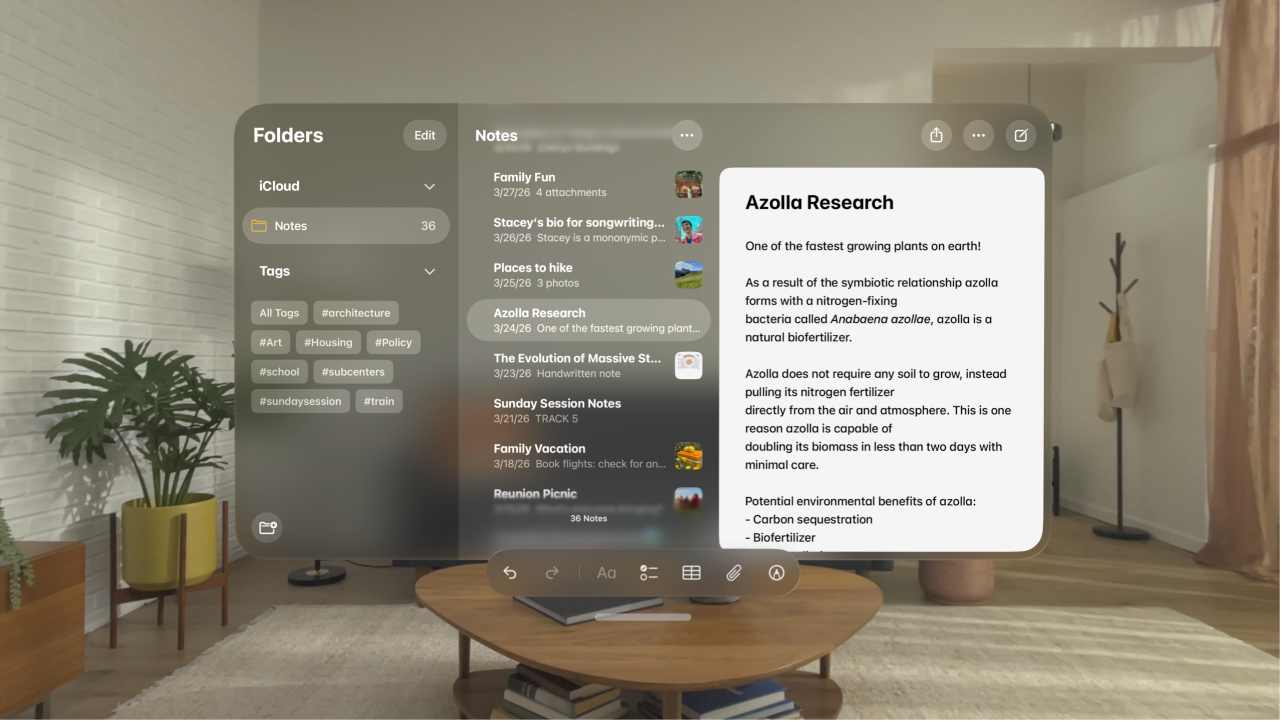
Create and format a new note
Go to the Notes app
 on your Apple Vision Pro.
Tap

The first line of the note becomes the note’s title.
To format and add more content to your note, do any of the following:
Format text: Tap

You can apply a heading style, bold or italic font, highlights, numbered lists, and more.
Tip: To create collapsible sections in your note, tap Heading or Subheading. After you add content to the section, use


Add a checklist: Tap

Add a table: Tap

Attach files, audio recordings, photos, and more: Tap

You can use your iPhone to scan documents and take photos on Apple Vision Pro if it’s signed in to the same Apple Account. For example, look at Scan Documents, then tap the name of your iPhone in the list.
Draw or write: Tap

Use the toolbar to choose different tools and colors, select parts of your drawing, and more.


Tip: To choose a default style for the first line in all new notes, go to the Settings app  , tap Apps, tap Notes, then tap New Notes Start With.
To delete a note, swipe left on the note in the sidebar, then tap  .
.
Record audio in a note
Go to the Notes app
on your Apple Vision Pro.Tap
Tap

To pause your recording, tap
 . Tap Resume to continue.
To save the recording, tap Done.
To play it back, tap Play next to the recording.
You can also tap the recording, then tap


View a summary of an audio recording
After you record audio in a note, you can see a summary of the recording. If you recorded a phone call on your iPhone, you can also view those summaries in Notes on your Apple Vision Pro.
Note: Apple Intelligence on visionOS 27 is not available in all languages or regions.*
Go to the Notes app
on your Apple Vision Pro.Open a note with a recording.
Note: If you recorded a call on your iPhone, the recording appears in the Call Recordings folder.
Tap the recording, then tap Summary.
To copy or share the summary, tap 
Add info from another app to a note
You can add information from another app as an attachment to a note—for example, a location in Maps, a webpage in Safari, a PDF in Files, or a screenshot.
In the other app, open the item you want to share (for example, a map or webpage).
Tap Share or

Save the item to a new note or choose an existing note.

Lock a note
You can lock notes to protect your sensitive information. You can access your locked notes using your device passcode or a custom password. For added convenience, you can also use Optic ID to access your locked notes. If you haven’t set the password you want to use, see Change Notes settings.
Go to the Notes app
on your Apple Vision Pro.Open a note you want to lock, tap


To open the note, use Optic ID, your device passcode, or your Notes password.

Use keyboard shortcuts with your Magic Keyboard
If your Apple Vision Pro is connected to your Magic Keyboard, you can use keyboard shortcuts to quickly perform actions in the Notes app. For example:
Start a new note: Press Command-N.
Add a checklist: Press Shift-Command-L.
Create a bulleted list: Press Shift-Command-7.
Hide the sidebar: Press Control-Command-S.
See Connect keyboards, headphones, and other Bluetooth accessories to Apple Vision Pro.
Tip: With Apple Intelligence, you can use Writing Tools to summarize selected text with a tap, proofread your work, and create different versions of the same text to help you find the right wording and tone. See Use Writing Tools to write, improve, and summarize content.