Back up your GarageBand for iOS songs
Learn how to back up your GarageBand for iOS songs using iCloud, iCloud Drive, or AirDrop.
GarageBand for iOS saves songs within the app on your iPhone, iPad, or iPod touch. If you delete the GarageBand app, you'll also delete your songs. In case you ever have to delete and reinstall the app, make sure to back up your songs first. You can back up your songs by uploading them to iCloud, exporting them to iCloud Drive, or copying them to another Apple device using AirDrop.
You can also back up your iPhone, iPad, or iPod touch. A backup of your iOS device includes the songs saved within the GarageBand app. Make sure to back up your device so you can access your songs in case you lose, replace, or damage it.
Upload songs to iCloud
When you upload your songs to iCloud, you can access them and keep them up to date on all your iOS devices. You can upload all your songs at once to iCloud.
Make sure to turn on iCloud for GarageBand.
On an iPhone or iPod touch, tap the down arrow
 in the Control Bar, then tap My Songs.
On an iPad, tap My Songs in the Control Bar.
Tap Select.
Tap the songs you want to upload.
In the Control Bar, tap the iCloud button
 .
.Tap Upload Songs to iCloud. After your songs upload to iCloud, you'll see them in the My Songs browser with an iCloud icon.
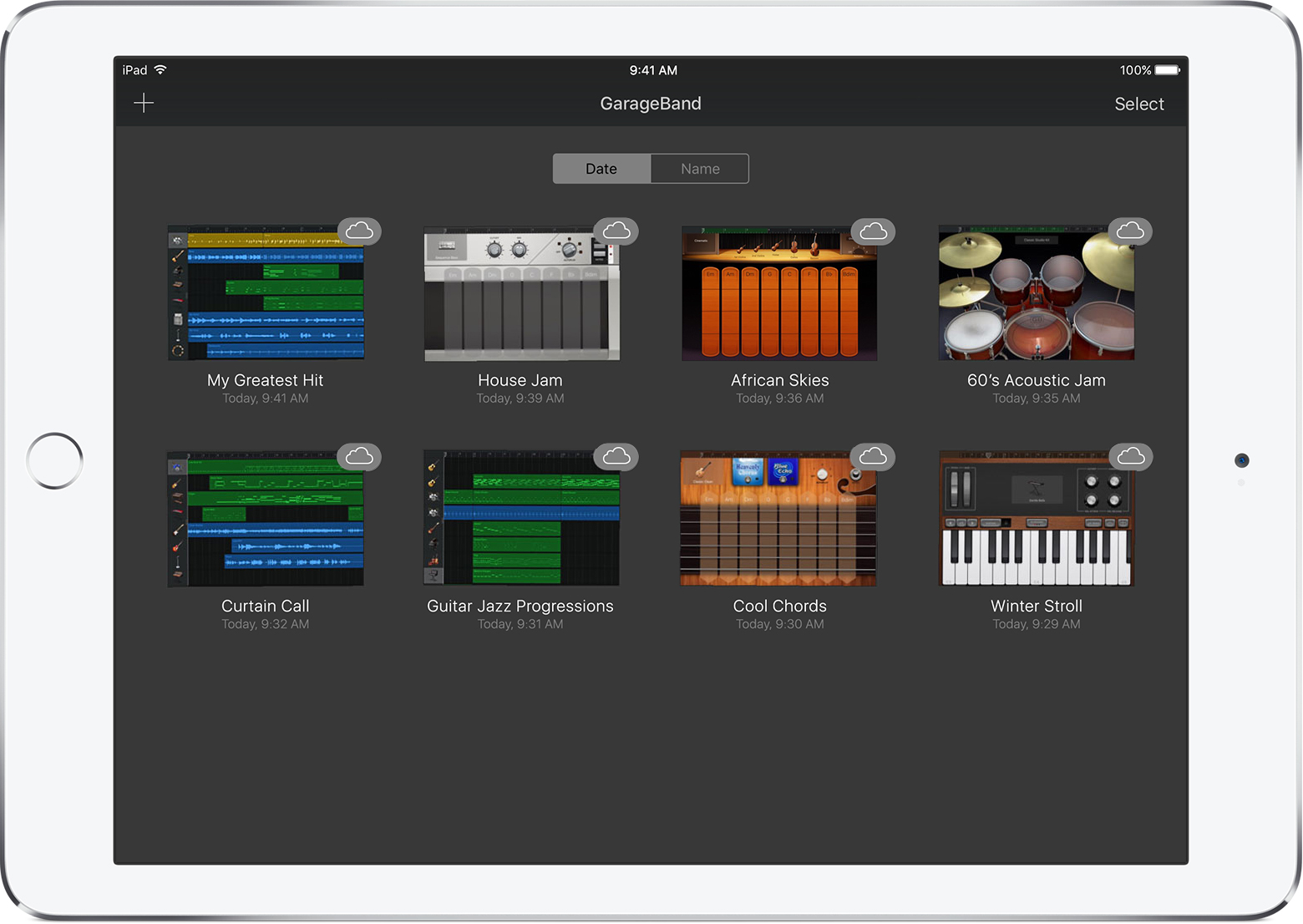
If you delete and reinstall the app or if you get a new device, songs uploaded to iCloud automatically appear in the My Songs browser. To access the songs on a new device, make sure to sign in to your Apple Account.
Export songs to iCloud Drive
Using iCloud Drive, you can access your songs from another iOS device, a Mac, or a PC. You can export one song at a time to iCloud Drive.
Make sure to set up iCloud Drive on your devices.
Open the My Songs browser:
On an iPhone, tap the Navigation button
in the Control Bar, then tap My Songs.On an iPad, tap My Songs in the Control Bar.
Tap Select.
Tap the song you want to back up.
Tap the Share button
 .
.In the Share dialog, tap iCloud Drive.
Tap Project.
Browse to the location where you want to save the song.
After reinstalling GarageBand or getting a new device, you can import a song from iCloud Drive to GarageBand on your device.
On an iPhone or iPod touch, tap the down arrow
in the Control Bar, then tap My Songs.On an iPad, tap My Songs in the Control Bar.
Tap the Add button
 , then tap Import from iCloud Drive.
In the iCloud Drive dialog, locate and tap the song you want to import.
The GarageBand songs you keep in iCloud use your iCloud storage. When you sign up for iCloud, you automatically get 5 GB of free storage. If you use all your iCloud storage, you can buy more. Or you can use AirDrop to back up your songs to another device.
Back up songs using AirDrop
To back up your songs to another Apple device, you can use AirDrop. AirDrop makes a copy of the song on another Apple device.
Make sure to turn on AirDrop on your Mac and your iOS device.
Open the My Songs browser:
On an iPhone, tap the Navigation button
in the Control Bar, then tap My Songs.On an iPad, tap My Songs in the Control Bar.
Tap Select.
Tap the song you want to back up.
Tap the Share button
.Tap the name of the AirDrop user or Apple device you want to send the file to.
Tap Project. AirDrop copies the song to the following locations:
On a Mac, the song is saved to the Downloads folder.
On an iOS device, the song opens in GarageBand. If GarageBand isn’t installed on that device, you can choose to get the app or save the song to iCloud Drive.
Learn More
Use iCloud with GarageBand on iPhone, iPad, or iPod touch.
Use iCloud Drive.
Use AirDrop with iPhone, iPad, iPod touch, and Mac.
