Start watching on the Home screen in the Apple TV app
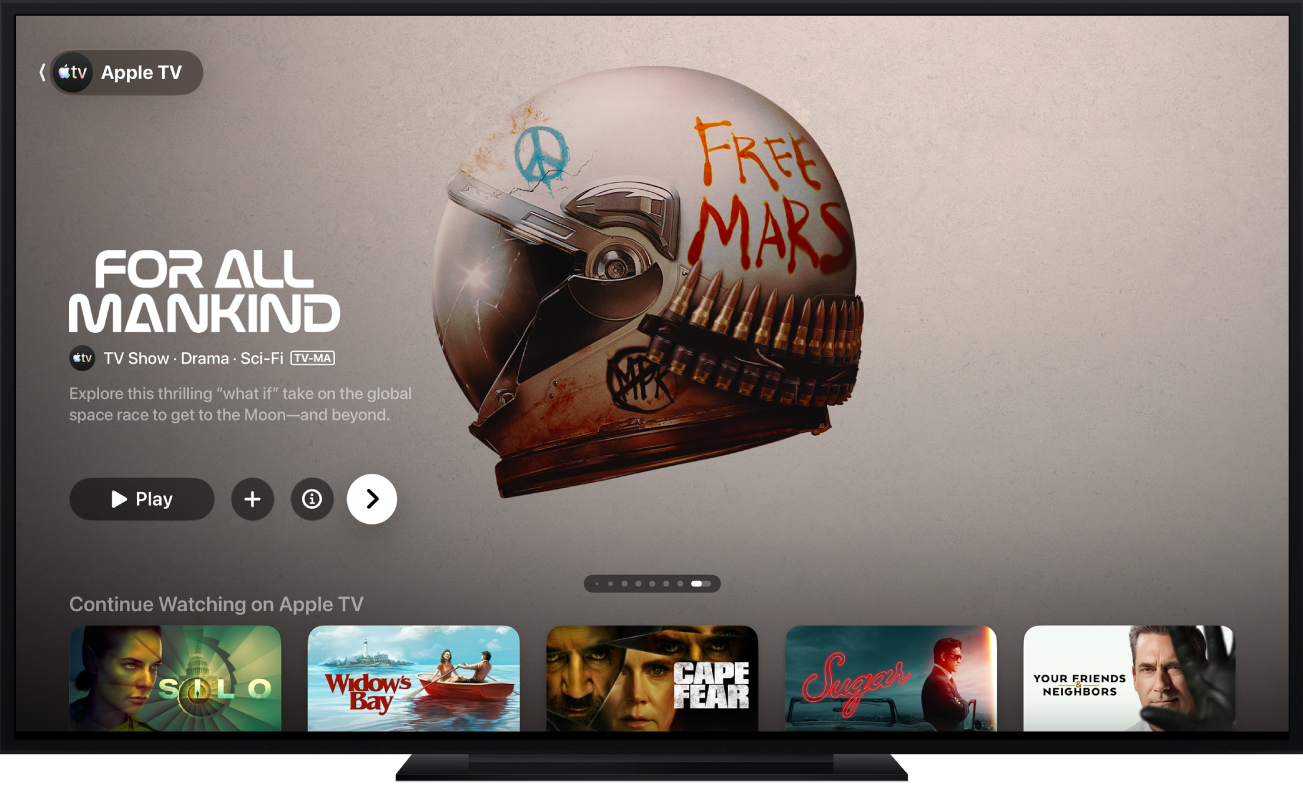
The Home screen in the Apple TV app is the place to start watching your favorite TV shows, movies, and sports events. Pick up where you left off, browse recommendations and collections, or just start watching.

Play a TV show, movie, or sports event
Go to the Apple TV app
on Apple TV 4K.Open the sidebar, then select Home.
Do any of the following:
Browse featured items at the top of the screen, then press the play button (if available).
Select an item in the Continue Watching row to immediately pick up where you left off.
Note: The Continue Watching row on the Home screen displays movies, TV shows, and live sports events from any app or channel you’ve connected to the Apple TV app. For information on connecting apps and channels, see Adjust Apple TV app settings on Apple TV 4K.
Navigate down to view more rows, then select an item you want to watch. When the page for that item opens, select the play button (if available) or select a specific episode, trailer, or sports event you want to watch.
Tip: When browsing a row, you can scroll up to highlight the row title, then select it to view all items in that category or view more information about the collection.
To start watching a sports event in progress, select it, then select Watch Live to tune in to the live broadcast, or Start Over to watch from the beginning.
For information on viewing multiple games simultaneously, see Use Multiview to watch multiple live sports streams.
Note: Sports events added to your Watchlist appear in the Continue Watching row when they are live.
To turn off live scores, see Adjust Apple TV app settings on Apple TV 4K.
If you don’t see a play button, you may need to subscribe to a specific service or purchase the item to watch it. If that item hasn’t been released yet, you can add it your Watchlist for later viewing.
Browse featured items, channels and apps, sports, personalized recommendations, and more
Go to the Apple TV app
on Apple TV 4K.Open the sidebar, then select Home.
Do any of the following:
Browse featured items at the top of the Home screen by pressing
to progress through items. Swipe left on the clickpad or touch surface to go back.Navigate down to the channels and apps row to view channels you’ve subscribed to or apps you’ve connected to the Apple TV app, or find new channels or apps to connect.
For a list of video apps available with the Apple TV app, see the Apple Support article Availability of supported apps in the Apple TV app.
Scroll down further to see top charts, new releases, sports, curated collections, and personalized recommendations. You can adjust your recommendation settings to see recommendations for just you or for multiple members of your household.
Tip: When someone shares a movie or TV show with you in the Messages app, you can find it on the Home screen in the Apple TV app in the Shared with You row. The sender’s name and icon appear next to the movie or show. (Shared with You recommendations only appear for the default profile on Apple TV 4K. To see shared items on Apple TV 4K, you must first enable Shared with You on your iPhone or iPad, then confirm on Apple TV 4K.)
View more information about a TV show, movie, sports event, or collection
Go to the Apple TV app
on Apple TV 4K.Open the sidebar, then select Home.
Do any of the following:
Browse featured items at the top of the screen, then select
to view more information.Navigate down to view more rows, then select a TV show, movie, or sports event.
When the page for a TV show, movie, or sports event opens, you can play the item (if available), buy or rent the item, add it to your Watchlist, or scroll down to view specific episodes, trailers, related items, and additional details.
Highlight and select a row title to see all of the items in that category or view more information about a collection.
Add or remove an item from your Watchlist
When you add movies and TV shows to your Watchlist for later viewing, they appear in the Continue Watching and Watchlist rows.
Note: When you add sports events, they appear in the Continue Watching and Watchlist rows when they are live.
Go to the Apple TV app
on Apple TV 4K.Do either of the following:
Add an item to your Watchlist: Navigate to an item anywhere in the Apple TV app, press and hold the clickpad or touch surface to view more options, then select Add to Watchlist.
Remove an item from your Watchlist: Navigate to an item in your Continue Watching or Watchlist row, press and hold the clickpad or touch surface to view more options, then select Remove from Watchlist.
Tip: You can also add an item to your Watchlist by selecting
or Add to Watchlist when you see these options in the featured items at the top of the Home screen.
Listen to live local radio (if available) during Friday Night Baseball games or Sunday Night Soccer matches
While you’re watching a game, show playback controls.
Swipe up on the clickpad or touch surface, then select
.Choose an audio track option from the pop-up menu:
TV: Play the audio commentary from the TV broadcast.
Local Radio, [away team, language]: Listen to the away team’s local radio broadcast while watching the game.
Local Radio, [home team, language]: Listen to the home team’s radio broadcast while watching the match or game.
To close the pop-up menu, press
or
on your remote.
Follow your favorite teams with My Sports
Turn on My Sports to follow your favorite teams on Apple TV 4K, see their games in the Continue Watching row, and receive notifications when they’re about to play.
If you’ve already set up My Sports in the News or Apple Sports app on an iPhone or iPad, your teams automatically appear in the Apple TV app on Apple TV 4K. For more information, see Follow your favorite teams with My Sports in the iPhone User Guide or Set up your favorite teams and leagues in the Apple Sports User Guide.
Go to the Apple TV app
on Apple TV 4K.Open the sidebar, select Home, then navigate down and select Sports.
Navigate down to the last row, then select Follow Your Teams.
If you already follow teams, this item is called Manage My Sports.
Select Turn On (if this is your first time setting up My Sports).
Scroll to a sports category in the list (MLS, Formula 1, MLB or NBA, for example), navigate to your team on the right, then select it.
Your team now displays a star. You can add as many teams to My Sports as you want.
To remove a team, select it in My Sports, then select Remove.
When you’re signed in with same Apple Account on your iPhone, iPad, and Mac, the teams you follow are shown in the News app and Apple TV app on all your devices. You won’t miss a second of action, even when you’re away from your Apple TV 4K.
Note: You can’t pick teams to follow on a Mac; to pick your teams, follow them in the News app or Apple TV app on your iPhone or iPad, or on your Apple TV 4K.