
Add a table to a Freeform board on Mac
You can add tables to a Freeform board to organize content, lay out sections of your board, and more. After you add a table, you can customize it however you like.
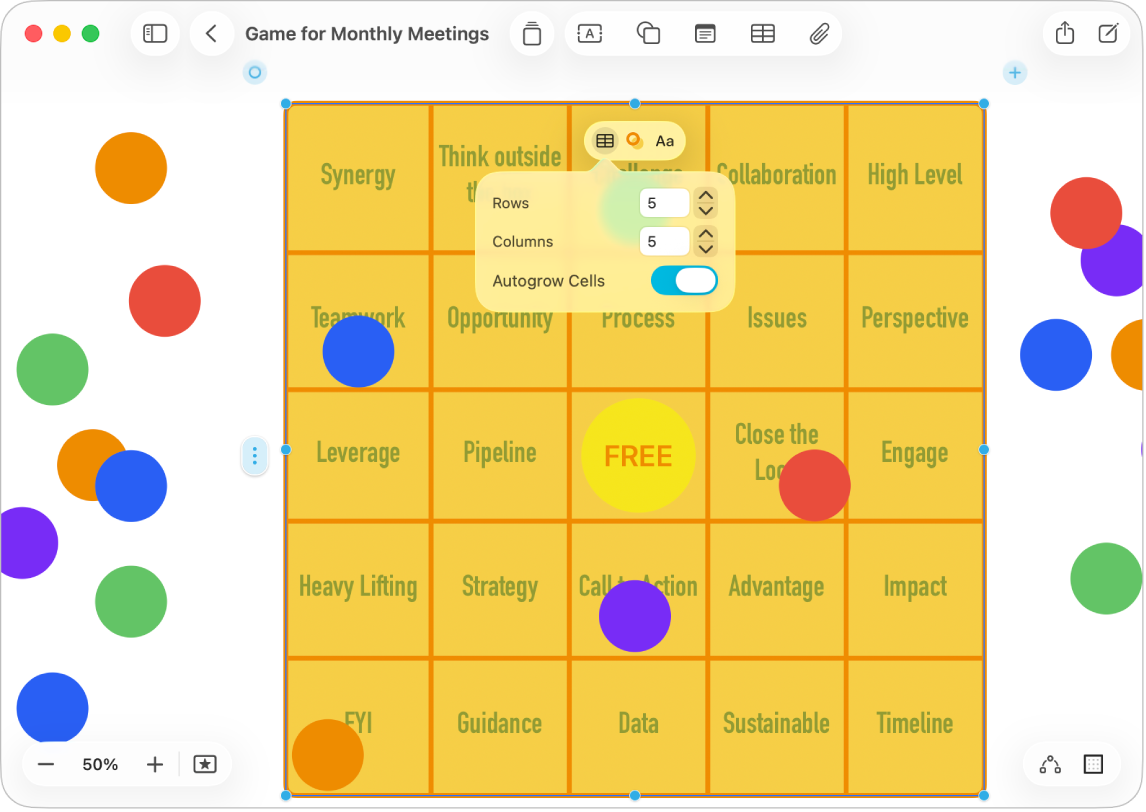
Create a table
Go to the Freeform app
on your Mac.Do one of the following:
Choose Insert > Table.
Click
 .
.
With the table selected, do any of the following:
Change the table style: Click
 in the formatting tools, then use the controls to make changes.
Add a last column or row: Click
 in the top-right or bottom-left corner of the table.
Insert or delete a column or row within the table: Control-click a cell, then choose an option, such as Add Column After. Or select a cell, column, or row, select Format > Table, then choose an option.
Specify a number of rows and columns: Click
in the formatting tools, then adjust the numbers.Resize the entire table: Drag a blue dot. Corner dots resize both rows and columns proportionally.
Tip: To always keep the same proportions for a table as it’s resized, choose Arrange > Constrain Proportions.
Make rows or columns equal sizes: Choose Format > Table > Distribute Rows Evenly or Distribute Columns Evenly.
Resize one row or column: Drag a cell border.
Move the table: Drag
 in the top-left corner of the table.
Select a cell, column, row, or table
Go to the Freeform app
on your Mac.In a board with a table, click to select the table, then do one of the following:
Select a cell: Click the cell once.
Select a column: Click to select a cell, then click
 at the top of the table.
Select a row: Click to select a cell, then click
 on the left side of the table.
When a row, column, or cell is selected, tap in the top-left corner of the table to select the whole table.
Add and format table text
Go to the Freeform app
on your Mac.In a board with a table, double-click a cell, then enter text.
To change font, style, size, color, and alignment, click
 in the formatting tools.
Tip: To format text in one or more cells, select a cell, column, row, or table, then click
. You can also copy and paste a style to another cell.
Attach an item to a cell
You can attach items—like photos, videos, scans, or links—to your table cells. When you move the table, attached items move with it.
Go to the Freeform app
on your Mac.Open a board with a table and other items.
Do any of the following:
Drag an item from your board to a cell until a highlight appears.
Copy and paste an item in a cell. It’s centered in the cell.
To make cells automatically expand to fit anchored objects, click to select the table, click in the formatting tools, then turn on Autogrow Cells.
Continue to build your board by adding text, sticky notes, shapes, lines, photos, videos, diagrams, links, and other files.