Pages User Guide for iPad
- Welcome
- What’s new
- Copyright
View formatting symbols in Pages on iPad
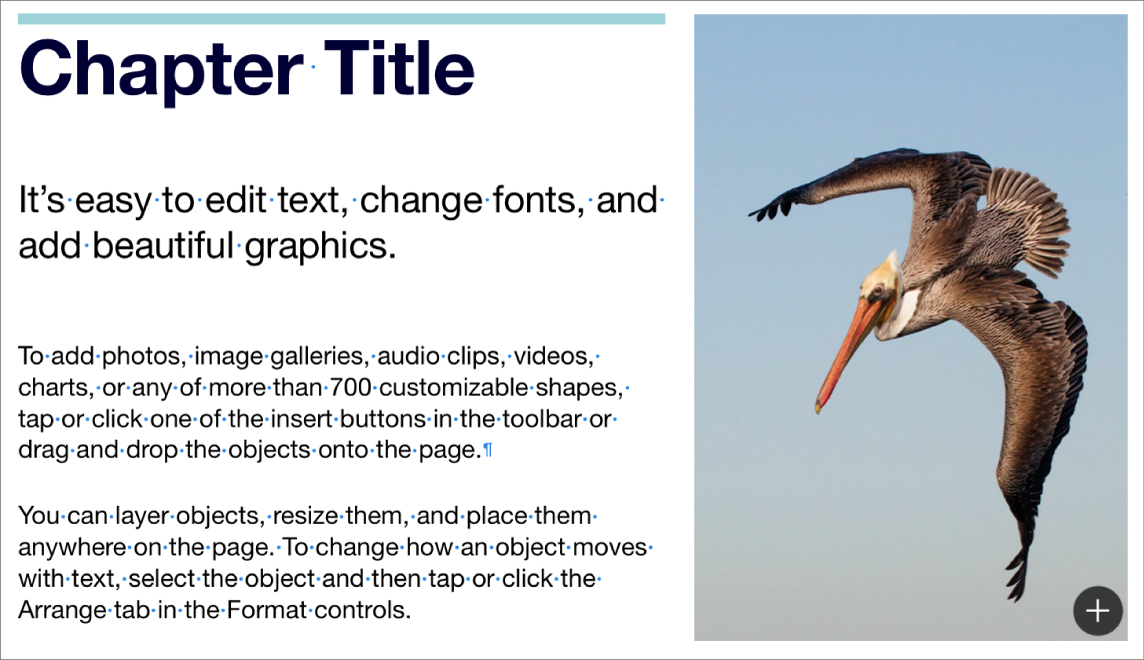
Formatting symbols (called invisibles) like the ones shown below are added every time you tap the Space bar, Tab, or Return, and when you add a column break, page break, or section break. By default, you can’t see them, but you can turn them on to see where formatting changes have been applied. You can hide them again when you don’t need to see them.
Show or hide formatting symbols
Go to the Pages app
 on your iPad.
Open a document, tap
 at the top of the screen, then tap Show Invisibles or Hide Invisibles.
Invisible Character | Represents |
|---|---|
| Space |
| Nonbreaking space (Option-Space bar) |
| Tab |
| Line break (Shift-Return) |
| Paragraph break (Return) |
| Page break |
| Column break |
| Layout break |
| Section break |
| Anchor point for objects set to Move with Text and any text wrap option except Inline with Text |
Blue box around text | The text is bookmarked |


A clipping indicator  appears at the bottom of a text box if text extends below its borders. This symbol remains visible until you resize the text box to show all of the text.