Charge the MacBook Pro battery
The battery charges whenever your MacBook Pro is connected to power.

Connect your power adapter and cable
To charge the battery on MacBook Pro, you can connect the included USB-C to MagSafe 3 Cable to the MagSafe 3 port, or connect a USB-C Charge Cable to any of the Thunderbolt ports. Connect the cable to your Apple power adapter or other compatible power adapter, then fully extend the electrical prongs on the AC plug of your adapter and plug it into an AC power outlet.
To learn more, see Power adapter and cable for MacBook Pro.
Keep an eye on your battery and view usage
 Add the battery icon to your menu bar Quickly see information about your battery—like whether it’s charging or its current battery percentage. Go to System Settings, click Menu Bar in the sidebar (you may need to scroll down), then select Battery. |  View battery usage Go to Battery settings to see how you’ve used your battery over the past 24 hours or the last 10 days. To open Battery settings, go to System Settings, then click Battery in the sidebar (you may need to scroll down). |
Optimize charging and conserve energy
When you use Optimize Battery Charging, your MacBook Pro learns your daily charging routine, which reduces wear and tear on your battery and improves its lifespan. You can also conserve battery power in a few different ways, like using Low Power Mode or reducing display brightness.
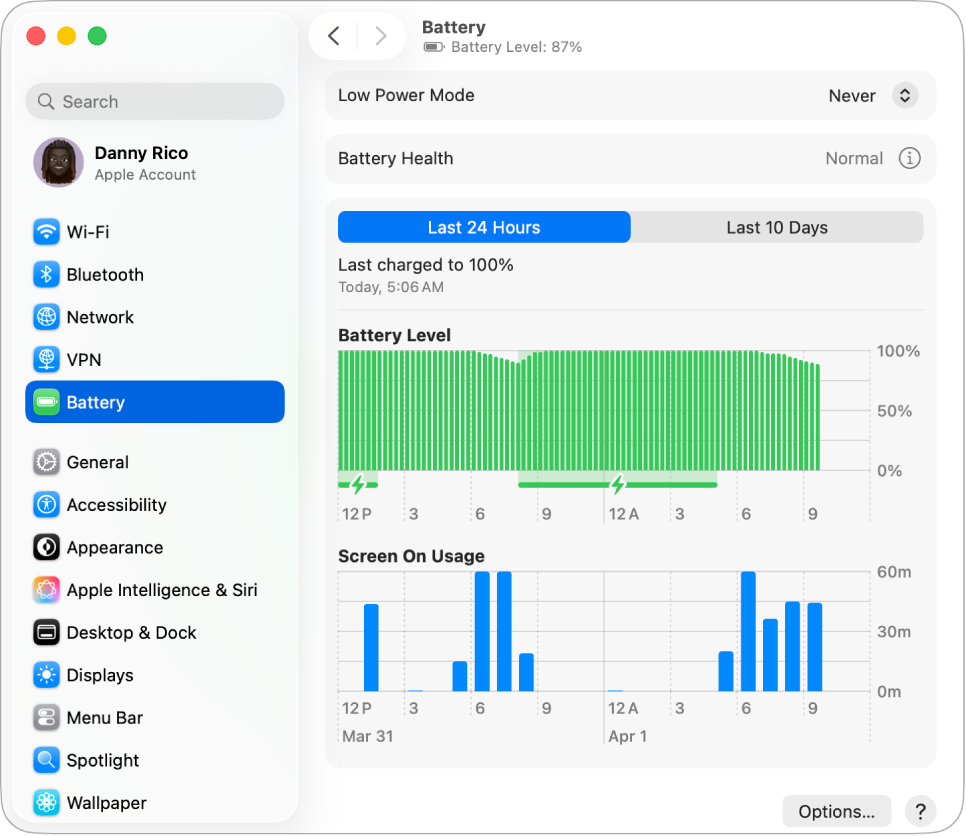
 Optimize Battery Charging This feature delays charging the battery past 80% when it predicts that you’ll be plugged in for an extended period of time, and aims to charge the battery before you unplug. In Battery settings, click |  Use Low Power Mode This can be a good option when you’re traveling or away from a power source for an extended period of time. In Battery settings, choose Low Power from the “On battery” or “On power adapter” pop-up menus, or choose an option from the Low Power Mode pop-up menu. |
 Maximize performance with High Power Mode High Power Mode allows the fans in your Mac to run at higher speeds to maximize performance during intensive workloads. In Battery settings, choose High Power from the “On battery” or “On power adapter” pop-up menus. |  Customize advanced battery settings Dim the display when your MacBook Pro is on battery, prevent automatic sleep mode, and turn on when to wake for network access. In Battery settings, click Options, then choose which options to turn on. |
 Other ways to reduce energy use You can conserve battery power by doing simple tasks like reducing your display brightness, closing apps, and disconnecting peripherals that you’re not using. |

Power adapter and cable for MacBook Pro
To charge your MacBook Pro, you need two accessories: a cable and a power adapter.
Accessory | Description | ||||||||||
|---|---|---|---|---|---|---|---|---|---|---|---|
 | 70W USB-C Power Adapter For 14-inch MacBook Pro. | ||||||||||
| 96W USB-C Power Adapter For 14-inch MacBook Pro. The 96W USB-C Power Adapter fast charges the 14-inch MacBook Pro up to 50 percent in around 30 minutes using either the included USB-C to MagSafe 3 Cable or the 240W USB-C Charge Cable (sold separately). | ||||||||||
 | 140W USB-C Power Adapter For 16-inch MacBook Pro. The 140W USB-C Power Adapter fast charges MacBook Pro to approximately 50 percent in around 30 minutes using either the included USB-C to MagSafe 3 Cable or the 240W USB-C Charge Cable (sold separately). | ||||||||||
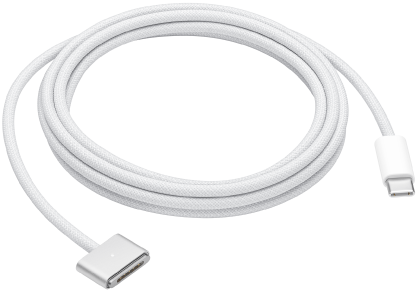 | USB-C to MagSafe 3 Cable Connect one end to the MagSafe 3 port on your MacBook Pro, and the other end to the included power adapter. When you first connect the cable to MacBook Pro, a battery status indicator on the connector starts to glow—green for fully charged or amber for charging. | ||||||||||
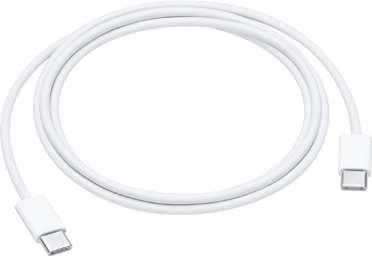 | USB-C Charge Cable Connect one end of the USB-C Charge Cable to one of the USB-C (Thunderbolt) ports on your MacBook Pro, and the other end to the power adapter. The USB-C Charge Cable is sold separately. | ||||||||||
Want to learn more?
To monitor the battery in your Mac or check its condition, see Monitor your Mac laptop’s battery and Check the condition of your Mac laptop’s battery.
If your Battery Health says Service Recommended, see the Apple Support article If you see Service Recommended on your MacBook Air or MacBook Pro.
For charging issues with your power adapter, see the Apple Support articles If your USB-C power adapter isn’t charging your Mac laptop, If your MagSafe cable or power adapter isn’t working, and If your Mac battery status is “Not Charging”.
For more information about the internal, rechargeable battery in your MacBook Pro and for conservation and performance tips, see Apple Lithium-ion Batteries.