
Get started with Pages on Mac
Pages makes it easy to create customized, professional-looking documents. Here’s how to get started.
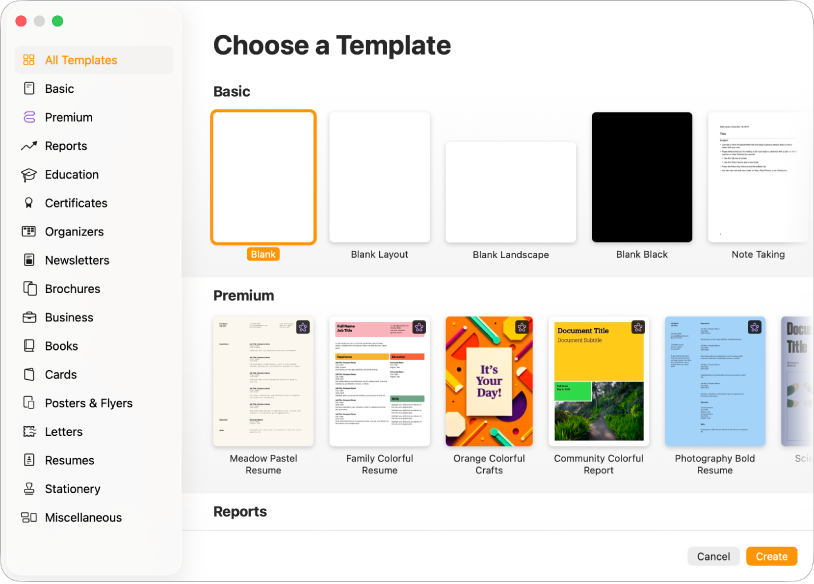
Begin with a template
Drafting a report? Creating a flyer? Writing your novel? You can use Pages to create any kind of document you want, from a simple word-processing document that’s mainly text, to a page layout document with graphics, specialized font treatments, and more. Go to the Pages app on your Mac, then choose File > New, click the template you want in the template chooser, then click Create.
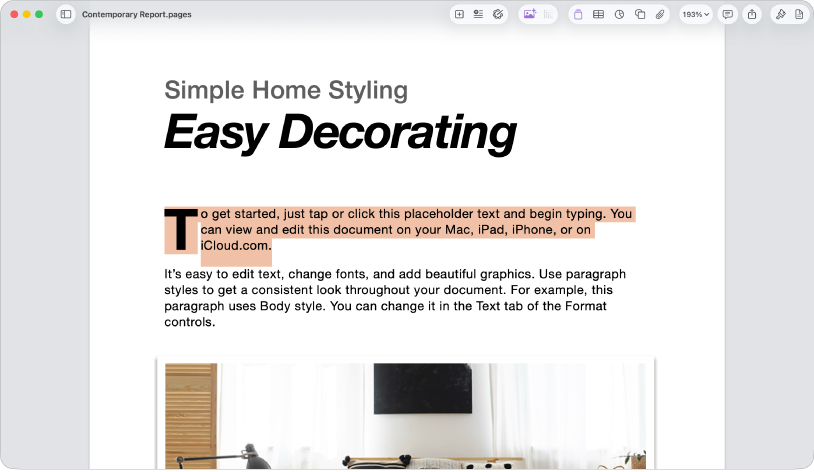
Add text
How you add text depends on the type of document you’re working on. In a word-processing document, simply start typing or click a placeholder, then start typing. In a page layout document, all text is contained in an object like a text box or shape. To add text, add an object to your document, double-click the object, then start typing.
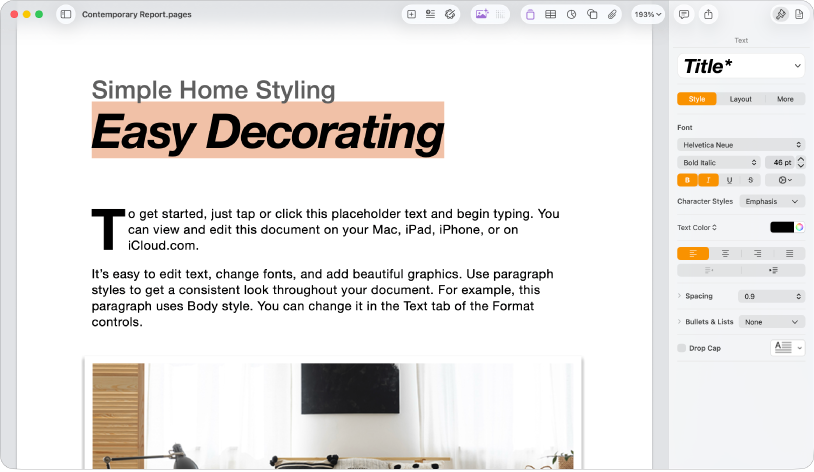
Format text
You can customize the look of text by changing the font, color, alignment, and spacing. For word processing document, select the text you want to customize, click  in the sidebar, then click the Style button. For page layout documents, select the text, click in the sidebar, then click the Text tab.
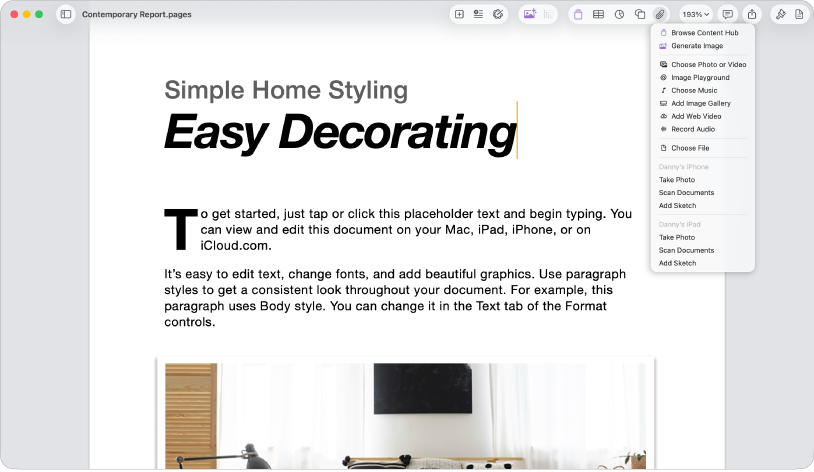
Add objects and media
You can add objects such as text boxes, tables, photos and more to your document. To add an object to your document, click an object button in the toolbar, then make a selection from the pop-up menu. You can also click  to add objects from the Content Hub.
Export your document
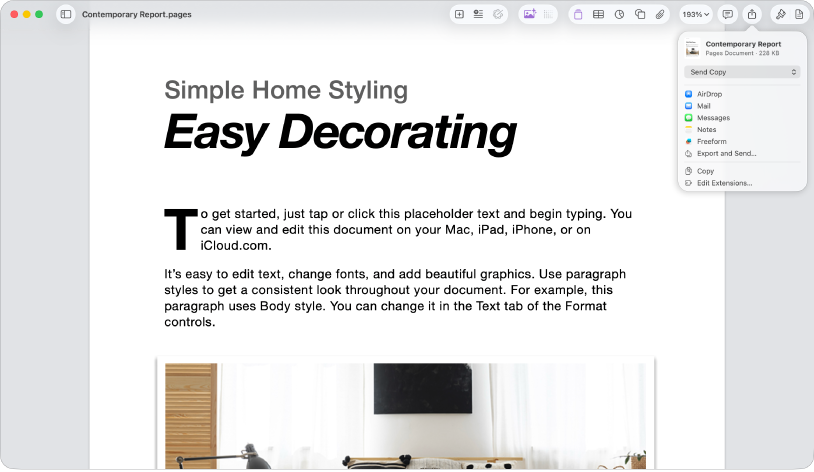
To convert a Pages document to another format, you export it in the new format. You can export your document as a PDF, Word document, EPUB, and more. To export a document, click  in the toolbar, click Export and Send, then choose one of the options to save a copy of your document in the new format.
Want to learn more?
This guide helps you get started using Pages 15.1 on your Mac. (To see which version of Pages you have, choose Pages > About Pages from the Pages menu at the top of your screen.)
To explore the Pages User Guide, click the Table of Contents button at the top of the page, or enter a word or phrase in the search field.
Pages 15.1 for Mac requires macOS 15.6 or later. Pages is available in the App Store and requires an Apple Account to download. Features are subject to change, and some may require internet access. Additional fees and terms may apply.