
Create a presentation in Keynote on iPad
To create a new presentation, you first choose a theme to use as a starting point. Themes use coordinated fonts and colors for a unified look and often include placeholders that you can replace with your own content. If you are subscribed to Apple Creator Studio, you can also use a plain text description to automatically generate a new presentation or add slides to an existing presentation.
Create a presentation from a theme
Go to the Keynote app
 on your iPad.
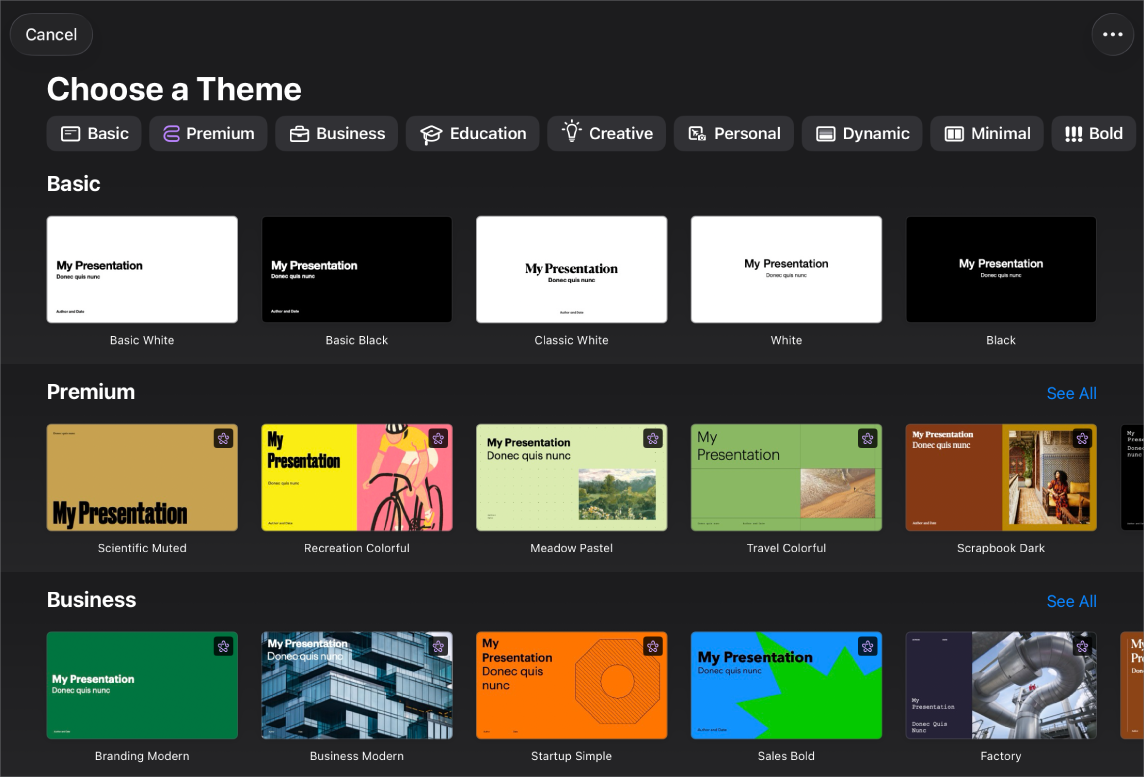
In the document manager, tap Choose a Theme to open the theme chooser (shown below). If you don’t see Choose a Theme, tap
 .
.
Note: If you’d like the ability to format table and chart data using the conventions of another language, choose the language before choosing a theme. See Format a presentation for another language.
In the theme chooser, tap the category names at the top of the screen to view different themes, then tap a theme to open it.
Some themes aren’t downloaded to your device until you choose them or open a presentation that uses one. If your connection is slow or you’re offline when this happens, placeholder images and slide backgrounds in the presentation may appear at a lower resolution until you’re online again or the theme finishes downloading.
To use a different slide layout for the first slide, tap the slide in the slide navigator on the left, tap
 , tap Layout, then tap a layout.
Each slide layout offers a different arrangement of text and images that you use as a starting point for your content.
Do any of the following to build your presentation:
Add a slide: In the slide navigator, tap the slide you want the new slide to follow, tap
 at the bottom of the slide navigator, then tap a layout. If you don’t see the slide navigator, pinch closed on the screen to zoom out.
Add text: Double-tap placeholder text to add your own.
Add an image: Tap
 to replace placeholder images with your own.
To play the presentation, tap
 , then tap a slide to go to the next slide.
To end the presentation, pinch closed anywhere on the screen. For more ways to show a presentation, see Play a presentation on your iPhone or iPad.
To close the presentation, tap
 in the top-left corner of the screen. Closing the presentation doesn’t quit Keynote.
Keynote automatically saves your changes as you work, so you don't need to worry about consistently saving your presentation manually. However, it's a good idea to rename your presentation so you can easily find it the next time you want to work on it. You can change the name of the presentation or change where it’s saved at any time.
Create a presentation outline
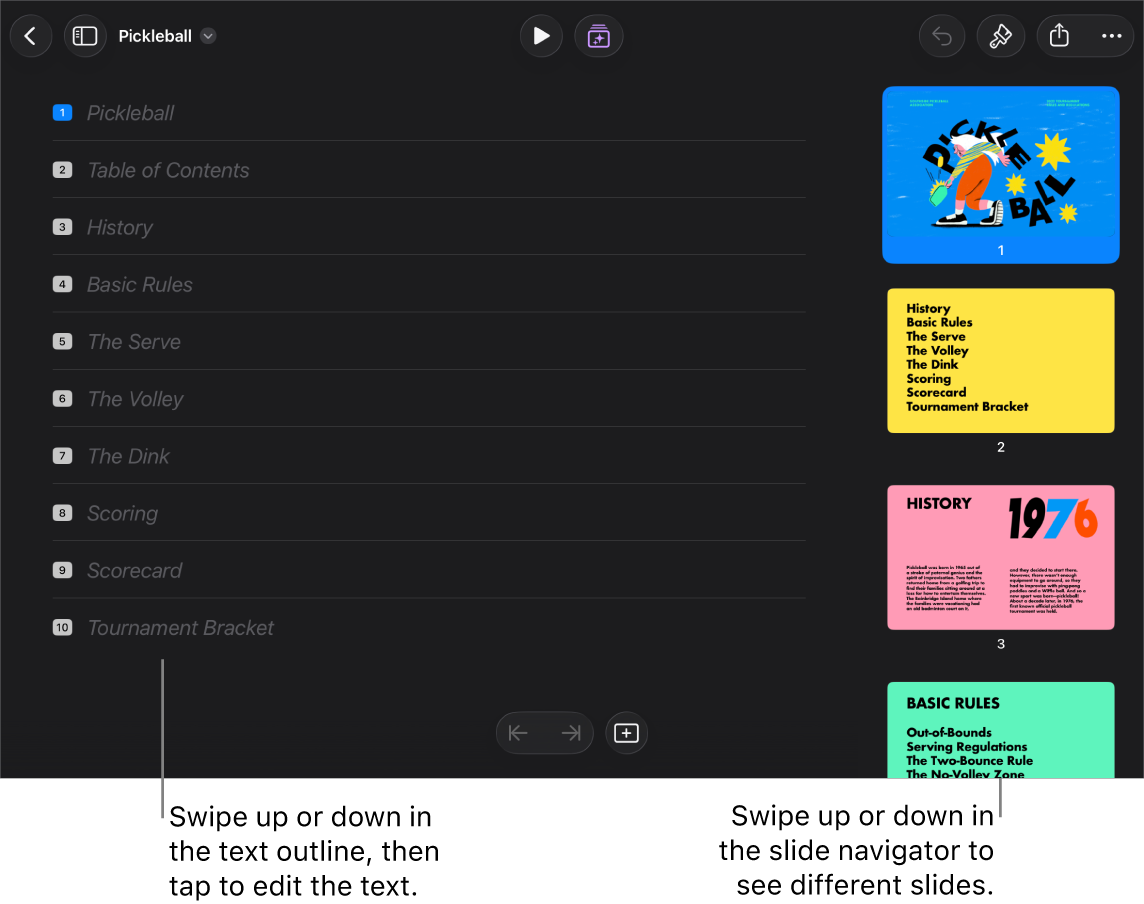
You can create a text outline of a new presentation in outline view in Keynote. Outline view displays your slides as a hierarchical series of titles, subtitles, points, and media placeholders. You can add and edit text, place images and videos, and change the format of slides in outline view. This is useful for creating an initial draft, taking notes, or focusing on the structure of a new presentation.
Go to the Keynote app
on your iPad.In the document manager, tap Start an Outline to open a new presentation in outline view.
Do any of the following:
Add a slide: Tap
at the bottom of your screen (or above the keyboard).To quickly add a slide while typing in the last row of a slide, tap Return twice.
Delete a slide: Tap the top row of the slide you want to delete, tap
 , then tap Delete.
Reorder slides: In the text outline, tap the top row of the slide you want to move, touch and hold
until the slide appears to lift up, then drag it to a new location in the text outline.Use a different slide layout: Select the slide you want to edit, tap
, tap Layout, then pick a layout from the menu. Tap to dismiss the menu.Add text: Tap a row in the text outline, then type.
Add a photo or video to a slide with a media placeholder: If the slide has only one placeholder, select the slide, then tap
 . If the slide has multiple placeholders, tap
  and select the placeholder you want to use. Navigate to the image or video, then tap it to add it to the slide.
To close the presentation, tap
in the top-left corner of the screen.Your presentation is saved automatically as you work, so you don’t lose your work when you close the presentation. Closing the presentation doesn’t quit Keynote.
To learn more about working in outline view, see View slides as text outlines.
To exit outline view without closing the presentation, tap  in the toolbar, then select Slide View or Light Table.
Automatically create a presentation from an outline
If you are subscribed to Apple Creator Studio, you can use a text outline to generate a presentation, complete with titles, bullet points, and a consistent theme.
Note: This feature requires iPadOS 26 or later.
Go to the Keynote app
on your iPad.In the document manager, tap Generate a Presentation.
In the theme chooser, tap the category names at the top of the screen to view different themes, then tap the theme you want to use.
In the Generate Presentation dialog, type an outline of your presentation in the Overview field. This outline can include the tone you want your presentation to use, your intended audience, and other details.
In the Key Points field, type the important details you’d like to include on your slides. This can be a list or short paragraphs, and you can copy and paste text from another app.
Tap Generate.
Keynote creates a basic presentation using the theme you selected and the information you entered in the Generate Presentation dialog.
You can also generate slides to add to an existing presentation. Open the presentation, tap a slide in the slide navigator, tap  in the toolbar, then enter your text in the text fields. When you tap Generate, the new slides appear after the slide you selected in the slide navigator.