
Send images in Messages on Mac
Share your experience with others by including photos and videos from your library, Tapbacks, GIFs, Memoji, and stickers when you send them a message.
Note: You can have your (or a family member’s) Mac and other Apple devices receive warnings about sensitive content and warn you before it’s sent or received. See Turn Communication Safety on or off in Screen Time and Avoid seeing unwanted sensitive images and videos.
Send photos, videos, and animated GIFs
You can send and receive items like photos (including Live Photos), videos, and animated GIF images. You can view these items right in the conversation, or in Info view.
Go to the Messages app
on your Mac.Select a conversation.
Click
 to the left of the message field (near the bottom), then do one of the following:
Add an photo or video from your library: Click Photos. You can also drag photos or videos to the message field, or copy and paste them.
Add a GIF image: Click #images, then select a trending image or search by keyword. To turn off the looping animation of the GIF, see Stop or reduce onscreen motion.
Note: GIFs from #images animate only in the Messages app on Apple devices.
To include a written message with the photo or video, type it in the field, then press Return.
View and save sent photos, videos, and GIFs
Go to the Messages app
on your Mac.Select a conversation with sent photos, videos, or GIFs.
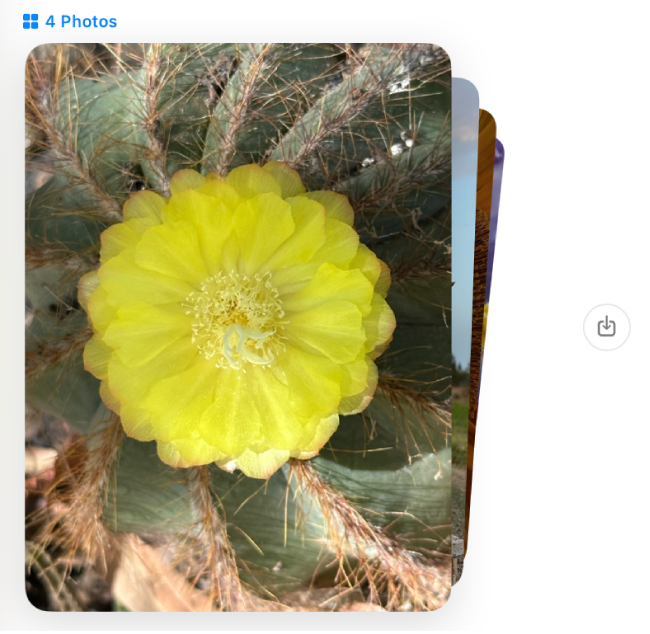
Do any of the following:
Swipe to review: If you send or receive four or more photos, they appear as a photo stack. If you have a trackpad or Magic Mouse, swipe left or right with two fingers on the stack to see each photo without opening it.
See each individual photo in a grid: Control-click the stack, then choose Show Grid. Click
 to return to the conversation.
Save photos or videos: Click
 next to the photo, photo stack, or video to save it in your photo library. Or just drag it from the conversation details view to your desktop. See Import photos from Mail, Safari, and other apps into Photos.
If you turn on Messages in iCloud, all photos and videos you send and receive are stored in iCloud.
Save a GIF that you receive in a message to use again later: Control-click the GIF, then choose Save. The GIF is saved to the Photos app.
React with a Tapback
Tapbacks give you a quick and easy way to respond to a message with expressive icons such as a heart, a thumbs-up or thumbs-down, laughter, exclamation points, a question mark, and any emoji. You can even use a custom sticker or Memoji as a Tapback.
You can only add one Tapback per message. To add more images, you can attach additional stickers to the message.

Go to the Messages app
on your Mac.Select a conversation.
Click and hold or Control-click a message, then choose a suggested Tapback or one of the following:
Other emoji: Click
 .
.If Apple Intelligence* is turned on, you can create custom emoji—called Genmoji.
A sticker: Click
, then click  .
.
Do any of the following:
Use a different Tapback: Click your Tapback, then choose a different emoji, Memoji, or sticker.
Remove the Tapback: Click your Tapback, then click the same Tapback to remove the blue highlight.
Find out who sent a Tapback: If there’s more than one Tapback for a message, they appear in a stack. You can find out who added each Tapback. Click any Tapback. The Tapbacks appear near the top of the conversation with the contact photos of the people who sent them.
The Tapback is attached to a specific message in a conversation, and everyone who’s part of the conversation can see it. You can only edit or remove Tapbacks you added.
Tip: To send a classic Tapback on the most recent incoming message, press Command-T, then press a number key (1 to 6).
Create your Memoji
You can create a personalized Memoji that matches your personality and then send it as a sticker to express your mood in your messages.

Go to the Messages app
on your Mac.Select a conversation.
Click
to the left of the message field (near the bottom), choose Stickers, then select  .
.Do one of the following:
Create your first Memoji: Click
 , then follow the onscreen instructions to create and customize your Memoji.
Create more Memoji: Click
 , then choose New Memoji.
Design your Memoji by clicking the categories along the left, from Skin to Body, then choosing options on the right.
Click Done, then scroll to choose a pose for your Memoji.
You can also use your Memoji on the login window and Create your own emoji with Genmoji.
Send a sticker
You can share Live Stickers that you create from your own photos on your iPhone or iPad with iOS 17, iPadOS 17, or later. You can also create your own Memoji right on your Mac, and then send your personalized Memoji stickers in any message.
Note: Sending stickers isn’t available in all countries or regions.
Go to the Messages app
on your Mac.Select a conversation.
Click
to the left of the message field (near the bottom), click Stickers, then select one of the following:Recently used: Click
 .
.Live Stickers: Click
, then choose a Live Sticker you created on iPhone or iPad with iOS 17, iPadOS 17, or later.Memoji: Click
, then select from a variety of Memoji stickers or create your own Memoji for personalized stickers.
To include a written message with the sticker, type it in the field, then press Return.
Optionally, you can drag stickers on top of a message in the conversation or Control-click a specific message, then choose Add Sticker. After you add a sticker on top of a message, you can move it around. (You and your recipients must be using iOS 17.2, iPadOS 17.2, macOS 14.2, visionOS 1, or later, to see updates to stickers.)
When someone sends you a sticker they created that you like, you can save it to reuse later. Control-click the bubble or sticker, then choose Save to Stickers or Sticker Details. Sticker Details also lets you see who sent the sticker and when.
For more information about stickers, see the user guide for iPhone or iPad.
Note: You can have your (or a family member’s) Mac and other Apple devices receive warnings about sensitive content and warn you before it’s sent or received. See Turn Communication Safety on or off in Screen Time and Avoid seeing unwanted sensitive images and videos.
If you turn on Messages in iCloud, all photos and videos you send and receive are stored in iCloud.