Numbers User Guide for iPhone
- Welcome
- What’s new
-
- Get started with Numbers
- Intro to images, charts, and other objects
- Create a spreadsheet
- Open spreadsheets
- Prevent accidental editing
- Personalize templates
- Use sheets
- Undo or redo changes
- Save your spreadsheet
- Find a spreadsheet
- Delete a spreadsheet
- Print a spreadsheet
- Change the sheet background
- Copy text and objects between apps
- Change Numbers privacy and analytics settings
- Copyright

Prevent accidental editing in Numbers on iPhone
To avoid accidentally moving objects or bringing up the keyboard as you view, scroll, and interact with text and objects, you can use reading view. Reading view minimizes the controls to just what you need to view the content and perform basic tasks. You can quickly switch to editing view to make changes, then switch back to reading view.
When you send a Numbers spreadsheet to someone else or someone sends a spreadsheet to you, it opens on iPhone and iPad in reading view. When you reopen a spreadsheet, it opens the way you left it—in reading view or editing view.
If you prefer to always open spreadsheets in editing view, you can change this setting.
Go to the Numbers app
 on your iPhone.
Open a spreadsheet, then do any of the following to switch between reading view and editing view:
Switch to editing view: Tap Edit at the top of the screen.
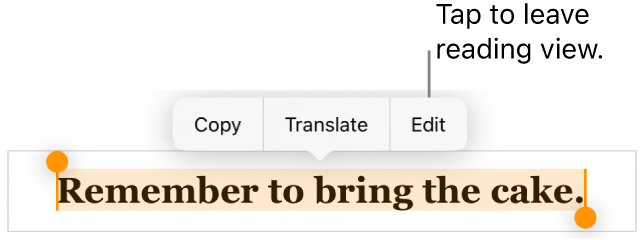
Switch to editing view with text selected: Tap Edit in the menu that appears.
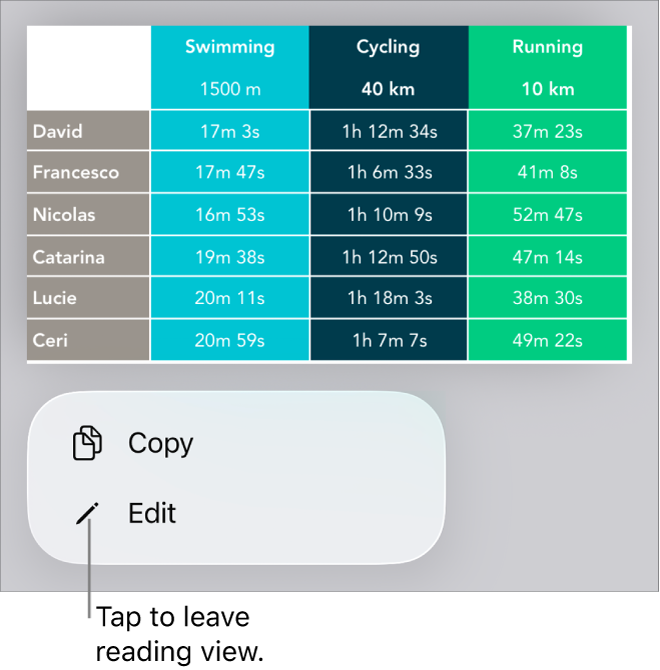
Switch to editing view with an image or table cell selected: Touch and hold the image or cell, then tap Edit in the menu that appears.
Switch from editing to reading view: Tap
 at the top of the screen, then tap Reading View.
Set spreadsheets you receive to always open in editing view: Tap
, tap Settings, then turn on Open in Edit View. If you change a presentation to reading view later, it opens in reading view the next time you open it.
In reading view, the Cell Action Menu and Numbers keyboard are not available.