Use onscreen camera guides in Final Cut Camera
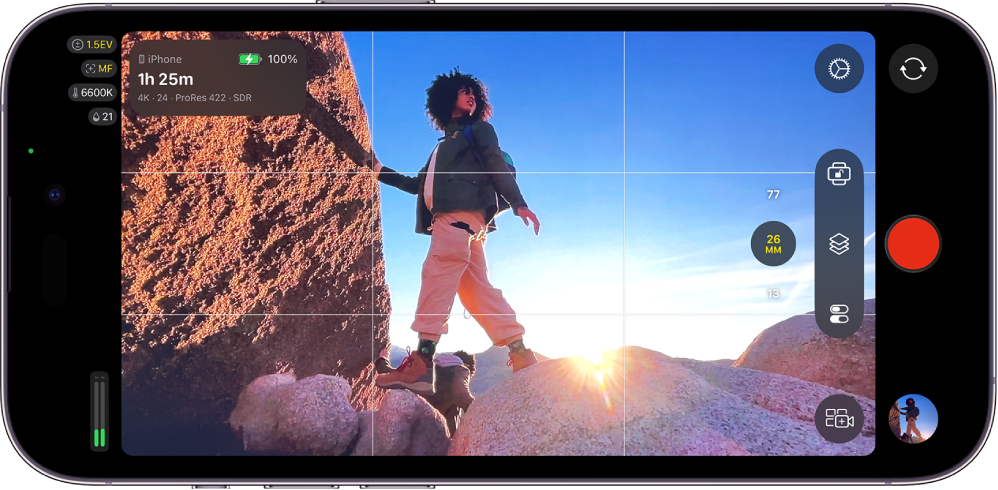
You can turn on guides in the camera viewfinder in Final Cut Camera to help you compose your shots.
Turn aspect ratio guides on or off
If you plan to deliver your project in a 4:3 aspect ratio or a square aspect ratio (for social media, for example), you can show aspect ratio guides on the camera screen to help you compose your shots. Then you can crop your video clips later in post-production, and they’ll fit correctly in the final frame size.
Go to the Final Cut Camera app
 on your iPhone or iPad.
In the camera screen, tap
 , tap Aspect Ratio Guide, then tap an option.
Tap
 .
.
Turn the viewfinder grid on or off
Use the viewfinder grid lines to help you compose your shot.
Go to the Final Cut Camera app
on your iPhone or iPad.In the camera screen, tap
, then tap Grid Overlay.Tap
.
Turn the viewfinder level and crosshairs on or off
Use the viewfinder level and crosshairs to help you compose your shot.
Go to the Final Cut Camera app
on your iPhone or iPad.In the camera screen, tap
, then tap Level.Tap
.
When Level is turned on, tilt and roll indicators appear in the viewfinder. White horizontal bars align and change to yellow when the viewfinder horizon is perfectly level, and a white dot changes to yellow when the camera is perfectly vertical. In overhead shots, crosshairs change to yellow when the camera is pointed straight down.
The guides and overlays remain on the camera screen until you turn them off, including while recording with the front-facing camera.