Identify a song using Shazam Music Recognition on Apple Watch
You can identify a song on your Apple Watch using Shazam Music Recognition for watchOS. You can also instantly identify a song by tapping the Shazam complication on your Apple Watch face.
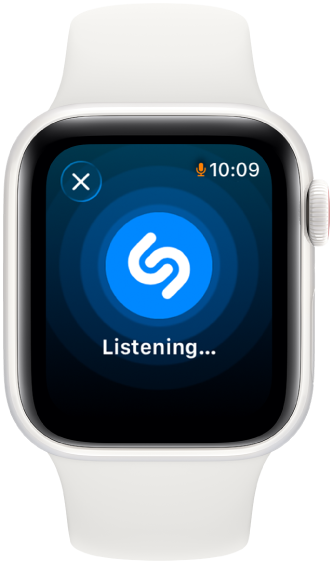
To ensure that your Apple Watch is correctly set up for the best Shazam experience, see Before you use the Shazam app.
Identify a song on Apple Watch
On Apple Watch, do either of the following:
Go to the Shazam Music Recognition app, then tap
 . (If this your first time using Shazam Music Recognition on Apple Watch, tap Continue, then tap .)
On your watch face, tap the Shazam Music Recognition complication.
The song is identified and is saved to the Shazam app.
Do any of the following:
Tap
 to play or preview the song.
Tap
 to return to the Shazam Music Recognition app. Turn the digital crown or swipe up to view your recent songs.
Tap Apple Music to open the song in the Apple Music app on your Apple Watch.
Tap “Add to” to add the song to your Apple Music library or to an Apple Music playlist.
Identify a song on Apple Watch with Siri
On Apple Watch, you can identify a song with just your voice using Siri.
For the best experience, make sure you’ve set up Siri and correctly configured your iCloud and Shazam app settings.
With music playing around you, say something like “Hey Siri, what’s the name of this song?”
Siri announces the identified song, and the song is saved to the Shazam app.
Identify a song on Apple Watch with a Smart Stack widget
On Apple Watch, do either of the following to open the Smart Stack:
Turn the Digital Crown upward.
Swipe up from the bottom of the screen.
Do one of the following:
Tap Enable Music Detection, then tap Turn On.
Tap Edit, tap
 , tap Music Recognition, then tap Shazam Recognize Music.
With music playing around you, tap Shazam Recognize Music.
The identified song appears in the Smart Stack and is saved to the Shazam app.
You can add, remove, and rearrange the widgets in the Smart Stack. For details, see the Apple Watch User Guide.