Combine workouts and meditations with Stacks in Apple Fitness+
In Apple Fitness+, you can create Stacks, a series of workouts or meditations you can complete back to back. Stacks let you create longer workout sessions that incorporate your favorite activities. For example, you can create a Stack with different workouts, followed by a Mindful Cooldown or Meditation.
Note: Apple Fitness+ audio workouts and meditations aren’t available in Stacks.
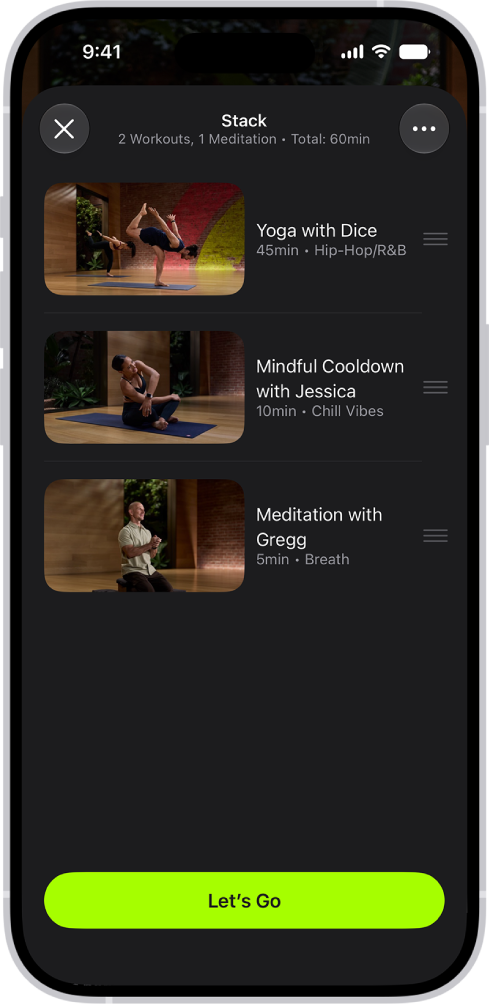
Create a Stack
Go to the Fitness app
 on iPhone, iPad, or Apple TV 4K, then (on iPhone) tap Fitness+.
Do one of the following:
On iPhone or iPad: Tap a workout or meditation, then tap
 at the top-right corner.
On Apple TV 4K: Select a workout or meditation, then select “Add to.”
Select Add to Stack.
Tip: You can also touch and hold (on iPhone or iPad) or press and hold the clickpad or the touch surface on your remote (on Apple TV 4K), then select Add to Stack.
If you want to view your Stack while you’re browsing an activity, tap then tap View Current Stack.
Start a Stack
Go to the Fitness app
on iPhone, iPad, or Apple TV 4K, then (on iPhone) tap Fitness+.Do one of the following:
On iPhone or iPad: Tap
 .
.On Apple TV 4K: Open the sidebar, then select Stack.
Select Let’s Go.
After you complete an activity in your Stack, select Let’s Go to start the next workout or meditation, or tap Done to return to Apple Fitness+.
Edit your Stack on iPhone or iPad
When you’re finished adding activities to your Stack, you can make modifications at any time before you save the Stack to your library.
Go to the Fitness app
on iPhone or iPad, then (on iPhone) tap Fitness+.Tap
, then do any of the following:Reorder items in your Stack: Drag
 up or down next to an activity.
Delete an item in the Stack: Swipe left on an activity, then tap Delete.
Clear all items in the current Stack: Tap
, then tap Clear Stack.
Edit your Stack on Apple TV 4K
Go to the Fitness app
 on Apple TV 4K.
Open the sidebar, then select Stack.
Select
, then do any of the following:Reorder items in your Stack: Select Edit Stack, select
, then move the activity up or down.Delete an item in the Stack: Select Edit Stack, then select
 .
.Clear all items in the current Stack: Select Clear Stack.