
Platform Single Sign-on for Mac
Overview
Platform Single Sign-on (Platform SSO), available in macOS, provides a seamless login and authentication experience to users. With Platform SSO, users can use their organizational identity throughout macOS starting with the initial setup instead of having to repeatedly interact with authentication prompts. To use Platform SSO, you need to deploy an SSO extension compatible with your identity provider (IdP) that implements the Platform SSO framework.
You can combine Platform SSO with other SSO extensions with the following considerations:
A specific domain needs to use only one single SSO extension.
Set
syncLocalPasswordtoFALSEin the Kerberos SSO configuration.
Note: The SSO extension needs to support all features and authentication methods referenced in this document. For more information, see your IdP’s documentation.
Features
Platform SSO supports the following features:
Provide a single sign-on experience for native and web apps.
Use multiple authentication methods including password, Secure Enclave–backed keys, flexible web-based authentication flows, access keys, and smart cards.
Activate and enforce Platform SSO during Automated Device Enrollment to authenticate the enrollment and create a local user account.
Create additional local user accounts on demand when a user logs in with credentials from an IdP account.
Synchronize IdP passwords with local user accounts.
Require Touch ID as a second factor.
Get information about the status of Platform SSO and repair options in System Settings.
Use login policies to define when to perform live password authentication with the IdP.
Define privileges of IdP accounts and allow people to use network-only IdP accounts at authorization prompts.
Support guest users who log in temporarily with their IdP credentials on shared Mac computers.
Note: Most features require support from the SSO extension. To learn more about implementing Platform SSO in your organization, consult your IdP’s documentation.
Requirements
macOS 13 or later
A device management service that supports the Extensible Single Sign-on configuration, which includes settings for Platform SSO
An app containing a Platform SSO extension compatible with the IdP
The following features have additional version requirements:
Feature | Minimum supported operating system version | ||||||||||
|---|---|---|---|---|---|---|---|---|---|---|---|
Require Touch ID | macOS 27 | ||||||||||
Web-based authentication | macOS 27 | ||||||||||
QR code authentication | macOS 27 | ||||||||||
FileVault support with Authenticated Guest Mode | macOS 27 | ||||||||||
Authenticated Guest Mode | macOS 26 | ||||||||||
Tap to Login | macOS 26 | ||||||||||
Platform SSO during Automated Device Enrollment | macOS 26 | ||||||||||
UPN prefix as local account name | macOS 15.4 | ||||||||||
Attestation for device identifiers | macOS 15.4 | ||||||||||
Login policies | macOS 15 | ||||||||||
On-demand account creation | macOS 14 | ||||||||||
Group management and network authorization | macOS 14 | ||||||||||
Platform SSO in System Settings | macOS 14 | ||||||||||
Set up Platform SSO
To use Platform SSO, the Mac and each user needs to register with the IdP. Depending on IdP support and the applied configuration, the Mac can perform device registration silently in the background using:
A registration token of the IdP provided in the extensible SSO configuration.
An attestation, which provides a strong assurance that the Mac is a genuine Apple device and can optionally include device identifiers (UDID and serial number).
After the device successfully registers, the user then registers. If the IdP requires it, Platform SSO prompts the user to confirm their registration. How Platform SSO handles registration varies by account type:
With prior device authentication: If device registration already involved user authentication and the SSO extension provided the necessary information and tokens, Platform SSO performs user registration in the background.
On-demand local accounts: Platform SSO attempts user registration silently in the background. If that fails, it prompts the user.
Authenticated Guest Mode accounts: Platform SSO skips user registration entirely for temporary accounts that Authenticated Guest Mode creates.
If necessary, local accounts (as defined by you) can be exempt from Platform SSO and aren’t prompted to register for Platform SSO. This also excludes them from features like login policies or requiring Touch ID.
Note: If you unenroll a Mac from the device management service, it also unregisters from the IdP.
Shared device keys
To maintain a trusted connection with the IdP independent of the user, Platform SSO supports shared device keys. Use shared device keys whenever possible. They are required for:
Platform SSO during Automated Device Enrollment
Requiring Touch ID
Web-based authentication
Authenticated Guest Mode
On-demand account creation
Network authorization
Authentication methods
Platform SSO supports different authentication methods with an IdP. Support for each depends on the IdP and the Platform SSO extension. The authentication methods are:
Password: With this method, a user authenticates with the IdP using a password. This method also supports WS-Trust, which allows the user to authenticate even when the IdP managing their account is federated.
Web-based: With this method, a user authenticates on a web form presented by the IdP. This web-based authentication method can also offer multi-step authentication flows and allows camera access for users to sign in by scanning a QR code.
Smart card: With this method, a user authenticates with the IdP using a smart card. To use this method, you need to:
Register the smart card with the IdP.
Configure smart card attribute mapping on the Mac.
For details and an example attribute mapping configuration, see the man page for Smart Card Services project.
Secure Enclave–backed key: With this method, a user who logs in to their Mac with a local account password can use a Secure Enclave–backed key to authenticate with the IdP without a password. The IdP sets up the Secure Enclave key during the user registration process.
Access key: With this method, a user uses a pass stored in Apple Wallet to authenticate with the IdP. Similar to a smart card, you need to register the access key with the IdP.
Certain features require you to use a specific authentication method:
Feature | Password | Web-based | Smart card | Secure Enclave–backed key | Access key |
|---|---|---|---|---|---|
Privilege management |  | | | | |
Authenticated Guest Mode | | | |  | |
Automated Device Enrollment | | | | | |
On-demand account creation | | | | | |
Require Touch ID | | | | | |
Password synchronization | | | | | |
Login policies | | | | | |
Note: The SSO extension needs to support the requested method to perform the registration and the extension also supports switching methods. For example, when a new user account is successfully created during login with a user name and password, that account can then switch to use a Secure Enclave–backed key or smart card. Switching methods may involve prompting the user to complete the user registration.
Web-based authentication and QR code sign-in
With web-based authentication, organizations can leverage modern and flexible authentication methods. To help protect the privacy and security of the user, the Platform SSO framework only permits defined URLs during the web-based authentication process.
When web-based authentication is used, macOS displays a web view during FileVault unlock, at the Lock Screen, and at the login window. The web view renders the sign-in form of the IdP and supports multi-step and multi-factor authentication flows and QR code sign-in.
Using a QR code provides a quick authentication method for example for students logging in to classroom or kiosk Mac computers. To help protect the user’s privacy, macOS handles scanning using a built-in or attached camera in a secure system process and shares only the scanned code with the IdP. The IdP treats this code as text and it can represent a token, URL, or other factors the IdP requires.
In addition, users can also sign in with passkeys at the Lock Screen and the login window.
Note: Passkeys are unavailable for use with FileVault unlock because the pre-boot environment doesn’t have access to the necessary security and networking protocols.
If web-based authentication is unavailable, for example, when the Mac is offline, users can use their local account password to authenticate for a number of days as defined by the IT team.
FileVault network requirements
Platform SSO needs to be able to reach the IdP prior to FileVault unlock for the following features:
Web-based authentication
Authenticated Guest Mode
Login policy
Because macOS needs to establish connectivity before the data volume is available, you need to reach the IdP without a VPN, network relay, or 802.1X authentication.
On a Mac with macOS 27, you can also allow users to connect to a different network and authenticate with captive portals at FileVault unlock, at the Lock Screen, and the login window.
Platform SSO with Automated Device Enrollment
You can activate and enforce Platform SSO during Setup Assistant with Automated Device Enrollment. This works well for single-user Mac computers because macOS automatically creates a local account for the user who authenticates the enrollment, and that user can immediately use SSO with supported native and web apps.
When you configure Platform SSO with Automated Device Enrollment, macOS downloads and installs the Platform SSO extension and configuration. This can happen at two points:
Before macOS enrolls with the device management service: Allows the user to authenticate enrollment with SSO.
After enrollment: When the device management service holds macOS in the awaiting configuration state.
During this flow, macOS performs device registration either silently or by prompting the user. If macOS performs silent device registration, or if Platform SSO didn’t receive the necessary user information and tokens, the user needs to authenticate with their IdP to complete user registration. This also establishes a user identity in macOS. Users can’t proceed without successful Platform SSO registration.
Note: The Platform SSO extension can provision Secure Enclave-backed keys during Automated Device Enrollment if the device registration already provides all necessary information and tokens to perform the user registration.
After the user successfully authenticates, macOS creates a local user account. Using an optional configuration key, you can define which attribute from the IdP to use for the local user account name (often called the user’s short name) and full name. Device management service administrators can also set the key for the account name to com.apple.PlatformSSO.AccountShortName to use the UPN prefix.
When password sync is turned on, the password syncs with the IdP if user registration was done with password or web-based authentication. Otherwise, the user sets a local password. If necessary, you can enforce password complexity requirements for the local password using the Passcode configuration. When you configure it, macOS can then sync the local account’s login profile picture from the IdP.
If the user account macOS creates is the only account on the Mac, that account becomes a local administrator account. If the device management service created an administrator account using the account configuration command, you can assign the user account different privileges using Platform SSO privilege management.
Note: You can also use Platform SSO during Automated Device Enrollment when a software update is required. In this case, the device management service needs to enforce the update first.
Single Sign-on
Because Platform SSO is part of Extensible SSO, it provides the same single sign-on capabilities and allows users to log in once, then use the token from the initial authentication to authenticate with supported native and web apps.
If tokens are missing, expired, or more than four hours old, Platform SSO attempts to refresh or retrieve new ones from the IdP. By default, Platform SSO requires a full login every 18 hours but you can configure a different duration (in seconds, with a minimum of one hour) until Platform SSO requires a full login instead of a token refresh. A full login may prompt the user to act. For example, to present their smart card or use Touch ID if the Platform SSO extension requires biometric authentication.
Require Touch ID
Many organizations consider biometric authentication one of the strongest authentication factors, because it relies on unique physical traits rather than shared knowledge and forms the core of a multi-factor authentication strategy.
When you use password authentication or a Secure Enclave–backed key, you can configure Touch ID as a mandatory second factor separately for the FileVault unlock process, the Lock Screen, and the login window. If you allow this feature, the configuration requires the user to authenticate with Touch ID or, optionally, an Apple Watch, in addition to password.
Important: If Touch ID isn’t available, for example, because the user hasn’t configured it, organizations can allow web-based authentication as a fallback. If neither Touch ID nor web-based authentication is available, the user is unable to log in.
Platform SSO in System Settings
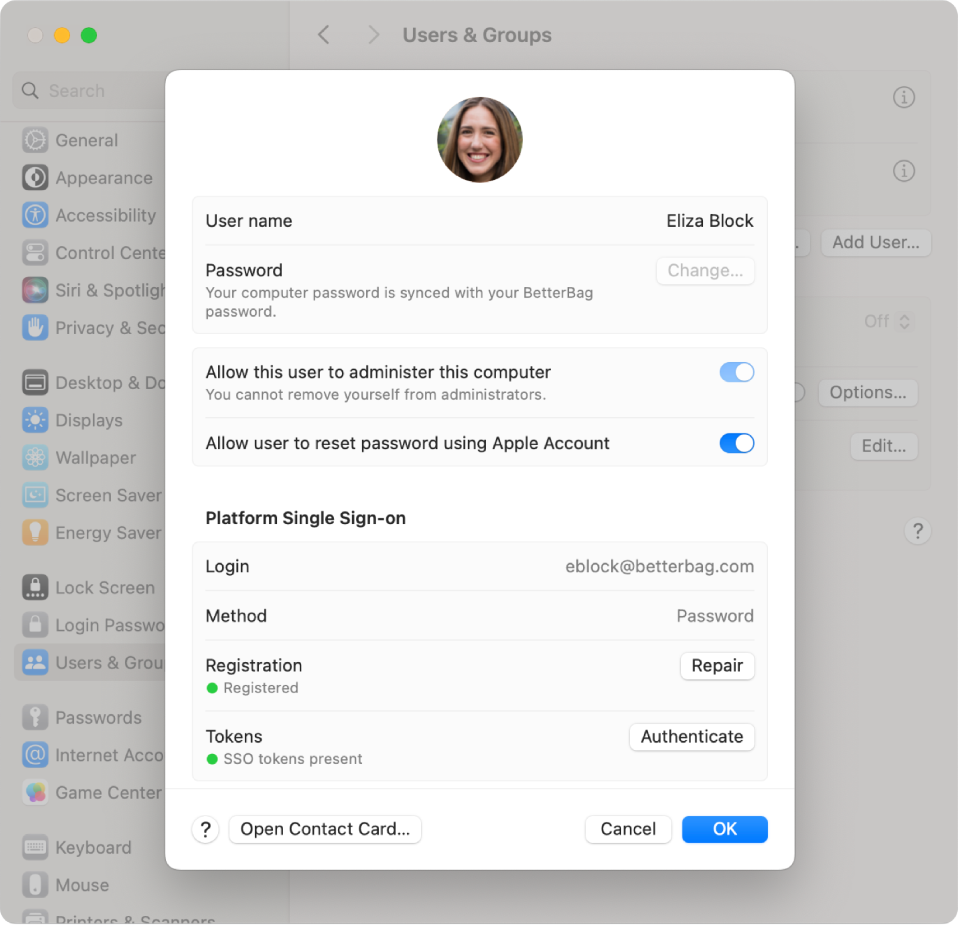
After the device registers Platform SSO, users can inspect their registration status in System Settings > Users & Groups > [user name]. If necessary, they can repair the registration and force a refresh of their authentication token.
The device registration status is visible in Users & Groups > Network account server and also offers an option to perform a repair.
Password synchronization
If you use password authentication, the local user password automatically syncs with the IdP whenever a user changes their password, either locally or remotely. If necessary, macOS prompts the user for their previous password. When enforcing password complexity requirements, align your passcode configuration on the device with the one you use with your identity provider to provide a consistent user experience.
Important: Use your IdP to drive password change policies instead of enforcing local password changes with passcode configurations or pwpolicy.
If the IdP requires a password during web-based authentication and you allow the feature in the configuration, macOS can sync the password the user enters in the IdP web view to the local user account. This sync is one-way and designed to set a local user account password when creating user accounts and keep it updated. It requires the IdP to call a specific Platform SSO JavaScript function on their sign-in page. Otherwise, the user can use System Settings to set a password for their local user account.
Note: A local account password is required for local password fallback. Otherwise, web-based authentication is always required.
Login policies
By default, macOS requires the local account password to unlock FileVault, the Lock Screen, and the login window. If the entered password doesn’t match the local user account password, macOS attempts to reach the IdP to authenticate the user. If macOS can’t reach the IdP, or the entered password doesn’t match the password the IdP stores, authentication fails.
With login policies, you can allow the use of the current account password from the IdP at these three prompts immediately. You can also set the following policies individually for FileVault, the Lock Screen, and the login window:
Attempt authentication.
If you configure this policy, macOS attempts to authenticate the user live with the IdP.
If the Mac is online, the user needs to authenticate successfully with the IdP to proceed, even if the Mac goes offline after the first attempt.
If authentication is successful, Platform SSO updates the local password.
If the Mac is offline, the user can use their local account password.
Require authentication.
If you configure this policy, the user needs to authenticate with the IdP to proceed.
If the Mac is online, the user needs to authenticate with the IdP to proceed, regardless of a configured offline grace period.
If authentication is successful, Platform SSO updates the local password.
If the Mac is offline, users can’t log in. In those situations, you can allow an offline grace period and set it to the number of days after a previous successful login, during which time the user can continue to use the local account password.
You can define whether any account that logs in to the Mac needs to be managed by Platform SSO, or whether macOS still allows login with local-only accounts. You can also define the number of days after Platform SSO applies or updates the policy before macOS enforces this setting. This temporarily allows users to use local accounts. For example, you can temporarily use an administrator account that the device management service created to perform or repair the Platform SSO device registration.
Instead of connecting to the IdP to authenticate, you can also allow users to use Touch ID or Apple Watch on the Lock Screen.
Recovery scenarios
When live authentication with the IdP is required but the Mac can’t perform it, users are unable to log in. In those situations, the following options may help users regain access:
If the user can’t proceed past FileVault unlock, they can enter a Personal Recovery Key by pressing Option-Shift-Return to reach the login window. When macOS connects to a network at the login window, a device management service can deploy an updated configuration. For example, you could temporarily remove the login policy to allow the user to log in with the local account password.
If macOS can’t connect to a network to receive an updated configuration, recoveryOS provides a bypass option. To use this option, the user needs the FileVault Personal Recovery Key and—if configured—the Recovery Lock password. When the user is in recoveryOS, the
security platformsso bypass-login-policycommand temporarily removes the requirement to authenticate directly with the IdP. The bypass lasts for 12 hours or until a successful authentication with the IdP is performed.
Privilege management
Platform SSO offers granular rights management to provide users with the appropriate level of privileges they need on their Mac. To do so, Platform SSO can apply the following privileges to an account each time the user authenticates:
Standard: The account gets standard user privileges.
Administrator: Adds the account to the local administrator group.
Groups: Define privileges by group membership, which update every time the user authenticates with the IdP.
When you use groups, an account gets privileges based on membership of the following:
Administrator groups: If the account is part of a listed group, they have local administrator access.
Authorization groups: If the account is part of a group assigned to a built-in or custom-defined authorization right, the account has privileges associated with that group. For example, macOS uses the following authorization rights:
system.preferences.datetime, which allows the account to modify time settings.system.preferences.energysaver, which allows the account to modify energy saver settings.system.preferences.network, which allows the account to modify network settings.system.preferences.printing, which allows the account to add or remove printers.
Additional groups: These can be custom-defined groups (which macOS creates automatically inside the local directory if they don’t already exist) for macOS or specific apps. For example, you can use an additional group in the
sudoconfiguration to definesudoaccess. Users are mapped to those groups after they authenticate with the IdP.
Network authorization
Platform SSO expands the use of IdP credentials for authorization purposes to users who don’t have a local account on the Mac. These accounts use the same groups as group management. For example, if the account is a member of one of the administrator groups, it can approve administrator authorization prompts. To use this functionality, configure Platform SSO with shared device keys.
Network authorization isn’t possible with authorization prompts that require a secure token, ownership permissions, or authentication by the current logged-in user.
On-demand account creation
To facilitate account management in shared deployments, users can use their IdP user name and password, a smart card, or web-based authentication to log in to a Mac to create a local account. This is especially useful if the same users return to a Mac, like shift-workers or classroom setups where students use the same Mac throughout a school year.
You can achieve a fully automated provisioning process using Automated Device Enrollment with Auto Advance. You need to create the first local administrator account using a device management service, and perform silent Platform SSO registration.
Additionally (similar to Automated Device Enrollment), you can use an optional configuration key to define which attribute from the IdP to use for the local user account name.
You can also define what privileges to apply to newly created accounts at login. The same options for privilege management are available:
Standard: The account gets standard user privileges.
Administrator: Adds the account to the local administrator group.
Groups: Define privileges by group membership, which update every time the user authenticates with the IdP.
Requirements
Enroll the Mac in a device management service that supports bootstrap tokens.
Complete Setup Assistant and create a local administrator account.
Have the Mac at the login window with FileVault unlocked and a network connection.
Authenticated Guest Mode
Authenticated Guest Mode provides an expedited login experience for shared deployments, such as medical offices or schools, where different users donʼt need a local account created because they just need to sign in with their IdP credentials for a short period of time. The user gets standard user privileges by default, but you can change those privileges using Platform SSO privilege management.
Authenticated Guest Mode can be used together with Platform SSO-enabled local user accounts. This allows a primary user of the Mac to benefit from Platform SSO capabilities while others can log in temporarily if needed.
Note: Authenticated Guest Mode and Tap to Login can be used with FileVault to allow users to log in with their access key, IdP password, a smart card, or use web-based authentication, even when the Mac is at the FileVault unlock window.
When a user logs out, macOS erases all local data for that account, and the shared Mac is ready for the next user to log in.
By default, Authenticated Guest Mode securely erases the entire user home folder. While this is thorough, it can come at the expense of delaying the logout. If faster switching between different user sessions is needed, you can configure quick login. Quick login deletes Documents, Desktop, Downloads, and a few other items and removes all guest sessions every eight hours. When turned on, switching sessions is even faster, which makes it an ideal option where a high turnover of user sessions occurs and performance of the logout and login experience is a priority.
Requirements
Enroll the Mac in a device management service that supports bootstrap tokens.
Complete Setup Assistant and create a local administrator account.
Tap to Login
Tap to Login extends the digital credential functionality from Apple Wallet to the Mac. Over the past few years, organizations have adopted digital badges in Apple Wallet which allows users to unlock doors with just the tap of an iPhone or Apple Wallet, without the need for a physical badge. This same experience is available on a Mac and is particularly valuable for organizations that share a Mac across multiple users, including educational institutions, retail environments, and healthcare facilities.
With Tap to Login, users can authenticate on a Mac configured for Authenticated Guest Mode when they tap their iPhone or Apple Watch on an attached NFC reader. This initiates a secure single sign-on process that automatically authenticates users to their apps and websites, allowing them to quickly log in and get to work.
An iPhone app or browser provisions user credentials as access keys in an Apple Wallet pass. The Secure Element on the device stores these access keys, making them hardware-backed and encrypted and helps protecting them from tampering or extraction. Express Mode further enhances convenience by allowing users authenticate immediately, without waking or unlocking their device (similar to how transit cards work in Apple Wallet).
Access key creation and management requires participation in the Apple Wallet Access Program. For more information on how to create an access key, see Provisioning in the Apple Wallet Access Program Guide.
Requirements
You need to configure Authenticated Guest Mode
You need to use a supported external NFC reader