If the Restore screen appears on your iPhone, iPad, or iPod touch
Connect your device to a computer and restart it. You might also need to reinstall your software.
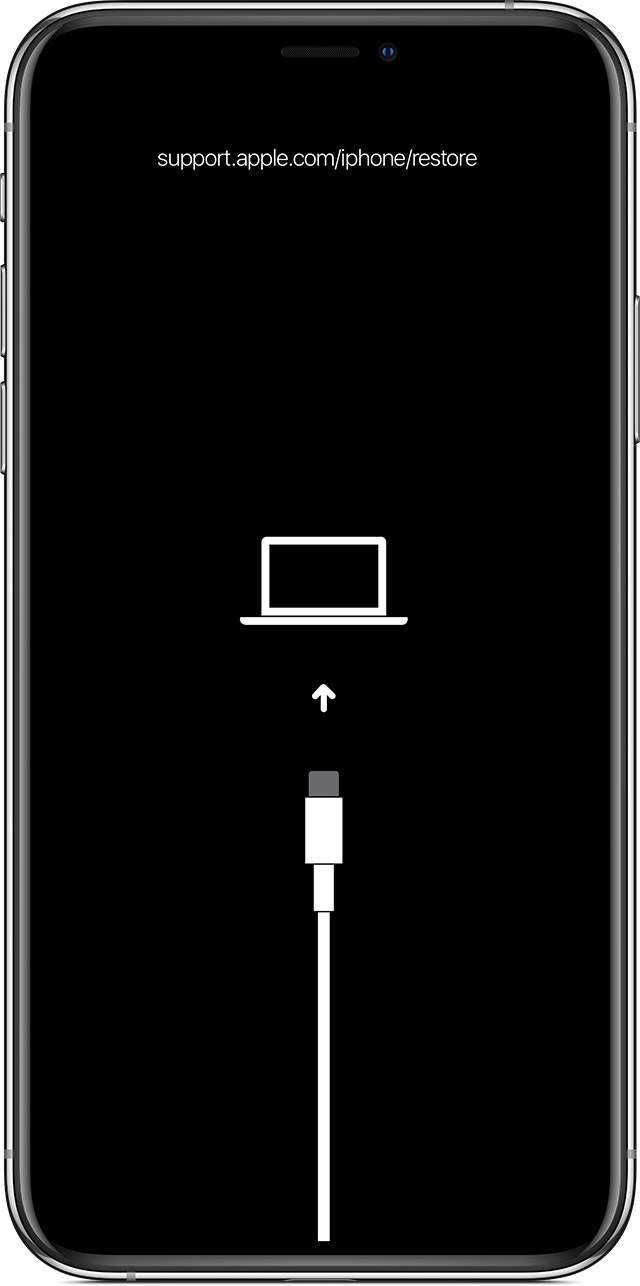
Connect to your computer
Connect your device to your computer with its original cable. Don't disconnect it from your computer.
Restart your device
For iPhone 8 or later:
Press and quickly release the Volume Up button.
Press and quickly release the Volume Down button.
Press and hold the side button until the Apple logo appears.
For iPad models without a Home button:
Press and quickly release the volume button closest to the top button.
Press and quickly release the volume button farthest from the top button.
Press and hold the top button until the Apple logo appears. If you're not sure, learn which buttons you need to press to restart your iPad.
For iPhone 7, iPhone 7 Plus, and iPod touch (7th generation), press and hold both the side (or top) button and the Volume Down button until the Apple logo appears.
For specific older models such as an iPad with a Home button, iPhone 6s or earlier, and iPod touch (6th generation) or older, press and hold both the side (or top) button and the Home button until the Apple logo appears.
If the Restore screen still appears after you restart
If the Restore screen still appears after you restart, you need to reinstall iOS or iPadOS.
Open the Finder on your Mac, or open the Apple Devices app on your PC. Find out which macOS your Mac is using.
Keep your device connected. When your computer detects it, a message should appear saying that your device needs to be updated or restored.
Click Update (not Restore) to reinstall iOS or iPadOS and keep your personal data.
Don't disconnect it from your computer until the update finishes.
Get help
If the Restore screen still appears after these steps, or if you can't restart because a button is broken, your device might need service. Get service.