Find clips and projects in Final Cut Pro for Mac
In Final Cut Pro, you can search for media in the browser in several ways:
Quickly filter clips: Use the Filter pop-up menu to locate clips by rating (for example, clips you’ve rated as favorite). You can also locate unused clips and clips with neither ratings nor keywords.
Search notes, names, or markers: Use the browser search field to quickly find clips and projects by text in notes, names, or markers.
Search spoken dialogue: With Transcript search, quickly search through spoken dialogue in English and pinpoint words or phrases by entering a description using natural language.
Search visuals: Use Visual search to easily locate visual moments in your videos, including objects and actions, by entering a description using natural language.
Search using a combination of criteria: Use the Filter window to perform complex searches for clips and projects, also known as weighted searches. You can search by a wide variety of criteria, including clip or project name, rating, media type, used media, excessive shake, keywords, the presence of people, format information, date, roles, and item type (audition, synced clip, compound clip, multicam clip, layered graphic, or project).
You can also use the timeline index to search and filter items in the timeline. See Search for items in the timeline index.
Note: Transcript and Visual search rely on clip analysis that happens in the background. Multicam clips and synced clips aren’t analyzed, but their active angles or clips can appear in Transcript or Visual search results if the source clips for the multicam or synced clips have been analyzed. Compound clips aren’t analyzed and don’t appear in Transcript or Visual search results.
Filter clips quickly by rating
In the Libraries sidebar in Final Cut Pro, select a library or one or more events or folders you want to filter by rating.
Click the Filter pop-up menu at the top of the browser and choose an option.

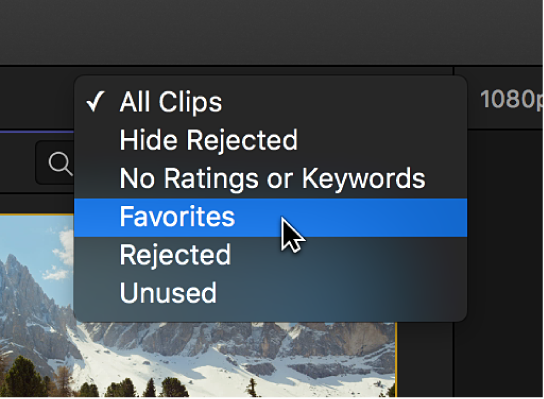
All Clips: Shows all clips in the event.
Hide Rejected: Shows all clips or range selections except those you’ve rated as rejected.
No Ratings or Keywords: Shows only the clips or range selections without ratings or keywords.
Favorites: Shows only the clips or range selections you’ve rated as favorite.
Rejected: Shows only the clips or range selections you’ve rated as rejected.
Unused: Shows only the clips or range selections that are not used in a project, compound clip, multicam clip, or synced clip.
Search for clips or projects
In the Libraries sidebar in Final Cut Pro, select a library or one or more events or folders you want to search.
Click the Search button
 at the top-right corner of the browser.
In the search field, enter the text, spoken words, or visual objects or actions you want to search for.
You can enter a description using natural language, or enter the exact text or spoken words you want to search for.

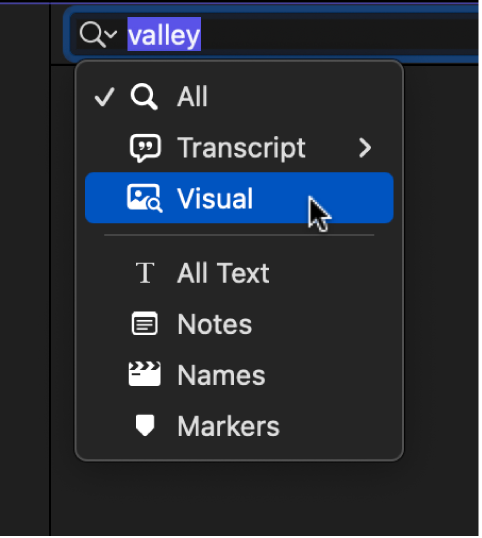
As you type, search results appear in the browser. By default, Final Cut Pro searches all categories.
To search a specific category, click the search field pop-up menu and choose an option.
Search for spoken dialogue
By default, when you import media containing audio, Final Cut Pro automatically analyzes the media for spoken dialogue in English. This allows you to search for spoken words, either exact matches or related words or phrases.
Note: When you’re working with multichannel audio, only dialogue in the first audio channel is analyzed and presented in search results.
In the Libraries sidebar in Final Cut Pro, select a library or one or more events or folders you want to search.
Click the Search button
at the top-right corner of the browser.In the search field, enter the spoken words you want to search for.
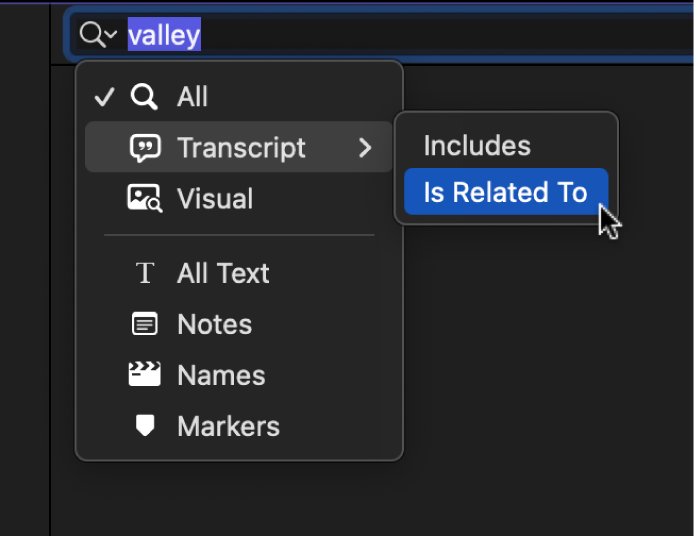
Click the search field pop-up menu, choose Transcript, then choose an option from the submenu:
Includes: Finds the exact spoken words in the analyzed media.
For example, entering the search text “Joshua Tree National Park” finds all instances of that exact phrase.
Is Related To: Finds spoken words or phrases related to the search text.
For example, entering “Joshua Tree National Park” might find any references to trees or parks.
The items that match the search criteria are displayed in the browser. To provide context, the matching results include a few seconds before and after the spoken word or phrase.
To turn off automatic analysis for spoken dialogue, choose Final Cut Pro > Settings (or press Command-Comma), click Import, then deselect Transcribe in English.
Search for clips and projects by a combination of criteria
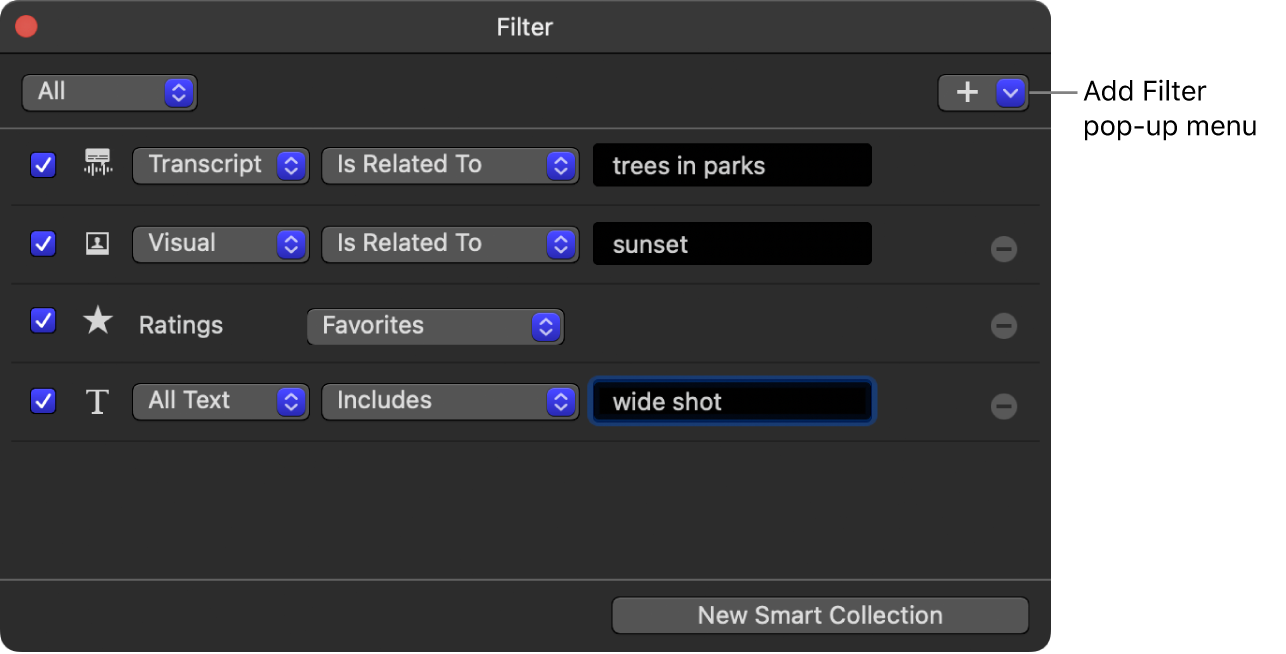
You can search for clips and projects by multiple search criteria. For example, you could search for video clips with dialogue related to “trees in parks,” sunset images, a favorite rating, and the text “wide shot” in their metadata.
In the Libraries sidebar in Final Cut Pro, select a library, event, or folder you want to search.
Click the Search button
at the top-right corner of the browser.Click the Filter button to the right of the search field.
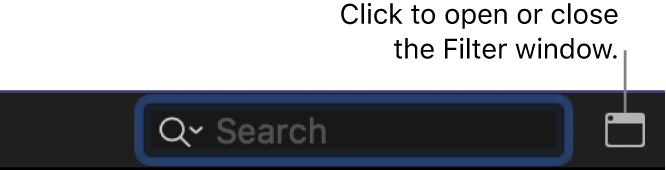
In the Filter window, click the Add Filter pop-up menu and choose search criteria.
Text: Find clips or projects by their name or by text in notes and markers. You can add multiple Text filters to search using more than one word or phrase, as well as exclude specific words and phrases from the search.
Note: To search for spoken words in English, choose Text from the Add Filter pop-up menu, then choose Transcript from the submenu. To search for visual objects or actions, choose Text from the Add Filter pop-up menu, then choose Visual.
Ratings: Find clips based on the rating (favorite or rejected) assigned to them. See Rate clips.
Markers: Find clips by markers, including descriptive text and whether to-do markers are complete or incomplete. See Edit and move markers.
Media Type: Find clips by the type of source media file, such as video, audio, or still image.
Type: Find items by their type, such as audition, synced clip, compound clip, multicam clip, layered graphic, or project.
Used Media: Find clips based on whether they’re used in a project, compound clip, multicam clip, or synced clip.
Keywords: Find clips by any of the keywords that you’ve assigned to them. You can select one or more keywords to search for. See Add keywords to clips.
People: Find clips that Final Cut Pro has identified as having people in them. Options include One Person, Two Persons, Group, Close Up Shot, Medium Shot, and Wide Shot. See Video analysis options.
Format Info: Find clips or projects using format information, such as video frame rate or scene number.
Media Analysis: Find clips by the available analysis. Choose Visual to find clips analyzed for visual objects, or choose Transcript to find clips analyzed for spoken dialogue in English.
Media Representation: Find clips by the available media representation: Original, Optimized, or Proxy.
Date: Find clips or projects by either the date the item was created or the date the media was imported into Final Cut Pro.
Roles: Find clips by their assigned roles. See Intro to roles.
To remove a filter, click the Remove button
 to the right of the filter. To exclude a filter from your search without removing it, deselect its checkbox.
Further refine your search by choosing options from the pop-up menus for the filters you’ve added.
For example, when you search text, you can choose one of the following criteria: Includes, Does Not Include, Starts With, Ends With, Is, or Is Not.
Do one of the following:
Specify that an item must match at least one of the search criteria or keywords: Click the pop-up menu in the upper-left corner of the Filter window, then choose Any.
Specify that an item must match all the search criteria and keywords: Click the pop-up menu in the upper-left corner, then choose All.


The items that match the search criteria are displayed in the browser.
If you wish, you can save your search results as a Smart Collection, which gathers items automatically based on the search criteria.
To clear the search criteria, click the Reset button in the browser search field.

Find clips using both searching and filtering
In Final Cut Pro, performing a search and then filtering the results in the browser by rating is a powerful way to quickly find clips. This is also the best way to find specific clips that you haven’t rated and compare them to clips you have rated.
In the Libraries sidebar in Final Cut Pro, select the library, events, or folders you want to search.
Search for clips using a combination of search criteria, as described above.
However, don’t apply a ratings filter using the Filter window.
Filter clips by rating, as described above.
Repeat step 3 until you find all the clips you’re looking for.
Download this guide: PDF