Numbers User Guide for iPad
- Welcome
- What’s new
-
- Get started with Numbers
- Intro to images, charts, and other objects
- Create a spreadsheet
- Open spreadsheets
- Prevent accidental editing
- Personalize templates
- Use sheets
- Undo or redo changes
- Save your spreadsheet
- Find a spreadsheet
- Delete a spreadsheet
- Print a spreadsheet
- Change the sheet background
- Copy text and objects between apps
- Touchscreen basics
- Use Apple Pencil with Numbers
- Change Numbers privacy and analytics settings
- Copyright

Find a spreadsheet in Numbers on iPad
The document manager, shown below, is what you see when you open Numbers and no spreadsheet is open, or when you open the Files app. You can search for a spreadsheet by its title or content (including text, author name, media file names, video and image descriptions, comments, and more), or browse for it wherever you store spreadsheets (for example, on iCloud Drive, on your device, on an external storage device, or with a third-party storage provider). You can also sort spreadsheets to help you find the one you want.
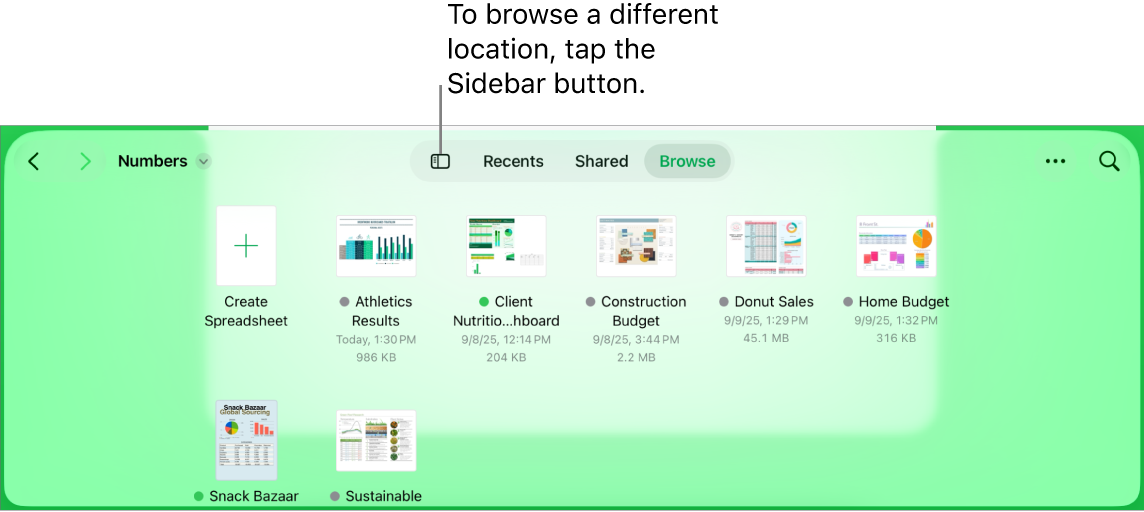
Find a spreadsheet
Go to the Numbers app
 on your iPad.
If a spreadsheet is already open, tap
 in the top-left corner to see all your spreadsheets.
Do any of the following:
Search: Tap in the search field, then enter all or part of the spreadsheet’s name. You may need to tap
 to show the search field.
View only shared or recently edited spreadsheets: Tap Shared or Recents.
Browse for a spreadsheet: Tap
 , then tap a location in the sidebar on the left side of the screen.
Sort by name, kind, date, size, or tags: Tap
 , then tap an option.