Discover concerts with the Shazam app
You can use the Shazam app to view and save upcoming shows and ticket details for touring artists. Additionally, you can set reminders to keep track of upcoming concerts or to be notified if an artist shares their Set List playlist, tour photos, or more after a performance.
You can also view tour information by artist, date, location, or genre on the Concerts webpage on shazam.com. Once you’ve chosen a show, you can also quickly access ticket details on the provider’s website.
Discover and save concerts in the Shazam app on iPhone or iPad
Go to the Shazam app
 on iPhone or iPad, then do any of the following:
Discover upcoming concerts: Tap Concerts
 at the bottom of the screen, tap Find Concerts (or Find a Concert), then tap an upcoming show. You can tap Near Me or Date to filter concerts based on location or date, or tap For You to filter concerts based on your music preferences or popular shows.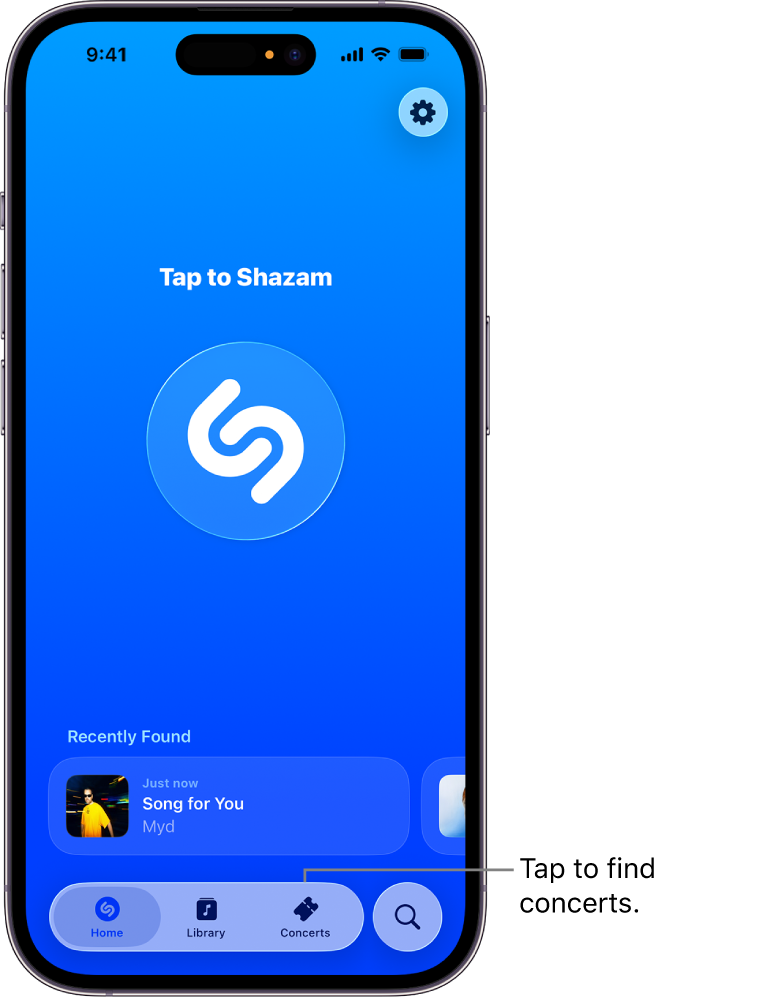
Alternatively, you can tap
 at the bottom of the screen, then tap Concerts.
Discover concerts from music playing around you: Identify a song, tap a concert or “More upcoming concerts by [artist name],” then tap an upcoming show.
Discover concerts from the artist page: In the track screen, tap the artist’s name (below the identified track name), then scroll to view any available concert information.
Discover concerts for any touring artist in the Shazam database: Tap Concerts, tap Find Concerts (or Find a Concert), tap
, enter an artist or song name in the search field, tap a result, then tap an upcoming show.To see more shows, scroll to Upcoming Concerts.
Tip: To quickly search concerts from your iPhone or iPad Home Screen, touch and hold the Shazam app icon, then tap Find Concerts.
In the Concert Guide, do either of the following:
To purchase tickets: Tap Tickets, then tap any available ticket provider to browse and purchase tickets on the provider’s website.
Note: If ticketing links aren’t made available to Shazam, the Tickets button is not displayed. Check the ticket provider’s website for ticket availability.
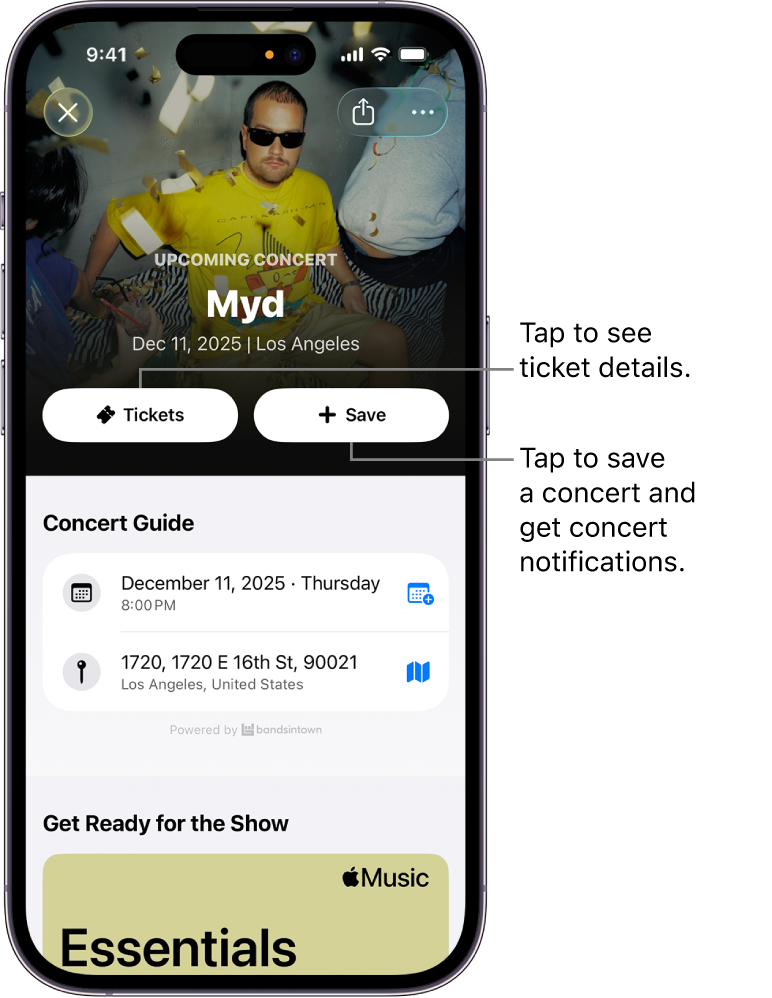
To save a concert and set a reminder: Tap Save, then follow any onscreen instructions to allow notifications.
You’ll receive a “Get ready” reminder before the show, as well as information about available content (such as a Set List playlist, downloadable wallpapers, and more).
To turn off a concert reminder, tap Saved.


Manage your saved concerts on iPhone or iPad
For any concert you save, you can quickly view its concert page, share the concert, view more concert dates, remove the concert, and more.
Go to the Shazam app
on iPhone or iPad, then tap Concerts at the bottom of the screen.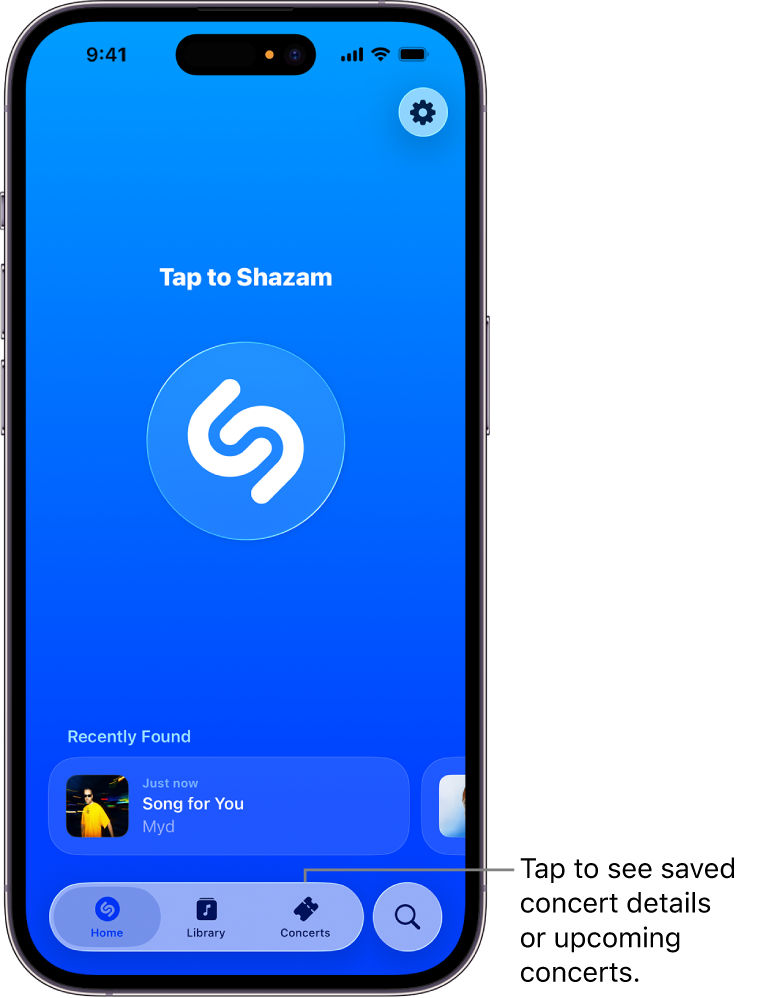
In Saved, swipe to view your saved concerts.
Do either of the following:
Tap
 , then tap an option in the list.
Tap a saved event to display the Concert Guide.
To remove the concert, tap Saved.

Discover concerts in the Shazam app on an Android device
Go to the Shazam app
on an Android device, then do either of the following:Discover upcoming concerts: Tap Concerts
(or swipe to Concerts), tap Near Me or All Locations, then tap an upcoming show. You can also tap Explore to filter concerts based on your music preferences or popular shows.Discover concerts from the artist page: In the track screen, tap the artist’s name (below the identified track name), then tap Concerts (if available).
Discover concerts from music playing around you: Identify a song, tap a concert or “More upcoming concerts by [artist name],” then tap an upcoming show.
Discover concerts for any touring artist in the Shazam database: Tap Concerts
(or swipe to Concerts), tap , search for an artist or song, tap a result, then tap an upcoming show.To see more shows, scroll to Upcoming Concerts.
In the Concert Guide, do either of the following:
To purchase tickets: Tap Tickets, then tap any available ticket provider to browse and purchase tickets on the provider’s website.
Note: If ticketing links aren’t made available to Shazam, the Tickets button is not displayed. Check the ticket provider’s website for ticket availability.
To save a concert and set a reminder: Tap Save, then follow any onscreen instructions to allow notifications.
You’ll receive a “Get ready” reminder before the show, as well as information about available content (such as a Set List playlist, downloadable wallpapers, and more).
To turn off a concert reminder, tap Saved.
Manage your saved concerts on an Android devices
For any concert you save, you can quickly view its concert page, share the concert, view more concert dates, remove the concert, and more.
Go to the Shazam app
on an Android device, then Tap Concerts (or swipe to Concerts).In “Saved concerts,” do any of the following:
Tap “See all” to display all saved concerts.
Tap
 , then tap an option in the list.
Tap a saved concert to display the Concert Guide.
To remove the concert, tap Saved.
Discover concerts with Spotlight on iPhone or iPad
In addition to helping you quickly find apps, emails, and other items, you can use Spotlight on iPhone or iPad to quickly discover upcoming concerts, play songs, or learn more about artists.
On iPhone or iPad, tap
at the bottom of the Home Screen (on models with Face ID) or swipe down on the Home Screen or the Lock Screen.Enter an artist’s name in the search field, then tap the artist result at the top of the screen.
Scroll down to Concerts, then tap an upcoming show (or tap Show More).
Note: If the artist isn’t currently on tour, no concerts are listed.
Tap Get Tickets, then tap any available ticket provider to browse and purchase tickets on the provider’s website.
Note: If ticketing links aren’t made available to Shazam, the Tickets button is not displayed. Check the ticket provider’s website for ticket availability.
Discover concerts using Set Lists
Apple Music Set Lists spotlight a selection of current and upcoming tours. You can track your favorite artists’ tours, read about show production, and listen to the songs they’re playing. You can also explore artist catalogs, browse upcoming concerts, get ticket details, and set show reminders through the Shazam concert discovery feature.
On iPhone, iPad, or an Android device, open the Music app
 .
.Tap
, enter “set lists” in the search field, tap Apple Music (if it’s not already selected), then tap “set lists” in the results.Tap Set Lists Category.
Do either of the following:
Purchase tickets: Tap Browse Upcoming Shows, tap an upcoming show, tap Get Tickets, then tap any available ticket provider to browse and purchase tickets on the provider’s website.
Note: If ticketing links aren’t made available to Shazam, the Tickets button is not displayed. Check the ticket provider’s website for ticket availability.
View or play a set list, or read about an artist: Tap the artist’s Set List.
Tip: To open Set Lists in Apple Music from Safari (or any web browser) on any device, go to apple.co/setlists.
Tip: You can also access Apple Music Guides in Maps on any device.