
About device supervision
Overview
Supervision indicates that an organization owns a device, which gives its device management service more control over the device’s configuration and restrictions than management alone. A device can be managed without being supervised. Management allows a device management service to apply configurations and a baseline set of restrictions. Supervision permits additional restrictions and configurations because the organization owns the device. For example, supervision allows a device management service to approve system extensions and software updates that would otherwise require someone to be physically present at the device.
Knowing whether a device is managed, or supervised and managed, helps set expectations with users, and lets you determine whether an issue is something that can be changed on the device or something the organization controls.
Requirements and expected behavior
How a device becomes supervised depends on the platform. An iPhone or iPad is supervised when it’s enrolled using Automated Device Enrollment or prepared manually with Apple Configurator. A Mac is supervised when it’s enrolled using Automated Device Enrollment or Device Enrollment. A device that a user enrolls with a Managed Apple Account through User Enrollment is managed, but not supervised. For more information about enrollment methods, see Intro to device management.
With supervision, a device management service can apply additional restrictions and configurations. Depending on the organization’s choices, the user might notice:
Apps such as the App Store or Safari removed
AirDrop turned off
Settings such as the wallpaper, device name, or passcode locked
Web content filtered
Apps installing or updating on their own
A “Paste Not Allowed” notice, with the organization’s name, when content is copied between a managed and an unmanaged app
For the complete list of what a device management service can restrict, see Review device management restrictions for Apple devices in Apple Platform Deployment.
Reported behavior
Users may report that a setting is dimmed and can’t be changed, that an app such as the App Store is missing, that AirDrop or another feature doesn’t work as expected, or that an app appeared or updated on its own. A user may also notice a message stating that the device is supervised. These behaviors often reflect the organization’s management, rather than a problem with the device.
Isolating the issue
Before troubleshooting, confirm whether the device is supervised. A supervised device may have settings that are locked or managed remotely.
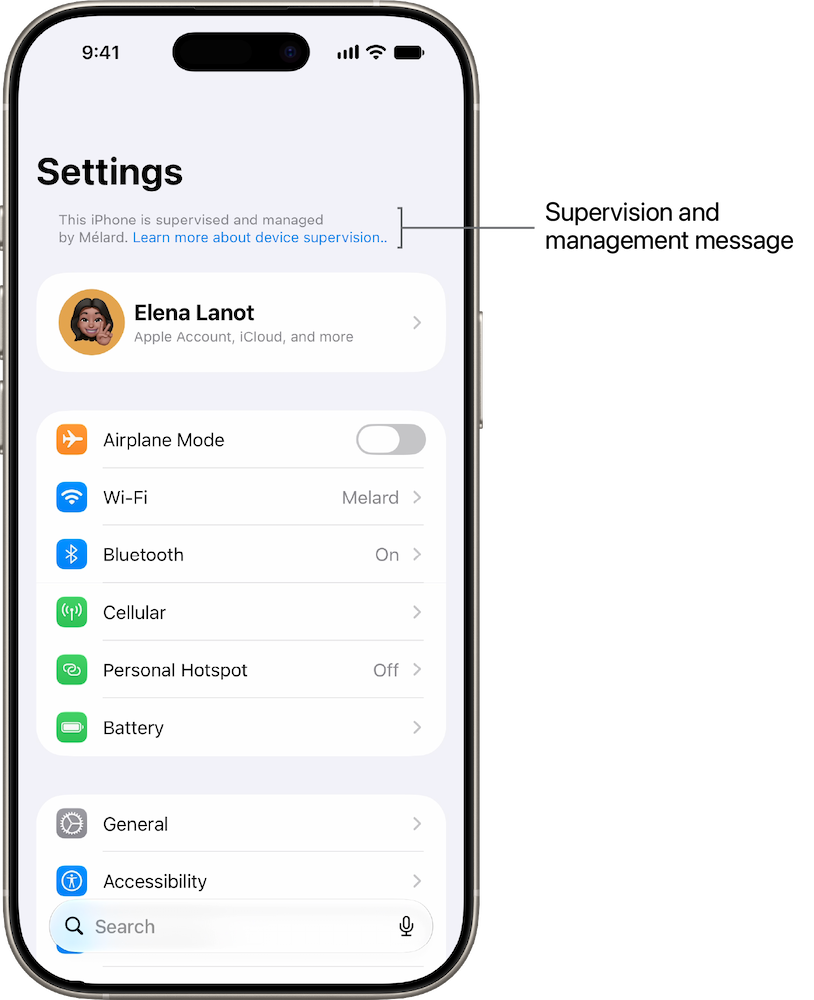
On an iPhone or iPad, go to Settings. The message appears below the search field and above the Apple Account: “This iPhone is supervised and managed by [Organization name].” An iPad shows the equivalent message.
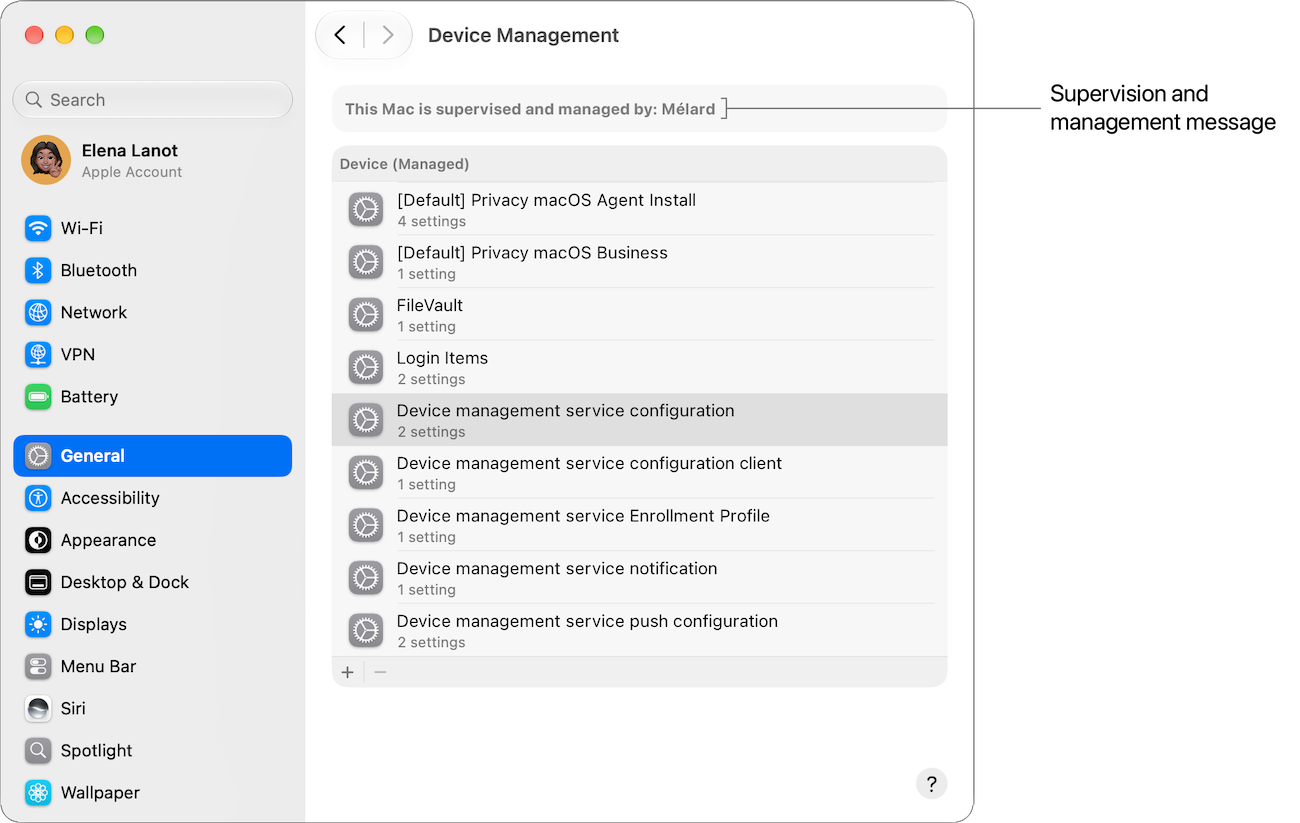
Choose Apple menu > System Settings, click General in the sidebar, then click Device Management. The message appears at the top of the window: “This Mac is supervised and managed by [Organization name].”
Troubleshooting
When a device is supervised, some settings can’t be changed on the device itself. If a restricted setting or a managed configuration is causing an issue, contact the device management administrator rather than AppleCare, because the organization controls the device. Recognizing that a behavior comes from supervision, rather than a fault, often resolves the question without further troubleshooting.
Managed environments
When a device is assigned to an organization in Apple School Manager or Apple Business and enrolled using Automated Device Enrollment, the user or a technician can’t remove supervision and management. The organization can prevent the enrollment profile from being removed, so the device can’t be unenrolled from Settings, or from System Settings on a Mac. Erasing the device removes its content and settings, but it reenrolls in the organization’s device management service when it’s set up again. Only the organization can remove management, by unenrolling the device in its device management service and releasing it in Apple School Manager or Apple Business.
A Mac enrolled using Device Enrollment is an exception. It’s supervised, but because Device Enrollment can’t prevent the enrollment profile from being removed, the user can remove it in System Settings.