
Prepare Shared iPad
After you’ve configured Shared iPad with the number of users and set up content caching, you can learn how to use Shared iPad.
Update iPadOS and apps
Updates to iOS, iPadOS and apps on Shared iPad can be initiated only by the mobile device management (MDM) solution. Therefore, it’s recommended that updates occur during off hours to minimise impact to your users and the network.
Content caching
Content caching is extremely important for Shared iPad. If you configure content caching to cache iCloud data (including iCloud Photos and CloudKit-enabled apps), Shared iPad saves data to iCloud through the caching service. When a user’s data is cached by macOS 10.13 or later, Shared iPad can download the data locally instead of from iCloud.
When a user signs out of an iPad that data is held locally and appears automatically in iCloud. When that user signs into a different iPad, their data is downloaded from iCloud or by other apps from the App Store that use cloud-based storage.
It’s recommended that you plan for users to return to the same device each time. With the use of intelligent caching by Shared iPad and the Classroom app, a user can sign out one day and sign back the following day to the same iPad they last used. This lets them quickly pick up where they left off because their data is still on the same iPad.
App space considerations
Before you consider how many users can sign into Shared iPad, first make sure the iPad is configured with all the apps and documents so you can view how much storage space remains for the users. For example, if you have an iPad with 128 GB of storage, load required apps and documents and then view the remaining storage. If some of the apps will be used for high-volume tasks such as editing video, keep the number of users low.
User space considerations
In iPadOS 13.4 or later, you can configure Shared iPad using your MDM solution to specify the maximum storage allocated for each user, or set the maximum number of users that can be stored on a device at one time. If neither are set, Shared iPad automatically sets it at 10 users.
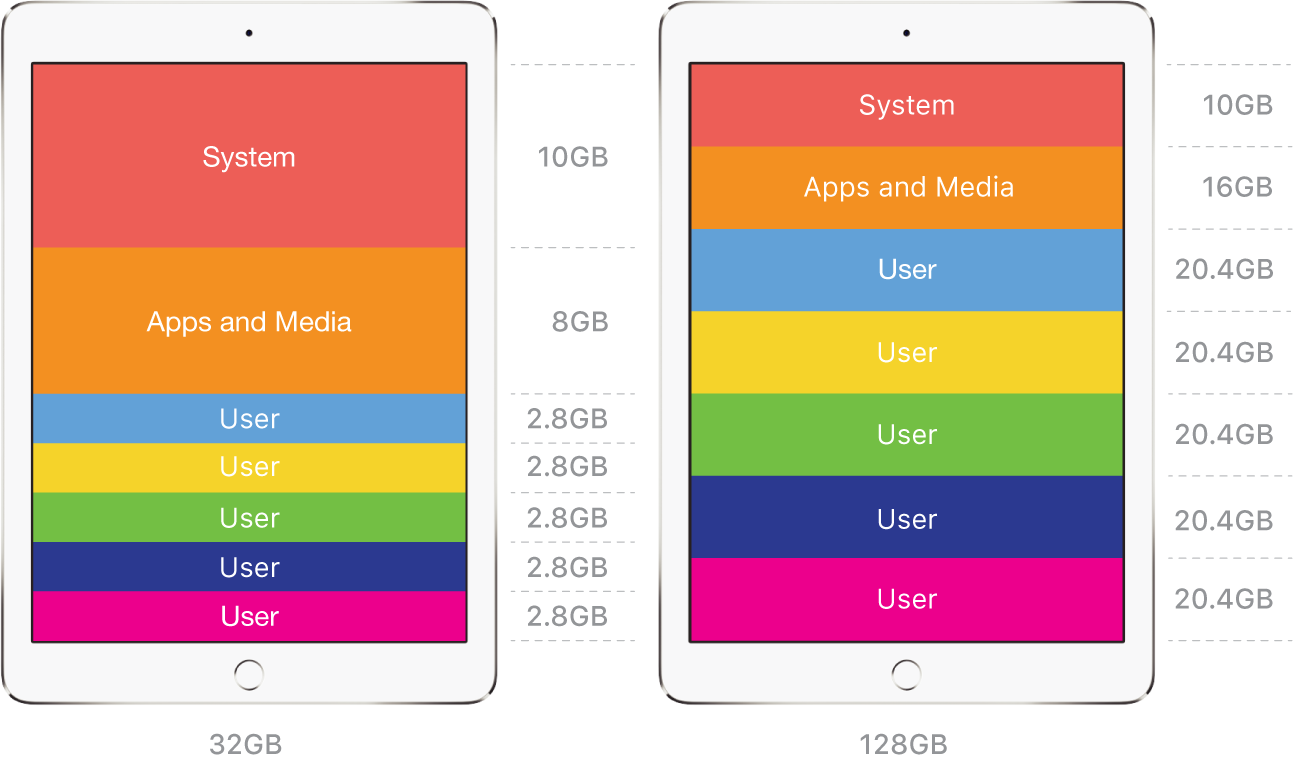
After iPadOS is installed, Shared iPad allocates storage based on the device’s capacity:
Devices with a storage capacity of 32GB: 10GB for the system, 8GB for apps and media. The remaining storage is divided among the number of defined users, with 1GB minimum per user.
Devices with a storage capacity of 64GB or greater: 10GB for the system, 16GB for apps and media. The remaining storage is divided among the number of defined users, with 2GB minimum per user.
Using the above minimum values will help guarantee a good user experience, although these minimum values shouldn’t be a limiting factor for most deployments. For example, if you specify a value of five users on a 128GB iPad, each user has approximately 20.4GB of local storage.
If you don’t know how many users or the exact number and size of apps and data each app stores, configure Shared iPad with the default setting. Once you understand how much storage is used per user, your MDM solution may be able to:
Configure a reserve request
Specify number of users, which divides the local storage evenly for requested number of users
Reset reserve requests or specified number of users (Users must first be cleared from device)
See Apple Developer website: SharedDeviceConfiguration settings.
Note: It’s recommended that you set the maximum storage value for users as low as possible to maximise the number of cached users and to minimise communication with iCloud and provide a faster sign-in experience.
Choose apps
It’s important to choose optimised content-creation apps for Shared iPad. These apps are designated in the Apps and Books section of the Apple School Manager User Guide. Simply look for the “Optimised for Shared iPad” badge under the app’s description.
Apps with this designation will save user-generated content to iCloud, where it can be accessed by other Shared iPad devices and on iCloud.com.
Apps without this designation may work on Shared iPad as long as they don’t exclusively store important data locally. App file management and data storage should be tested in your environment to avoid any issues.
Deploy apps
For apps that might be used by Shared iPad users, it’s recommended that you deploy those to all Shared iPad devices. This will minimise traffic caused by app installation during school hours. Because users can’t delete apps on Shared iPad, you can use mobile device management (MDM) to show or hide certain apps. In this way, you can customise the learning environment for specific groups of students.
Time Zone
To set the initial time zone on Shared iPad, you must connect the device to a Mac.
Saving passwords
Users can’t save passwords using Safari AutoFill unless a user configuration profile specifying the allowed domain for the AutoFill feature is installed on the iPad. See Apple Developer website: Domains.
Configurations profiles
The Web Clips payload and the following payloads can be installed in user profiles on Shared iPad as long as sensitive user information for the listed payloads (such as certificates and passwords) is left out:
Calendar
Contacts
Domains
Exchange ActiveSync
Google account
LDAP
Mail
Notifications
Subscribed calendars
MDM commands
The following MDM commands can be sent to Shared iPad:
Log out user
Delete user
Enable diagnostics and usage reporting
Disable diagnostics and usage reporting
Number of users using Shared iPad (iPadOS 13.4 or later)
Storage quota size (iPadOS 13.4 or later)
Classroom app
Teachers can also use the Classroom app for iPad or the Classroom app for Mac with Shared iPad. With Classroom, educators can take full advantage of iPad — helping students stay on task by using Classroom tools to manage common classroom workflows. To see the requirements for Classroom with Shared iPad, see Classroom User Guide for iPad or Classroom User Guide for Mac.