Final Cut Pro User Guide for iPad
- Welcome
- What’s new
-
- Intro to editing
- Select items in the timeline
- Arrange clips in the timeline
- Use roles to organize clips
- Add storylines
- Edit in Position mode
- Make precise edits with the jog wheel
- Undo and redo edits
- Disable and enable clips
- Change clip speed
- Edit to the beat
- Detect and restore edits
- Create a video montage with Montage Maker
- Export or share
- Copyright and trademarks
Detect and restore edits in Final Cut Pro for iPad
With Edit Detection, you can analyze any previously edited, rendered video clip to reveal its original edit points and automatically split it into separate clips in the timeline. For example, if someone sent you a completed video and you don’t have access to the project files, you can quickly detect the original cut points and create a separate clip for each scene.
Edit Detection is useful when:
Reediting or fine-tuning a previously finished and exported video—for example, after duplicating a project to reframe a video for other aspect ratios
Working from a client-delivered final video without access to the original project files
Color grading—for example, if a colorist receives a single exported file but needs individual shots to apply consistent grading
Go to the Final Cut Pro app on your iPad.
Open a project, then select one or more previously rendered clips in the timeline.
Do one of the following:
Touch and hold a selected clip, then tap Detect Edits.
Tap Clip in the menu bar, then choose Detect Edits (or press Shift-E on a connected or paired keyboard).
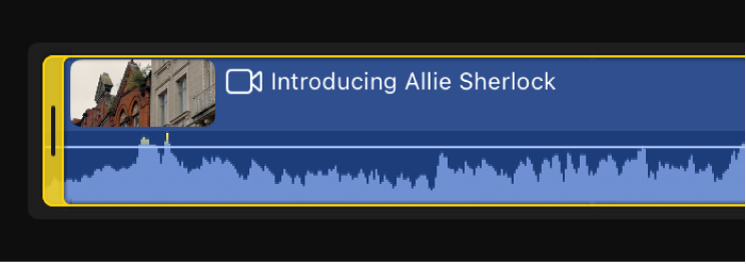
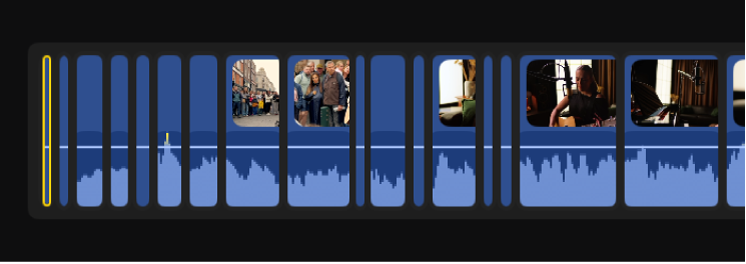
Final Cut Pro analyzes the selection and automatically splits it into separate clips.
Note: Edit Detection is not supported with titles, graphics, generators, audio clips, still images, gap clips, or Live Drawing.