Apple Watch Ultra User Guide
- Welcome
- What’s new
-
- Apple Watch Ultra gestures
- Use double tap to perform common actions
- Set up and pair your Apple Watch Ultra with iPhone
- Set up more than one Apple Watch
- Pair Apple Watch Ultra with a new iPhone
- Choose a function for the Action button on Apple Watch Ultra
- The Apple Watch app
- Charge Apple Watch Ultra
- Turn on and wake Apple Watch Ultra
- Lock or unlock Apple Watch Ultra
- Change language and orientation on Apple Watch Ultra
- Remove, change, and fasten Apple Watch bands
-
- Apps on Apple Watch Ultra
- Open apps
- Organize apps
- Get more apps
- Tell time
- Status icons
- Control Center
- Use Focus
- Adjust brightness, text size, sounds, and haptics
- See and respond to notifications
- Change notification settings
- Use the Smart Stack to show timely widgets
- Manage your Apple ID
- Use shortcuts
- See time in daylight
- Set up Handwashing
- Connect Apple Watch Ultra to a Wi-Fi network
- Connect to Bluetooth headphones or speakers
- Hand off tasks from Apple Watch Ultra
- Unlock your Mac with Apple Watch Ultra
- Unlock your iPhone with Apple Watch Ultra
- Use Apple Watch Ultra without its paired iPhone
- Set up and use cellular service on Apple Watch Ultra
-
- Get started with Apple Fitness+
- Subscribe to Apple Fitness+
- Find Fitness+ workouts and meditations
- Start a Fitness+ workout or meditation
- Create a Custom Plan in Apple Fitness+
- Work out together using SharePlay
- Change what’s on the screen during a Fitness+ workout or meditation
- Download a Fitness+ workout
-
- Alarms
- Blood Oxygen
- Calculator
- Calendar
- Camera Remote
- Contacts
- ECG
- Medications
- Memoji
- News
- Now Playing
- Reminders
- Stocks
- Stopwatch
- Timers
- Tips
- Voice Memos
- Walkie-Talkie
-
- About Wallet
- Apple Pay
- Set up Apple Pay
- Make purchases
- Send, receive, and request money with Apple Watch Ultra (U.S. only)
- Manage Apple Cash (U.S. only)
- Use Wallet for passes
- Use rewards cards
- Pay with Apple Watch Ultra on Mac
- Ride transit
- Use your driver’s license or state ID
- Use digital keys
- Use COVID-19 vaccination cards
- World Clock
-
- VoiceOver
- Set up Apple Watch Ultra using VoiceOver
- Apple Watch Ultra basics with VoiceOver
- Apple Watch Mirroring
- Control nearby devices
- AssistiveTouch
- Use a braille display
- Use a Bluetooth keyboard
- Zoom
- Tell time with haptic feedback
- Adjust text size and other visual settings
- Adjust motor skills settings
- Set up and use RTT
- Accessibility audio settings
- Type to speak
- Use accessibility features with Siri
- The Accessibility Shortcut
- Copyright
Locate an AirTag or other item in Find Items
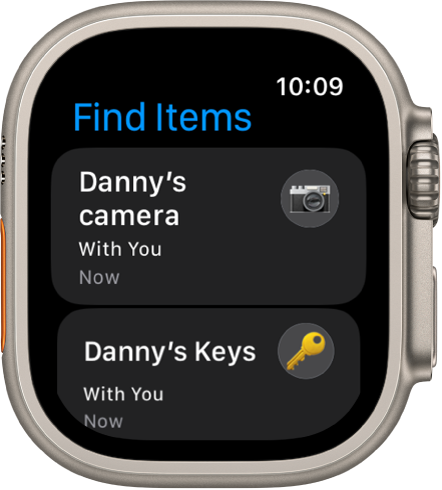
You can use the Find Items app  on your Apple Watch Ultra to locate a missing AirTag or third-party item that you’ve registered to your Apple ID.
See the iPhone User Guide to learn how to set up an AirTag on your iPhone and add or update a third-party item in Find My on iPhone.
Note: Find Items may not be available in all regions.
See the location of an item
Open the Find Items app on your Apple Watch Ultra, then tap an item you want to find.
If the item can be located: It appears on the map so you can see where it is. The device’s approximate distance, time it last connected to Wi-Fi or cellular, and charge level appears above the map. An approximate location appears below the map.
If the item can’t be located: You see where and when it was last located. Below Notifications, tap Notify When Found, then turn on Notify When Found. You receive a notification once it’s located again.
Play a sound
If the item is nearby, you can play a sound on it to help you find it.
Note: If you can’t play a sound on an item, you won’t see the Play Sound button.
Open the Find Items app
on your Apple Watch Ultra, then tap the item you want to play a sound on.Tap Play Sound.
To stop playing the sound before it ends automatically, tap Stop Sound.
Get directions to an item
You can get directions to an item’s current or last known location in the Maps app  on your Apple Watch Ultra.
Open the Find Items app
on your Apple Watch Ultra, then tap the item you want to get directions to.Tap Directions to open Maps.
Tap the route to get directions from your location to the item’s current location.
Receive a notification when you’ve left an item behind
To help keep you from misplacing your items, you can receive a notification when you’ve left them behind. You can also set Trusted Locations—locations where you can leave your item without receiving a notification.
Open the Find Items app
on your Apple Watch Ultra.Tap the item you want to set up a notification for.
Tap Notify When Left Behind, then turn on Notify When Left Behind.
You can also open the Find My app on your iPhone, tap Items, tap the item you want to set up a notification for, then tap Notify When Left Behind. Turn on Notify When Left Behind, then follow the onscreen instructions.
If you want to add a Trusted Location, you can choose a suggested location, or tap New Location, select a location on the map, then tap Done.