
Create ads in Apple Business
Overview
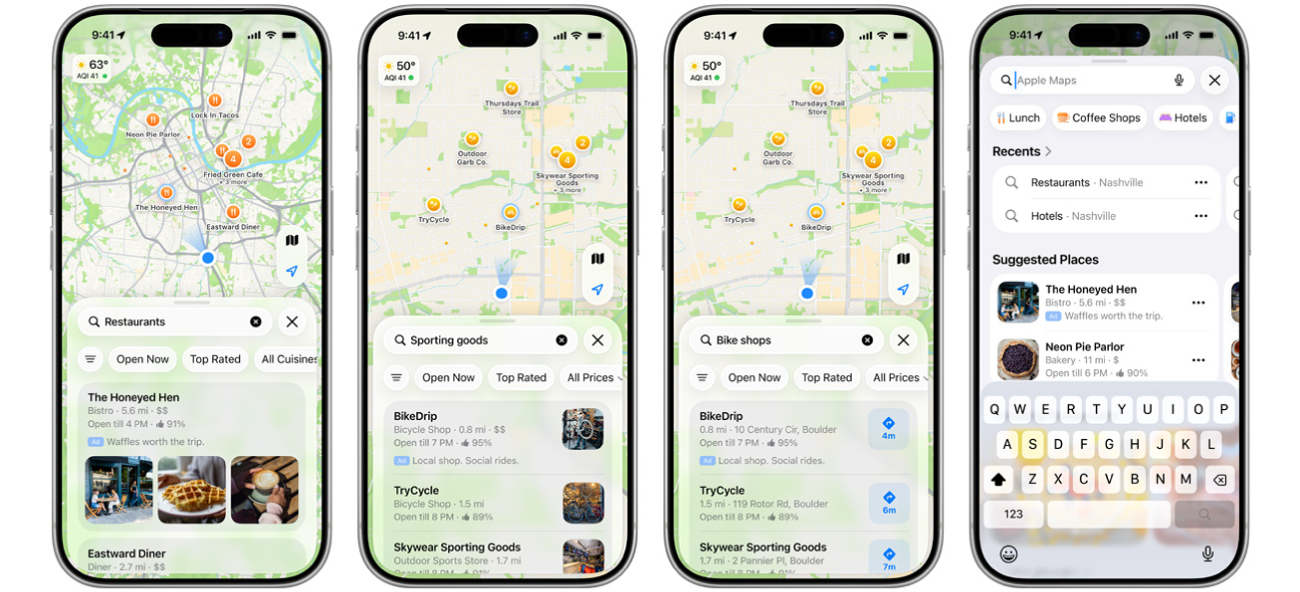
Ads on Maps can help you reach customers when they’re searching for businesses like yours. When a customer searches in Maps, your ad can appear either at the top of Suggested Places, or at the top of relevant search results in one of three formats. You won’t be able to choose the specific ad placement—it’s automatically selected based on your business’s category and what customers are searching for.
Ad guidelines
Your ad content needs to comply with Apple Business photo guidelines and the Apple Advertising Policies. Apple recommends you review all of the policies, but here are some relevant ones to get you started:
Your ad can’t include content that’s considered offensive, violent, sexually explicit, related to controlled or intoxicating substances, or otherwise inappropriate.
Your ad can’t promote weapons or ammunition, home services (like plumbing, electrical, locksmith, HVAC, pest control, roofing, or general contracting services), bail bond services, cryptocurrency ATMs, or political candidates, parties, and issues.
Offers available in your ad content need to be clear to users and can’t misrepresent the true nature of the offer. Ad content can’t deceptively misrepresent offerings or promote items as free if charges or fees apply.
Assets can’t be low quality, distorted, blurry, or illegible.
Create an ad
In Apple Business, sign in with a user whose role is Organization Administrator or Ads Administrator.
To view roles and permissions, see Intro to roles and permissions.
In your browser, choose Brands > Campaign.
Select View All next to Ads, then select Create.
Name your ad. This name helps you identify your ad in Apple Business—customers won’t see this name on your ad in Maps.
Add assets.
There are two types of assets: images and logos. Images are photos of your business and your offerings, while a logo is your business logo. You can either choose to add up to three images or a single logo but you can’t add both images and a logo. When you add three images, you’ll unlock all available search results ad formats.
You can add any of the following:
Promotional text: This text appears in your ad and you can use it to share specific information that your customers might want to know. You’ll also need to select which language your promotional text is written in.
Promotional text in additional languages:1 If a customer’s device is set to a language that you’ve added, the promotional text appears in that language. If the customer’s device is set to a language that you haven’t added, the promotional text appears in the first language that you added.
Use the ad preview to see a representation of your ad.
Note: Some ad elements may differ from the live ad, and ad previews displays only one of your locations as an example.
Select Save.
1Translation into local languages may be required in some countries, regions, or territories. For questions about local requirements, consult your counsel.