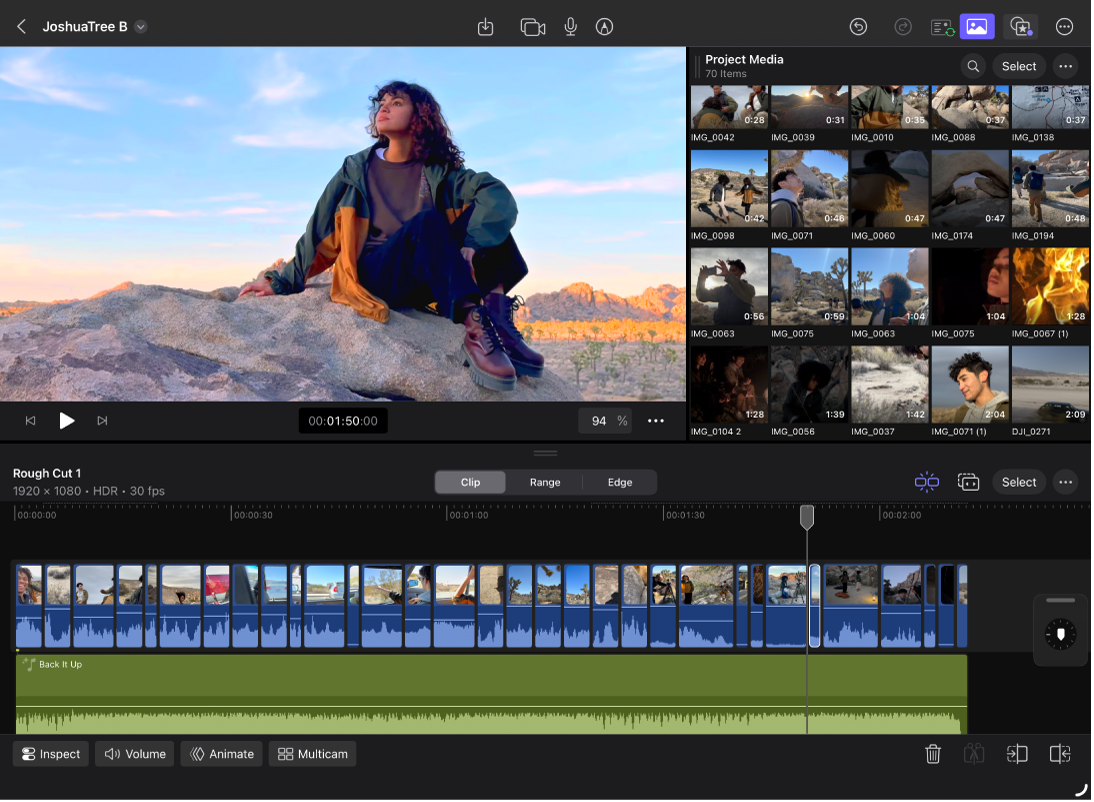
Create a video montage with Montage Maker in Final Cut Pro for iPad
Staring at an empty timeline? You’re not alone. The “blank page” problem affects video editors at every level. Montage Maker helps you overcome creative blocks by generating a starting point for your story.
Simply select media from your project, and Montage Maker identifies the visual highlights, edits them to the beat of a song you choose, and adds the montage sequence to the timeline. At every step of the way, you can make quick and easy manual adjustments.
Go to the Final Cut Pro app on your iPad.
Do one of the following:
Create a new project and import media into it.
Open an existing project and import media as needed.
The Edit screen opens with the media in the browser. If you created a new project, the timeline is empty and displays two buttons: Add Media to Timeline and Create Montage.
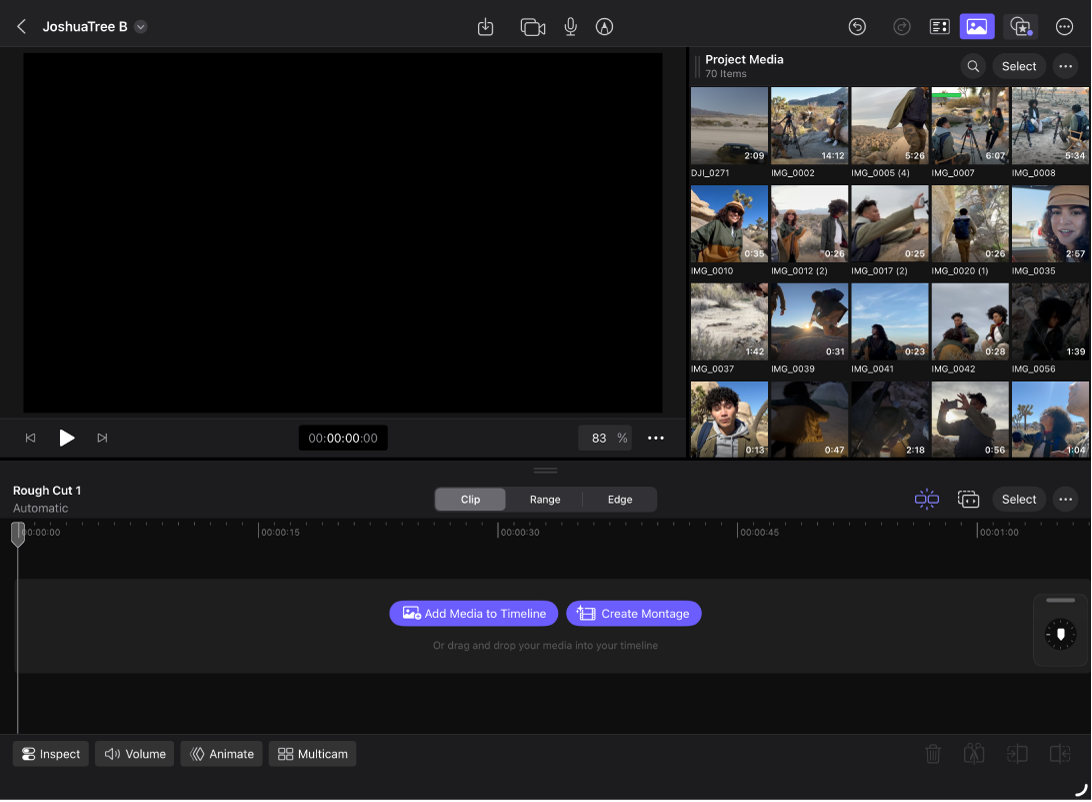
Tap
 in the toolbar.
Do one of the following:
Tap Create Montage to use all the media currently shown in the browser.
If the browser has a filter applied (to show clips with certain keywords or ratings, for example), only the clips that are shown are used. See Find or filter clips.
Select clips in the browser, then tap
 at the bottom of the browser to have Montage Maker use those clips only. This option is also available if you open an existing project (with clips already in the timeline).
Note: If you tap Add Media to Timeline, Final Cut Pro adds all the clips in the browser to the timeline, without opening Montage Maker.
Montage Maker selects visual highlights, applies effects (such Auto Crop or the Ken Burns effect) where appropriate, and arranges the clips into a sequence.
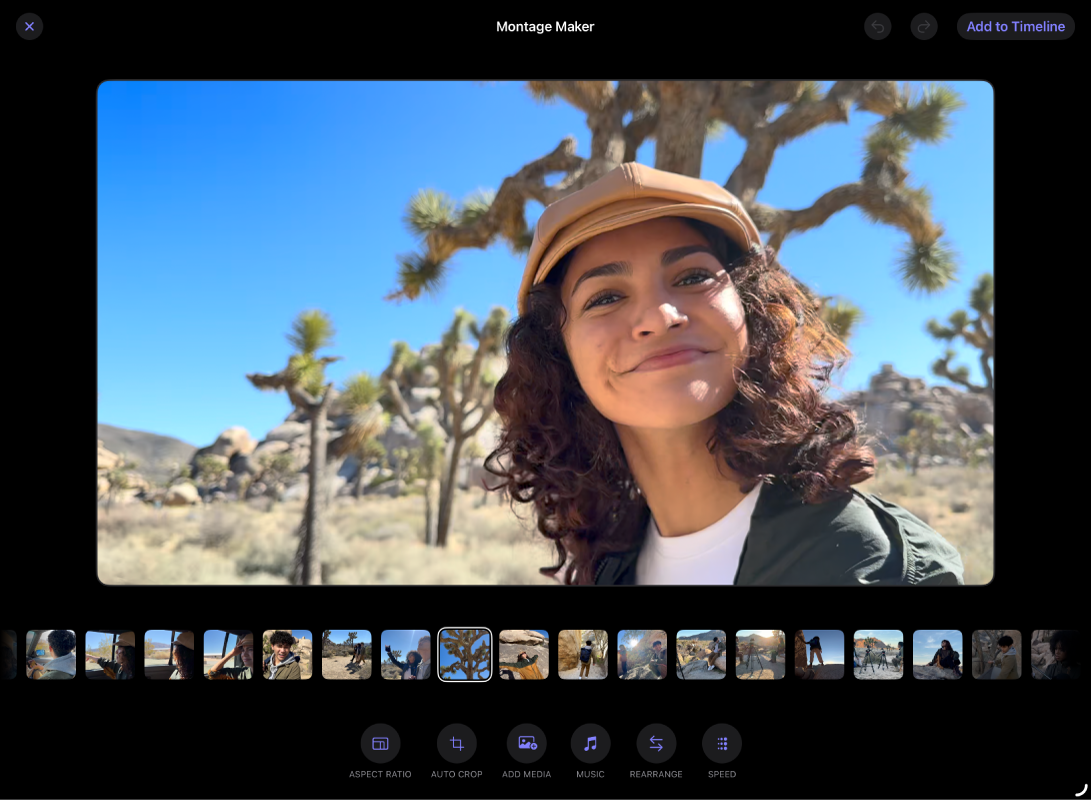
Do any of the following:
Play the montage: Tap
 in the lower-left corner of the viewer.
 To stop playback, tap
 .
.Rearrange the clip order: Touch and hold a clip, then drag it left or right. Or tap Rearrange, touch and hold a clip, drag it left or right, then tap Done.
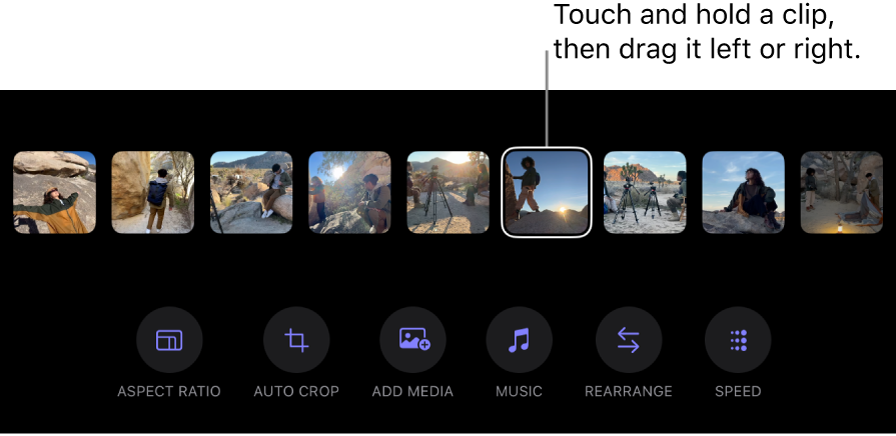
Delete a clip: Touch and hold the clip, then tap Delete. Or tap Rearrange, tap
 to delete a clip, then tap Done.
Replace a clip: Touch and hold the clip, tap Replace, tap a clip, then tap Add.
Insert a clip: Touch and hold a clip, tap Add Media After Clip, tap a clip, then tap Add.
Add background music: Tap Music, tap any song to preview it, then tap Done to add the selected song.
Tip: To use your own music, import the music clip before opening Montage Maker. Then, in Montage Maker, tap Music, tap Imported, tap the song to select it, then tap Done.
Montage Maker automatically adjusts the edit to match the beat of the music. See Edit to the beat.
To remove a song, tap
 in the lower-left corner of the viewer, then tap
  .
.Adjust the speed: Tap Speed, tap an option, then tap Done. Changing the speed affects the duration of the montage.
Change the aspect ratio: Tap Aspect Ratio, tap an option, then tap Done.
Add automatic cropping to all suitable clips: Tap Auto Crop, then turn on Photo Auto Crop or Video Auto Crop. See Automatically reframe a clip to follow a foreground subject. To remove automatic cropping from a clip, touch and hold the clip, then tap Disable Auto Crop.
Add skipped media: Tap Add Media, tap clips marked with
 , then tap Add. These are clips that Montage Maker left out to create a more seamless montage.
When you’re finished making adjustments, tap Add to Timeline in the top-right corner.
The montage sequence appears in the timeline.