
Send a message on Mac
You can send text messages, images, and much more. You can reply within a conversation or to specific comments in a thread. You can even use Siri to send, listen, and respond to your messages.
Siri: Ask Siri something like, “Message Mom that I’ll be late.” Learn how to use Siri.
To use all the features in the Messages app, make sure you sign in to your Apple Account, turn on iMessage, and set up iCloud for Messages.
Send a message
You can send a text message to one or more people.
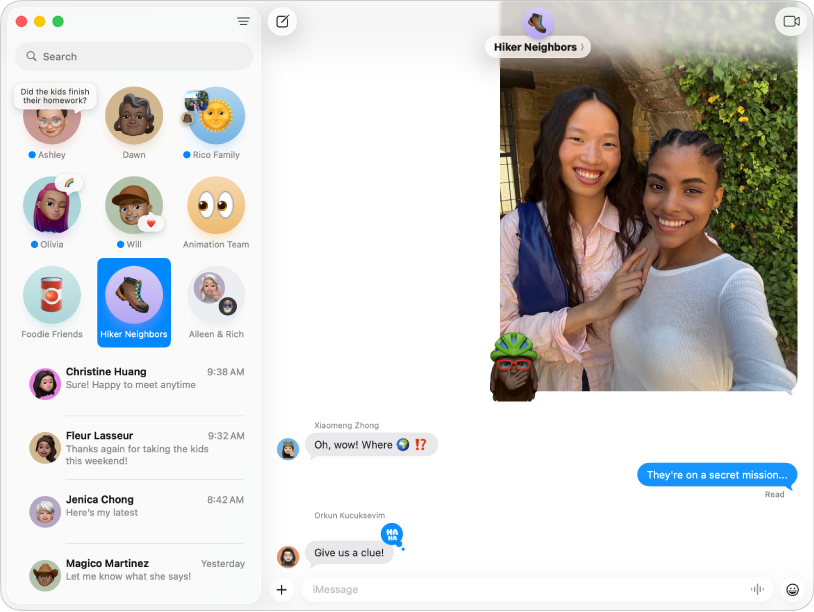
Go to the Messages app
on your Mac.Select a conversation in the sidebar, or click
 , then in the To field, enter the phone number, contact name, or Apple Account of the person you want to send a message to. You can also click
  in the To field, click a contact in the list, then click the email address or phone number to use.
Note: If you see

Do any of the following:
Enter your message in the field at the bottom of the window. You can dictate text or use typing suggestions, if available. Select text to format or animate it.
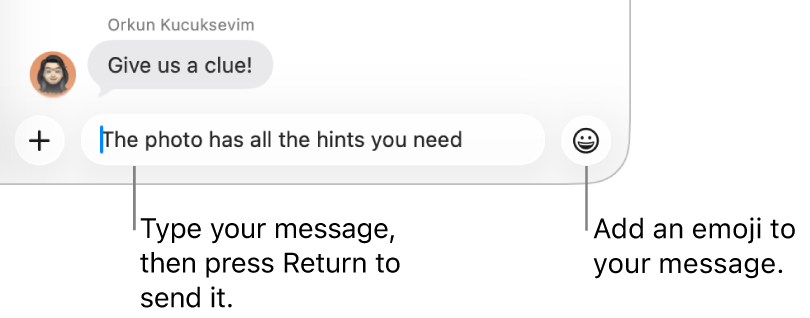
Click
to send photos, videos, stickers, Memoji, polls, your location, full-screen and bubble effects, and more.If Apple Intelligence* is turned on, you can create original images with Image Playground in Messages.
Click
 to add emoji. If Apple Intelligence* is turned on, you can create custom emoji—called Genmoji.
Click
 to record an audio message, then click
  to finish the recording.
Note: Your audio message disappears from your Messages conversation two minutes after you send it, but the recipient can still play it. To save the audio message in your Messages conversation, click Keep.
Press Return on your keyboard to send the message.


If you want to send your message at a different time, see Schedule a message to send later. If you realize you made a mistake in your message, see Unsend or edit a message.
Respond to messages in other ways
If you want to go beyond just sending messages, you can choose other ways to respond.
Note: Some options—such as inline replies and mentions—are only available when using iMessage. To send an inline reply, there must be at least one other iMessage user in the conversation.

Go to the Messages app
on your Mac.Select a conversation, then do any of the following:
React with emoji: Control-click a message to react with a Tapback, such as a thumbs-up or a heart.
Use a suggested reply: If Apple Intelligence* is turned on, you can use it to suggest a reply to a message you receive. See Use Apple Intelligence in Messages.
Quote a specific message in a busy conversation when responding: Control-click any message then choose Reply. Or, if you have a trackpad or a Magic Mouse, you can swipe right with two fingers on the message to reply inline.
To return to the main conversation from an inline reply, click the blurred background.
Note: Everyone in a group conversation can see your inline reply.
Reply privately to someone in a group: Click the name of your group at the top of the conversation, Control-click the icon of the person you want to message individually, then choose Message.
Call someone’s attention to a specific message: After you type the person’s name in the message field, the name becomes dim—click it, then select the contact’s name when it appears. You can also mention a contact by typing @ followed by the contact’s name.
Forward a message or attachment: Control-click the message or attachment, then choose Forward.
Send or request Apple Cash: If someone sends you an Apple Cash transaction, you can only see it on your Mac. To learn more, see Use Apple Cash in the user guide for iPhone or iPad.
Translate: You can translate text or write in another language . If Apple Intelligence* is turned on, you can use it to automatically translate text in Messages .
Note: Translation may not be available in all languages or in all countries or regions. See the macOS Feature Availability webpage.
Messages you send to a group can include the same attachments and effects you can send to an individual person if the group meets these requirements.
Your messages are end-to-end encrypted so that nobody other than you and the person that you’re sending messages to can read them—not even Apple. To further verify that you’re only exchanging messages with the people you intend, use Contact Key Verification.
Messages can speak the text in a transcript, the Messages window, or a profile window. See Have your Mac speak text that’s on the screen.
Siri: Or you can ask Siri something like, “Read my messages.” Learn how to use Siri.