If you see Error 3194, Error 1109, or other network connectivity errors when restoring your iPhone or iPad
If your computer can’t communicate with our software update servers, you might see one of these messages.
If you see one of these messages, make sure that your Mac is up to date.
Error 17
Error 1109
Error 1639
Errors 3000-3020
Error 3194
Errors 3100-3999
Error: This device isn't eligible for the requested build.
If you're using iTunes, install the latest version of iTunes and update or restore your device again. If you're using the Apple Devices app on your PC, make sure that you update to the latest version.
Address networking issues
A firewall or security software installed on your computer might block access to our software update servers.
Check your Internet connection. Visit our website or contact your internet service provider (ISP) for more help.
Make sure that your firewall allows access to our update servers.
Set up or temporarily uninstall your security software.
Bypass your Internet router. Some routers might block iTunes from accessing the update server.
Disconnect from your wired or wireless router.
Connect your computer to your modem using an Ethernet cable.
Restart your computer and modem.
Contact your ISP for instructions on using your modem.
After you confirm your Internet connection is working, update or restore your iOS or iPadOS device again.
Restore or update from another computer
Restore or update on another computer with a different Internet connection. This helps you rule out issues with your computer that might block communication with the update server.
Your network settings sometimes cause errors 1639, 3000-3020, and 3100-3999 (except 3194). If your computer uses a managed network, contact your network administrator. Proxies, firewalls, and other network security measures can cause these errors.
If necessary, find a different network connection to restore the device. For example, if you're restoring at work, restore at home or on a friend's computer and network.
Check your hosts file
Update your Mac, iTunes, or Apple Devices app.
Check the hosts file to make sure that your computer can contact the update server.
Check your hosts file on Windows
If you're using a Windows computer, see How to reset the Hosts file back to the default on the Microsoft support site. Resetting the hosts file might affect other software on your computer. If you're using a business computer, check that your apps work correctly after you reset the hosts file.
Check your hosts file on macOS
1. Open the Finder; then, choose Applications, and then Utilities.
2. Open Terminal.
3. Type sudo nano /private/etc/hosts and press Return.
4. Enter the password you use to sign in to your computer and press Return. You won't see text appear in the Terminal window when you type your password.
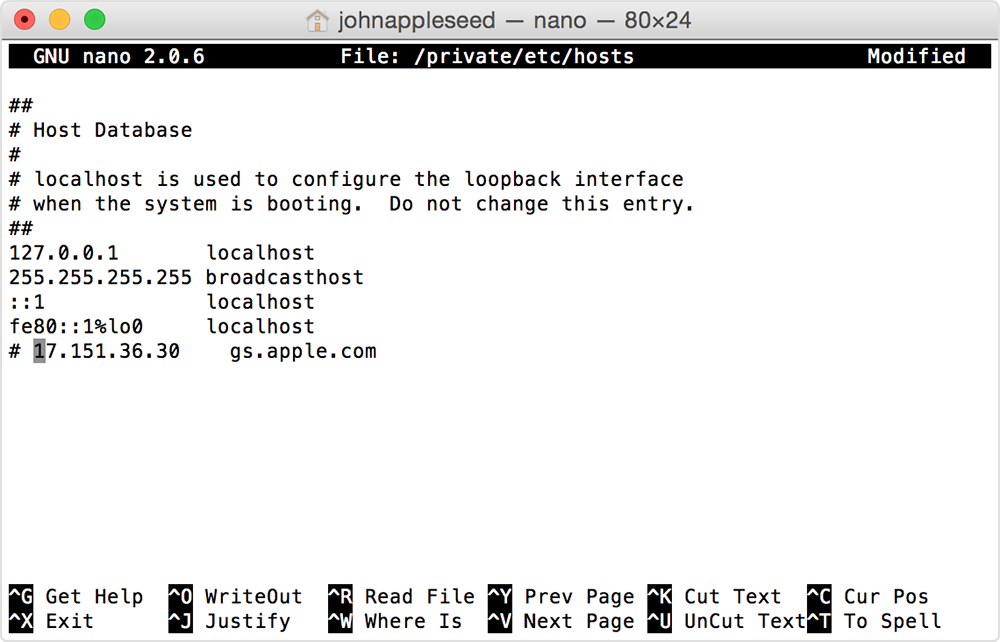
5. Use the arrow keys to find an entry containing “gs.apple.com”. If you don't see any entry containing gs.apple.com, then the hosts file isn't related to the issue. Close the Terminal and go to the "Address networking issues" section of this article.
6. Add a '# ' before the gs.apple.com entry.
7. Press Control-O to save the file.
8. Press Return when asked for the filename.
9. Press Control-X to exit the editor.
10. Restart your Mac.
After your computer finishes restarting, update or restore your iOS or iPadOS device again.
Need more help?
Tell us more about what's happening, and we’ll suggest what you can do next.