
Get started with Numbers on Mac
Numbers makes it easy to create organized, professional-looking spreadsheets. Here’s how to get started.
Begin with a template
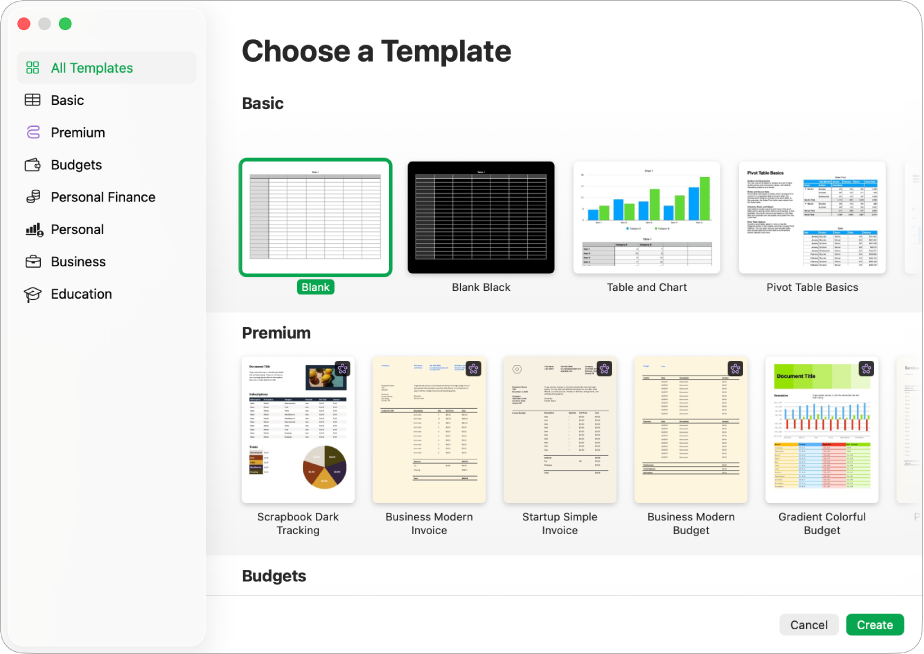
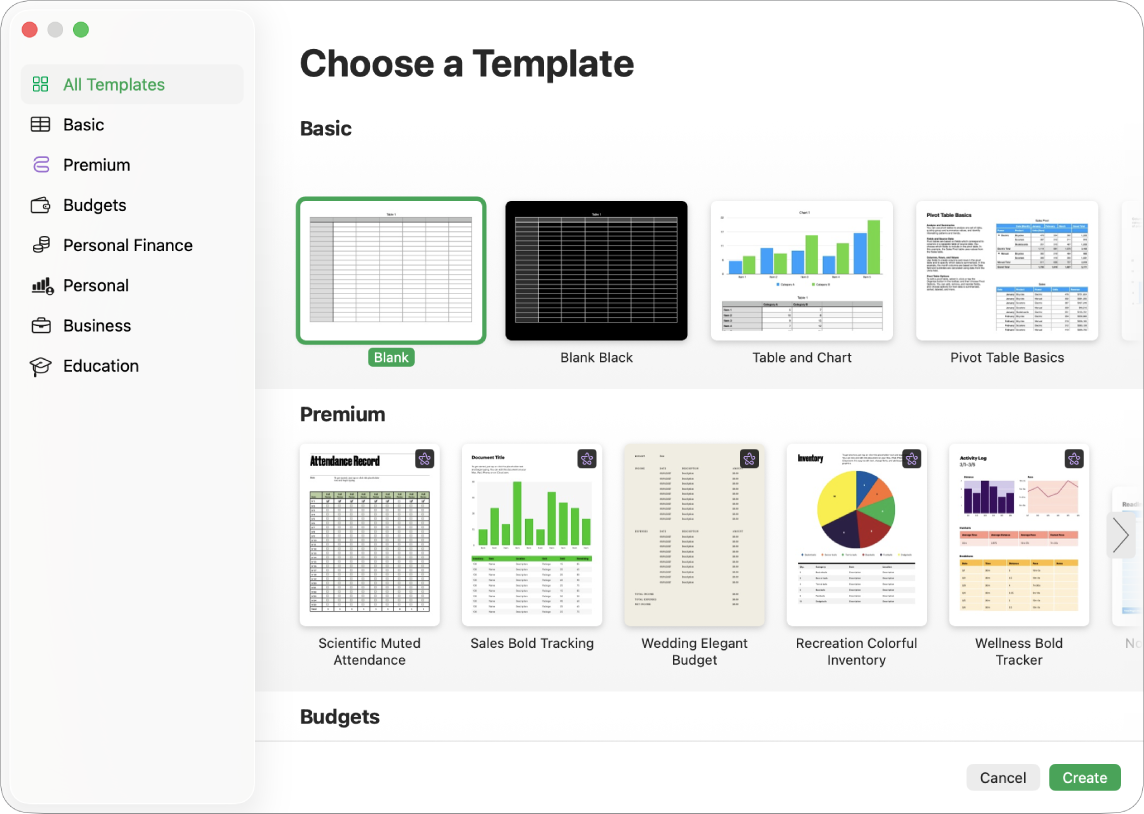
Creating a budget? Tracking your savings? Drafting an invoice? Numbers has templates outfitted with tables, charts, and formulas to help you get started. Go to the Numbers app on your Mac, choose File > New, click the template you want in the template chooser, then click Create.
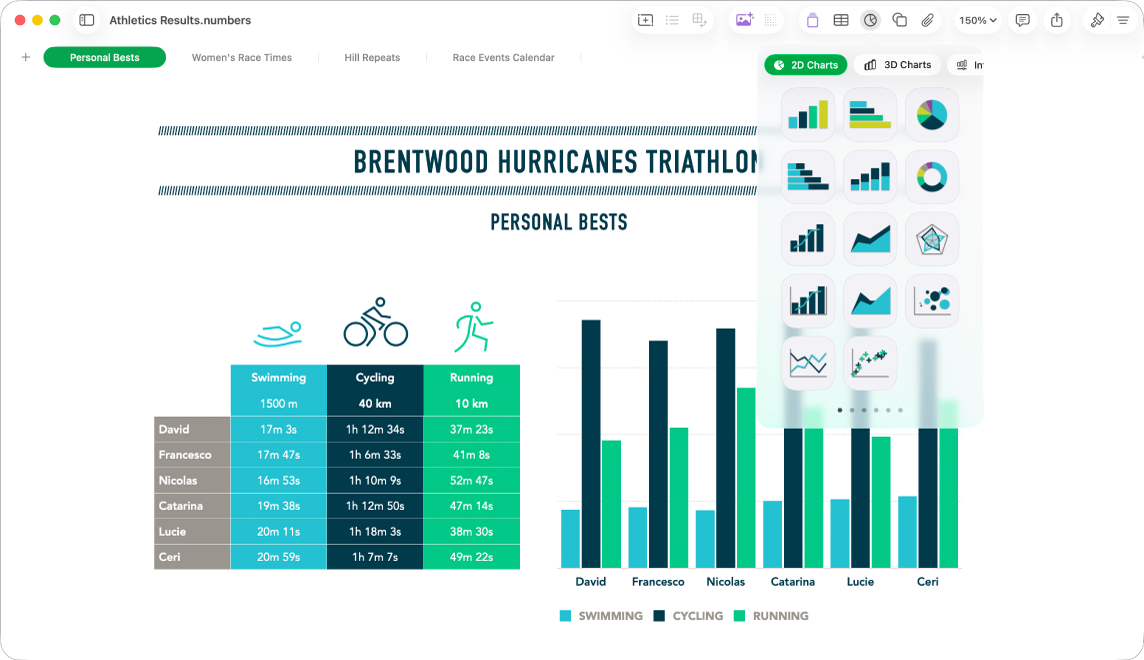
 to add objects from the Content Hub.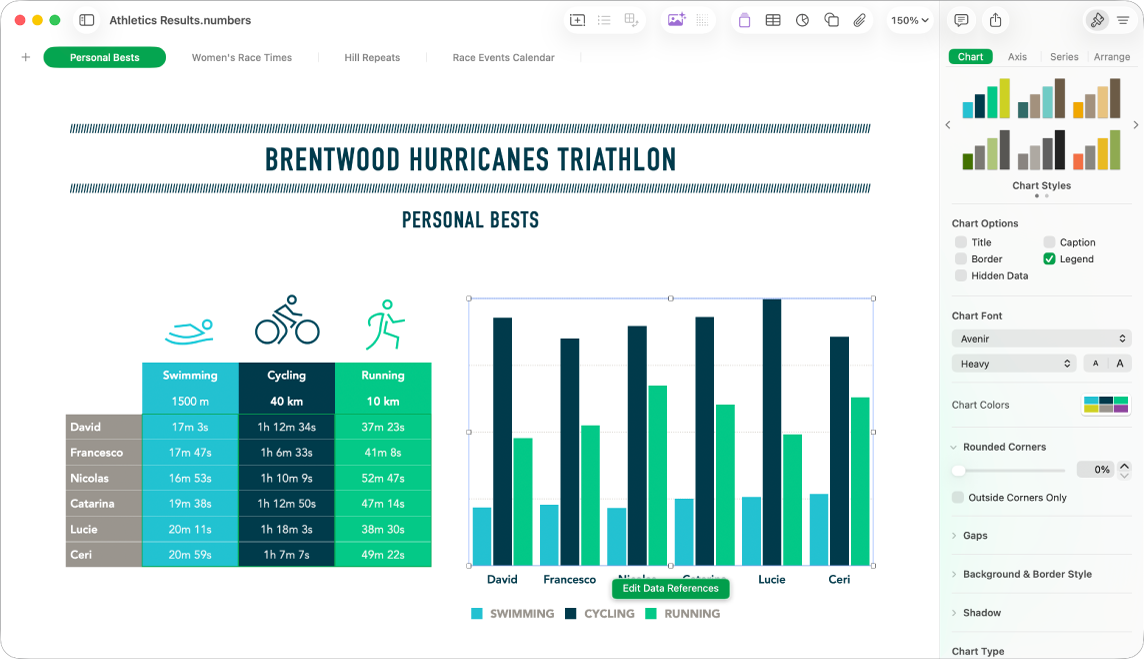
Change the look of your sheet
You can change the look of an object—like its fill color, border, shadow, and more. Select an object, then click  in the toolbar to open the formatting controls. Each object has its own formatting options; when you select an image, for example, you see only controls for formatting images.
Work with formulas and functions
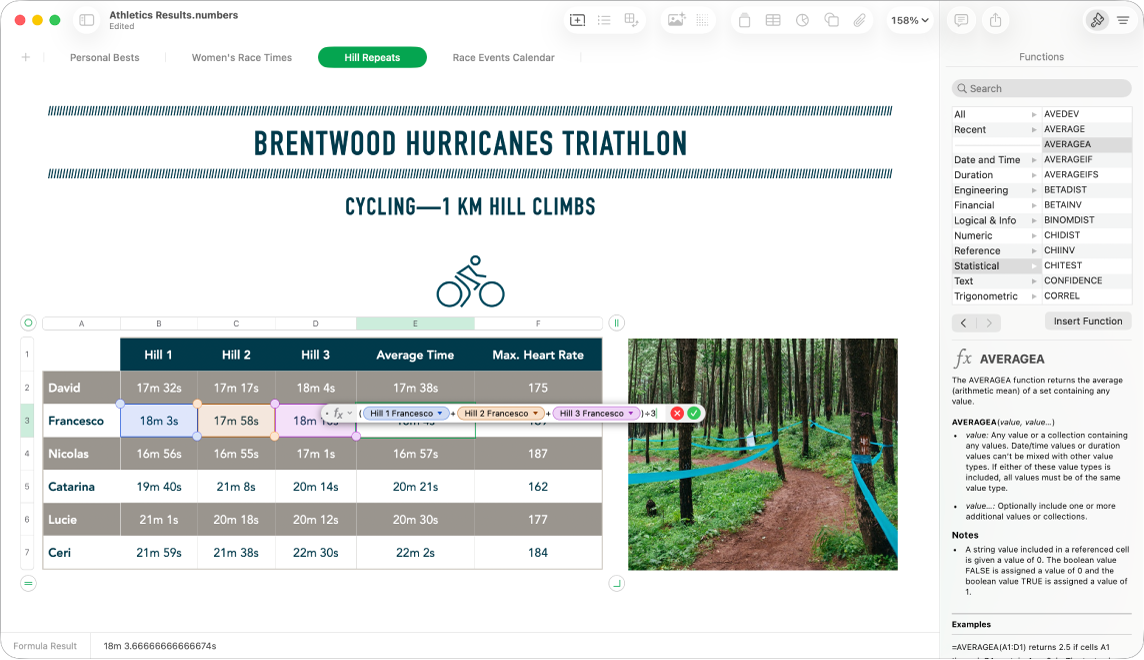
You can create simple or complex arithmetic formulas to perform calculations on the values in your tables. To add a new formula to an empty cell, click in the cell, then type = to open the Formula Editor.
Export your spreadsheet
You can send a copy of your spreadsheet as a Numbers file or in another format, such as PDF, Excel, or CSV. Click  in the toolbar, then click Send Copy or Export and Send, which sends your spreadsheet in a format other than a Numbers file.
Want to learn more?
This guide helps you get started using Numbers 15.1 on your Mac. (To see which version of Numbers you have, choose Numbers > About Numbers from the Numbers menu at the top of your screen.)
To explore the Numbers User Guide, click the Table of Contents button at the top of the page, or enter a word or phrase in the search field.
Numbers 15.1 for Mac requires macOS 15.6 or later. Numbers is available in the App Store and requires an Apple Account to download. Features are subject to change, and some may require internet access. Additional fees and terms may apply.