
Understand and download invoices in Apple Business
You can review the different elements that may appear on your billing invoices. The sample invoice below is for reference only and may not represent the invoice you receive.
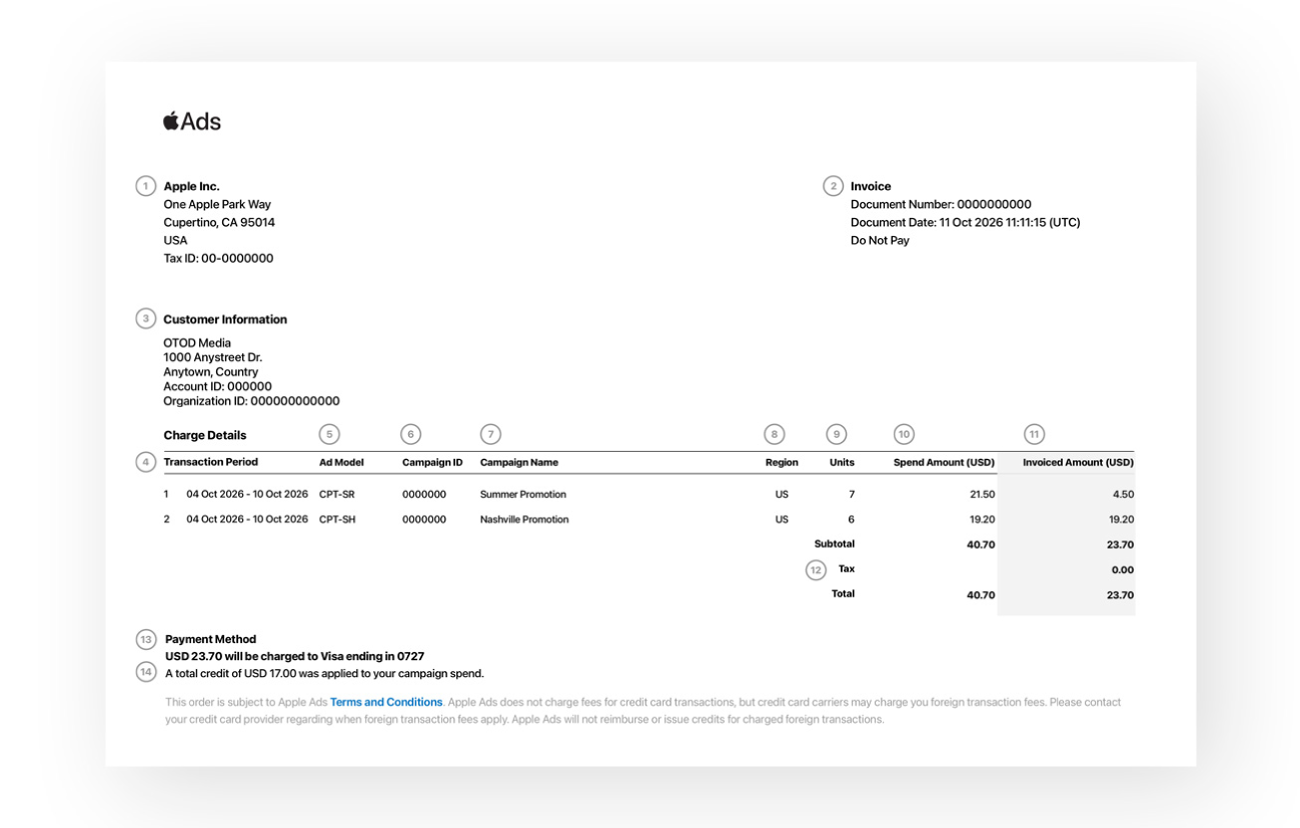
You should see the following are elements on all invoices:
Billing Entity: In the upper-left corner, you can view the Apple billing entity associated with your Apple Business organization. For example, you may see Apple Canada Inc.
Invoice Details: In the upper-right corner, you can view details including the Document Number and Document Date for the invoice.
Customer Information: On the left side, your organization’s information appears and is based on the information you entered on the Organization page in Apple Business.
Transactions Period: In the Charge Details section, you can view transaction dates for each campaign that ran and accrued charges.
Ad Model: In the Charge Details section, you can view an Ad Model column. The ad model reflects the pricing structure and ad placement associated with the ads that you ran on Maps:
CPT-SR: Cost-per-tap (CPT) pricing for search results ads on Maps.
CPT-SH: Cost-per-tap (CPT) pricing for search home ads on Maps.
Campaign ID: In the Charge Details section, you can view a Campaign ID associated with each Apple Ads campaign and transaction.
Campaign Name: In the Charge Details section, you can view each Apple Ads transaction, which has an associated Campaign Name.
Region: In the Charge Details > Region column, you can view the countries and regions associated with each of your campaigns and transactions.
Units: In the Charge Details section, you can view the total number of customer interactions each campaign received (based on the ad model).
Spend Amount: In the Charge Details > Spend Amount column, you can view the amount each campaign spent by region.
Invoiced Amount: In the Charge Details > Invoiced Amount column, you can view the amount you were invoiced for each campaign by region.
Tax: In certain countries or regions, your purchase of Apple Ads services might be subject to tax, including—but not limited to—Value Added Tax (VAT), Sales and Use Tax, Goods and Services Tax (GST), and consumption tax. If your campaigns are subject to tax, you’ll see the amount noted beneath the transactions subtotal. Tax requirements are determined based on your organization’s country or region, which you entered on the Organization page in Apple Business.
Payment Method: In the lower-left corner, the payment method associated with your account appears. This is the payment method on file that was charged when the invoice was generated.
Promotional Credit: In the lower-left corner beneath your payment method, if a promotional credit has been applied toward your charges, you can see how much of it was applied. See Promotional Credits.
Invoice totals compared to spend in your account dashboards
The amount you see charged on your invoice may differ slightly from the spend shown within Apple Business. This is because your payment method is billed according to UTC while your account uses your selected time zone. Apple Ads doesn’t charge fees for credit card transactions, but credit card carriers may charge you foreign transaction fees. Contact your credit card provider to find out if foreign transaction fees apply.
Important: Apple Ads doesn’t reimburse or issue credits for charged foreign transaction fees.
Download invoices
In Apple Business, sign in with a user whose role is Organization Administrator or Ads Administrator.
To view roles and permissions, see Intro to roles and permissions.
In your browser, choose Settings > Payments & Billing.
Select Ads, then view the Invoices.
View your program credits history
In Apple Business, sign in with a user whose role is Organization Administrator or Ads Administrator.
To view roles and permissions, see Intro to roles and permissions.
In your browser, choose Settings > Payments & Billing.
Select Ads, then navigate to Program Credits.