Watch Formula 1 in the Apple TV app
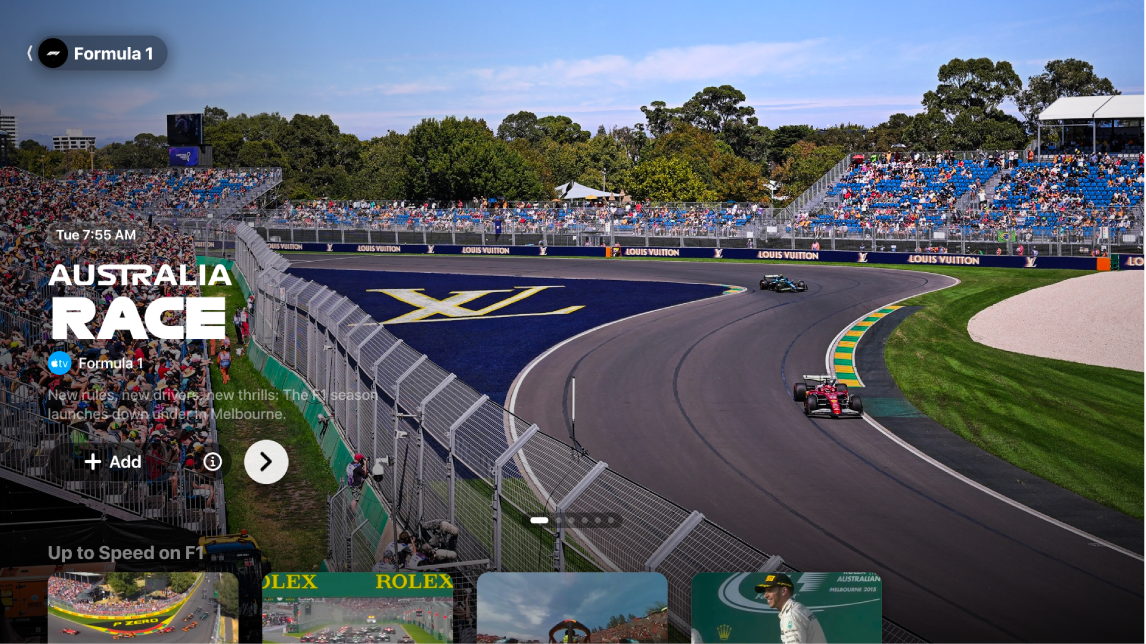
The Formula 1 (F1) screen in the Apple TV app gives you access to Formula 1® events when you subscribe to Apple TV (U.S. only).
You can add upcoming events to your watchlist and watch full or condensed replays of past events on demand. Watch pre-event and post-event shows any time. During live and past events* choose from multiple video feeds, including 22 onboard driver cameras, live data, a driver tracker, and more.
Note: Some Formula 1 events may be available to watch on a promotional basis, but full access to all events, shows, and features requires a subscription to Apple TV.
Watch Formula 1
Go to the Apple TV app
 on your device.
Do one of the following:
TV or living room device: Open the sidebar, then select Formula 1.
iPhone or Android device: Tap Home, then scroll down to see Formula 1 content.
iPad, Mac, or Windows computer: Select Formula 1 in the sidebar.
Do any of the following:
Explore featured events: View featured matches at the top of the F1 screen by selecting
 to progress through items, or by swiping left or right on iPhone, iPad, or an Android device.
Select
 to get more information about an event or select
  to add it to your watchlist.
Browse available events, programming, and more: Navigate down to a category row, then navigate left or right to view available options.
Tip: When browsing a row, select its title to view all items in that category or view more information about the collection.
Choose live streams to watch: When an event is live, navigate down, select a race, then choose a watch option.
Watch replays of past events: Navigate down to F1 Past Races, select a race, then choose a replay option.
Follow Formula 1: Select Follow F1. See Follow sports teams and scores in the Apple TV app on a TV or living room device.
Note: When you follow Formula 1, live events automatically appear in the Continue Watching row.
To start watching, select an event; or, if you haven’t subscribed to Apple TV, follow the onscreen instructions to subscribe.
If an event is in progress, it plays automatically as a preview on the F1 screen. Select Watch Live or press and hold the select button on the remote (or tap and hold on an iPhone, iPad, or Android device), then choose options to Watch Live, Start Over, or select a different commentary language. All events are available with both English and Spanish commentary.
For past events, you can select Full Replay immediately after the live race concludes, or Race in 30 to watch a condensed version when it becomes available (usually within hours after after the race is finished).
While watching a live event, show playback controls, then do any of the following:
Get more information about the event: Select Info.
Choose an F1 stream: Select Feeds, then select an option.*
Browse other live sports: Select Live Sports.
Go directly to your watchlist: Select Continue Watching.
Note: To turn off live scores, see Follow sports teams and scores in the Apple TV app on a TV or living room device.
Change audio options during events
While you’re watching an F1® event, do one of the following to show onscreen playback controls:
TV or living room device: Press the up or center button on the remote, then select
 .
.iPhone, iPad, or Android device: Tap the screen, then tap
 .
.Mac or Windows computer: Move the pointer over the video, then select
.
Choose an option:
Reduce Loud Sounds: Lower the overall sound level by reducing the dynamic range so that loud music and sound effects aren’t as loud as other sounds.
Audio Track: Choose a different broadcast language.