
Automatically sort incoming emails in Mail on Mac
You can create Smart Mailboxes that automatically organize email messages into a single mailbox, based on criteria you specify. For example, a Smart Mailbox could display all the emails you receive about a specific project, regardless of which mailboxes they’re stored in.
Tip: Mail provides a default Smart Mailbox named Today, which shows emails viewed during the current day. If it doesn’t appear in the Mail sidebar, move the pointer over the Smart Mailboxes section, then click  .
.
Create Smart Mailboxes
Go to the Mail app
on your Mac.Choose Mailbox > New Smart Mailbox.
Enter a name for the Smart Mailbox.
Specify the criteria.
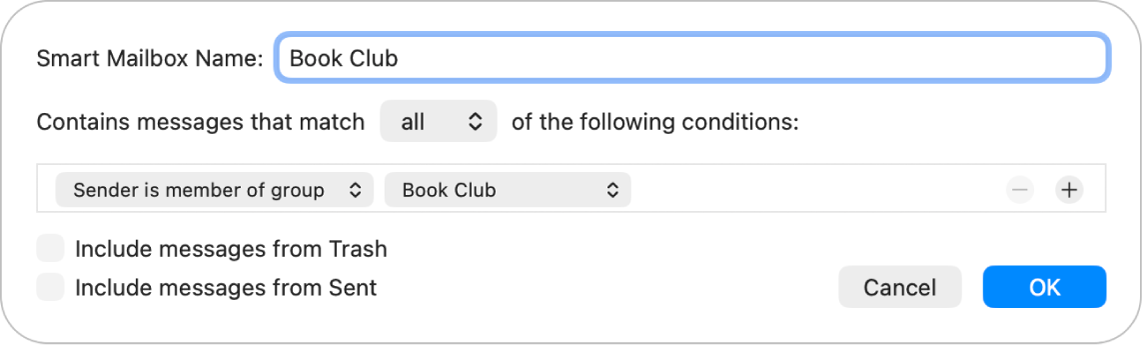
Set the first condition: Click the first pop-up menu, choose an option (such as From, Subject, or “Sender is member of group”), then complete the condition using the other menus or fields that are shown (they vary depending on your choice in the first pop-up menu).
For example, if you chose From, you can choose “contains” or “begins with” in the second pop-up menu, then enter a sender’s name in the text field. If you chose “Sender is member of group” in the first pop-up menu, you can choose a group name in the second pop-up menu.
Add or remove conditions: To set additional conditions, click
 . To remove a condition, click
  .
. Set the scope of multiple conditions: If you have at least two conditions, a pop-up menu appears that lets you choose whether an email must meet any or all of the conditions to be included in the Smart Mailbox.
Include messages from the Trash or Sent mailbox: Select the checkbox to include emails that are in those mailboxes in your Smart Mailbox.
Click OK.
Whenever you select your Smart Mailbox in the sidebar, emails that match its criteria are listed.
To delete a Smart Mailbox, select it, then choose Mailbox > Delete Mailbox. The emails that were listed when you viewed the Smart Mailbox aren’t deleted.
Edit Smart Mailboxes
Go to the Mail app
on your Mac.In the Mail sidebar, double-click a Smart Mailbox (or select one, then choose Mailbox > Edit Smart Mailbox).
Change, add, or remove conditions, or change other criteria.
Click OK.
Change the category of a sender
The Mail app automatically sorts your email messages into categories to help you find and manage messages more quickly (not available in all countries or regions). You can change the category of a sender.
 Primary: Find personal messages and time-sensitive information.
 Transactions: Keep track of your confirmations, receipts, and shipping notices.
 Updates: Catch up on news, newsletters, and social updates.
 Promotions: Browse your coupon and sales emails.
Note: When a message in the Transactions, Updates, or Promotions category includes time-sensitive information, it is also included in the Primary message list.
Go to the Mail app
on your Mac.Control-click a message, choose Categorize Sender, then select a category.
All current and future messages from the sender will appear in the category you choose.
Use rules to manage emails you receive
You can create rules that help you manage incoming email messages and automate tasks, such as replying to or deleting messages. For example, you can create a rule that highlights messages from a specific person, or that automatically moves messages from your inbox to other mailboxes. See Change Rules settings.