
Allow and deny apps and binaries on Apple devices
Overview
Organizations may need control over what apps and binaries can be used on supervised iPhone, iPad, Mac, Apple TV, and Apple Vision Pro devices, for example, to meet compliance requirements.
On supervised devices with iOS 27, iPadOS 27, macOS 27, tvOS 27, and visionOS 27, you can use declarative device management to define rules that allow or deny apps and binaries.
Supported modes
The configuration offers two primary modes on supported platforms:
Deny mode: The device prevents specified apps and binaries from launching and quits them if they’re already running. It allows all other apps and binaries to run.
Allow mode: The device allows only specified apps and binaries to run, along with essential apps and binaries included in the operating system. It prevents any other apps and binaries from launching and quits them if they’re already running.
In both modes, you specify a list of apps and binaries that the device allows or denies. You can apply multiple configurations to a device. In deny mode, multiple configurations are merged into a single policy. In allow mode, an app or binary needs to appear in all configurations for the device to allow it.
If you apply both an allow and a deny configuration, the device uses the more restrictive mode and denies apps and binaries unless explicitly allowed.
If an app or binary appears in both lists, the device prevents it from running.
With this flexibility, you can allow any app with the same Team ID but deny a specific app from the same developer, instead of having to list every single Signing ID except the one you want to deny.
Allow and deny apps on iOS, iPadOS, tvOS, and visionOS
App restrictions on iOS, iPadOS, tvOS, and visionOS apply to Apple apps, App Store apps, proprietary in-house apps, and locally installed apps (for example, apps installed with Apple Configurator for Mac or Xcode).
The device allows the following apps to run regardless of the configuration:
Phone
Settings
Feedback Assistant (if installed)
In allow mode, the device shows and lets the user run only specified apps. In deny mode, the device hides only the apps you specify and prevents them from running.
To allow or deny Web Clips on iOS, iPadOS, tvOS, and visionOS, use com.apple.webapp as the bundle identifier.
Allow and deny binaries in macOS
In macOS, the configuration uses an Endpoint Security client to manage standalone binaries and binaries embedded in an app bundle.
Core policy
To ensure system stability and usability, the Endpoint Security client uses a built-in core policy that allows most binaries in the signed and sealed operating system.
Three guarantees underpin the core policy:
The core policy allows essential Apple processes such as accessibility, device management, and System Settings to run.
The core policy allows specific locations on the sealed system volume (locations that hold binaries macOS needs to function).
The core policy defines a set of binaries that you can manage and defers the decision to the configuration.
Core policy example
# Core policy ## Launcher Signing IDscom.apple.coreservicesdcom.apple.launchservicesdcom.apple.runningboarddcom.apple.xpc.launchdcom.apple.xpc.proxy ## Utility Signing IDscom.apple.systempreferences ## Accessibility Signing IDs- Signing IDs needed for the following accessibility features - Magnifier - VoiceOver Utility - Accessibility Reader ## Device Management Signing IDs- All signing IDs needed for device management processes ## Core Allowed Path Prefixes/bin//Library/Apple//sbin//System//usr/bin//usr/libexec//usr/sbin/ ## Deferred Path Prefixes/Applications//System/Applications//System/Cryptexes/App/System/Applications//System/Library/Applications//System/Volumes/Preboot/Cryptexes/App/System/Applications//System/Volumes/Preboot/Cryptexes/App/System/Library/CoreServices/Web App.app/ Policy rules
Depending on the mode, you specify a binary using the following attributes:
CD Hash: The code signature code directory hash of the specific binary slice to match.
Path prefix: The file system path prefix to match binaries.
Signing ID: The code signature signing identifier of the binary.
Signing state: The code signing state to match binaries.
Team ID: The code signature team identifier of the binary. Use the value
*APPLE*for Apple binaries with an empty team identifier.
To simplify rule management, you can automatically allow managed apps to run in allow mode.
To allow or deny Web Clips in macOS, use Team ID *APPLE* and Signing ID com.apple.Safari.WebApp.
For more information on how to create policy rules, see Allowing and denying apps and binaries on the Apple Developer website.
Apply the policy
When the device management service applies the configuration, the device combines the configuration’s rules with the core policy to form a single effective policy. macOS uses an Endpoint Security client to monitor running binaries and binary launches and to prevent them from running according to the policy.
The Endpoint Security client uses the following process to decide whether to allow or deny a binary.
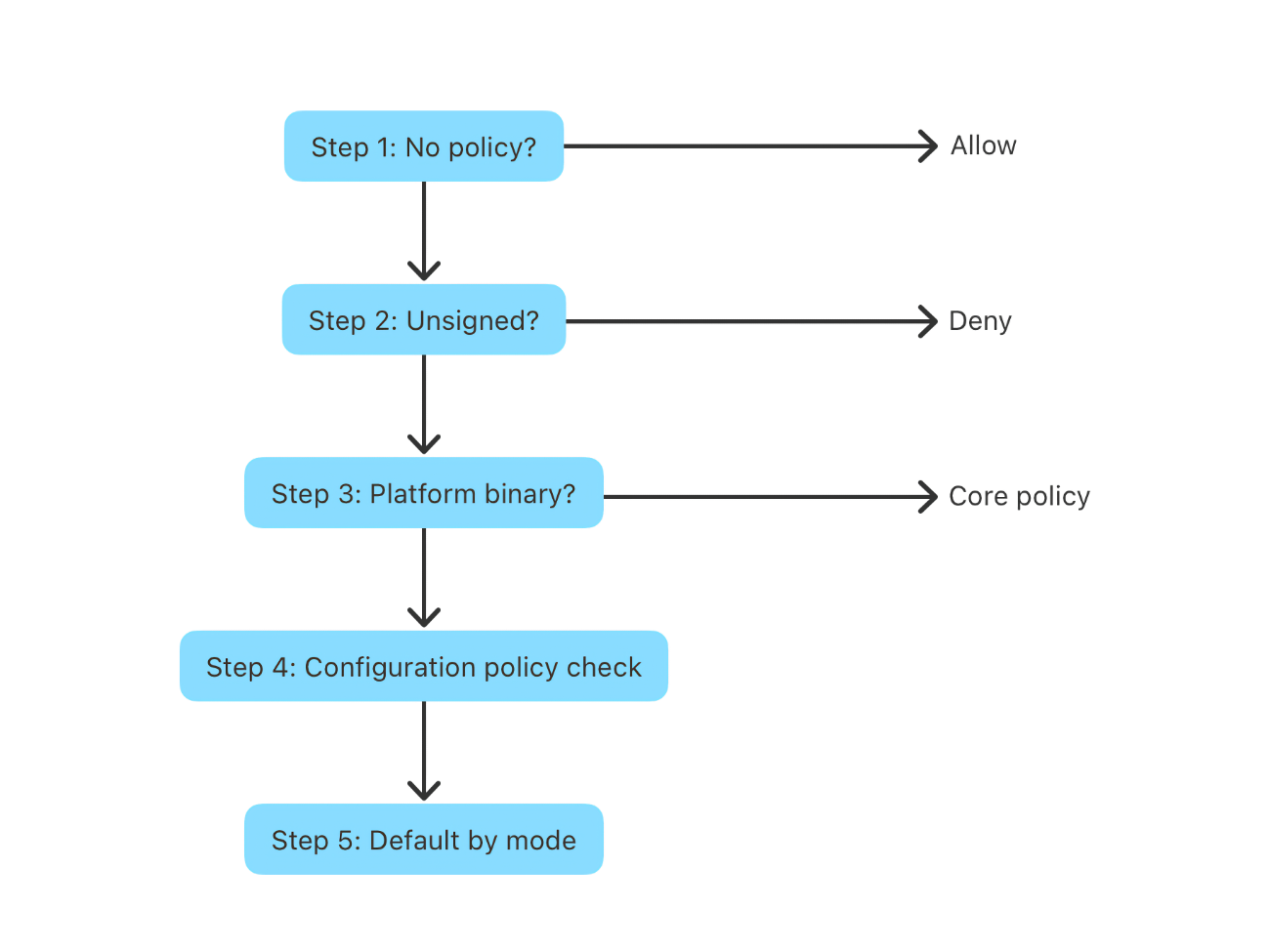
If the device has no policy applied, the Endpoint Security client isn’t running and doesn’t restrict binaries from running. Otherwise, the Endpoint Security client reads the binary’s identifying attributes.
The Endpoint Security client denies unsigned, ad hoc-signed, and development-signed binaries even if the configuration only provides an empty allow or deny list.
The Endpoint Security client applies the core policy. Protected binaries and protected locations decide the outcome, unless the core policy marks the binary as deferred. In that case the configured policy overrides the decision.
The Endpoint Security client consults the rule set provided by the configuration. A match against the deny list results in a deny decision. A match against the allow list results in an allow decision.
If no rule matches, the Endpoint Security client applies the default behavior for the configured mode. In allow mode, the Endpoint Security client denies the binary. In deny mode, the Endpoint Security client allows the binary.
When the Endpoint Security client denies a binary, it can’t launch, and the client terminates it if it’s already running. The client also shows the user an alert explaining that their organization prevents the use of the binary.