Final Cut Pro User Guide for Mac
- Welcome
- What’s new
-
- Intro to importing media
- If it’s your first import
- Organize files during import
-
- Import from Image Playground
- Import from iMovie for macOS
- Import from iMovie for iOS or iPadOS
- Import from Final Cut Pro for iPad
- Import from Final Cut Camera
- Import from Photos
- Import from Music
- Import from Apple TV
- Import from Motion
- Import from GarageBand and Logic Pro
- Import using workflow extensions
- Record into Final Cut Pro
- Memory cards and cables
- Supported media formats
-
-
- Intro to captions
-
- Closed captions workflow
- Create closed captions
- Import closed captions
- Show or hide closed captions
- Edit closed caption text
- Adjust and arrange closed captions
- Format closed caption text
- Create multilingual closed captions
- Convert closed captions to another format
- Convert closed captions to subtitles
- Export closed captions
- Generate subtitles automatically
-
- Intro to effects
-
- Intro to transitions
- How transitions are created
- Add transitions and fades
- Quickly add a transition with a keyboard shortcut
- Set the default duration for transitions
- Delete transitions
- Adjust transitions in the timeline
- Adjust transitions in the inspector and viewer
- Merge jump cuts with the Flow transition
- Adjust transitions with multiple images
- Modify transitions in Motion
- Add adjustment clips
-
- Add storylines
- Use the precision editor
- Conform frame sizes and rates
- Use XML to transfer projects
-
- Intro to sharing projects
- Share to Apple devices
- Share on the web
- Send a video frame to Pixelmator Pro
- Share in email
- Share stereo or spatial video
- Batch sharing
- Share using Compressor
- Create share destinations
- Change metadata for shared items
- View the status of shared items
- Speed up exports with simultaneous processing
- Glossary
- Copyright and trademarks
Detect and restore edits in Final Cut Pro for Mac
With Edit Detection, you can analyze any previously edited, rendered video clip to reveal its original edit points and automatically split it into separate clips in the timeline. For example, if someone sent you a completed video and you don’t have access to the project files, you can quickly detect the original cut points and create a separate clip for each scene.
Edit Detection is useful when:
Reediting or fine-tuning a previously finished and exported video—for example, after duplicating a project to reframe a video for other aspect ratios
Working from a client-delivered final video without access to the original project files
Color grading—for example, if a colorist receives a single exported file but needs individual shots to apply consistent grading
Note: Edit Detection splits a clip at hard cuts and may not detect fades.
In the Final Cut Pro timeline, select one or more previously rendered video clips.
Do one of the following:
Choose Trim > Detect Edits (or press Shift-E).
Control-click the selection, then choose Detect Edits.

Final Cut Pro analyzes the selection and automatically splits it into separate clips.
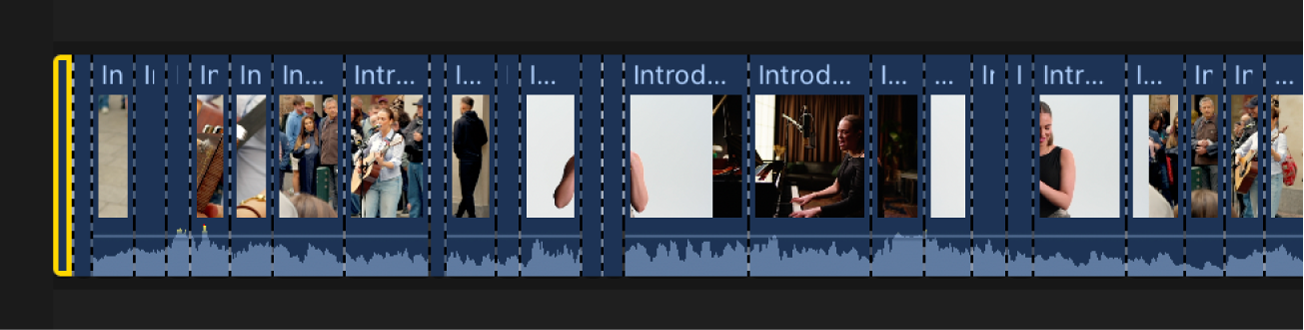
The dotted lines indicate through edits, in which the media content on either side of the edit point was previously continuous.
To remove a through edit, do one of the following:
Select either or both sides of the through edit point, then choose Trim > Join Clips (or press Delete).
Select the clips on both sides of the through edit, then choose Trim > Join Clips.
Note: Edit Detection is not supported with titles, graphics, generators, audio clips, still images, or gap clips.
Download this guide: PDF