MainStage User Guide
- Welcome
-
- Overview of Edit mode
-
- Select patches and sets in the Patch List
- Copy, paste, and delete patches
- Reorder and move patches in the Patch List
- Add and rename patches
- Create a patch from several patches
-
- Overview of the Patch Settings Inspector
- Select patch settings in the Patch Library
- Set the time signature for patches
- Change the tempo when you select a patch
- Set program change and bank numbers
- Defer patch changes
- Instantly silence the previous patch
- Change patch icons
- Transpose the pitch of incoming notes for a patch
- Change the tuning for a patch
- Add text notes to a patch
-
- Overview of channel strips
- Add a channel strip
- Change a channel strip setting
- Configure channel strip components
- Show signal flow channel strips
- Hide the metronome channel strip
- Create an alias of a channel strip
- Add a patch bus
- Set channel strip pan or balance positions
- Set channel strip volume levels
- Mute and solo channel strips
- Use multiple instrument outputs
- Use external MIDI instruments
- Reorganize channel strips
- Delete channel strips
-
- Overview of the Channel Strip Inspector
- Choose channel strip settings
- Rename channel strips
- Change channel strip colors
- Change channel strip icons
- Use feedback protection with channel strips
- Set keyboard input for a software instrument channel strip
- Transpose individual software instruments
- Filter MIDI messages
- Scale channel strip velocity
- Set channel strips to ignore Hermode tuning
- Override concert- and set-level key ranges
- Add text notes to a channel strip in the Channel Strip Inspector
- Route audio via send effects
-
- Screen Control Inspector overview
- Replace parameter labels
- Choose custom colors for screen controls
- Change background or grouped screen control appearance
- Set screen controls to show the hardware value
- Set parameter change behavior for screen controls
- Set hardware matching behavior for screen controls
- Reset and compare changes to a patch
- Override concert- and set-level mappings
-
- Overview of mapping screen controls
- Map to channel strip and plug-in parameters
- Map screen controls to actions
- Map a screen control to multiple parameters
- Use screen controls to display PDF document pages
- Edit the saved value for a mapped parameter
- Set drum pads or buttons to use note velocity
- Map screen controls to all channel strips in a patch
- Undo screen control parameter mappings
- Remove screen control mappings
- Work with graphs
- Create controller transforms
- Share patches and sets between concerts
- Record the audio output of a concert
-
- Overview of concerts
- Create a concert
- Open and close concerts
- Save concerts
- How saving affects parameter values
- Clean up concerts
- Consolidate assets in a concert
- Rename the current concert
-
- Overview of the Concert Settings Inspector
- Set MIDI Routing to channel strips
- Transpose incoming note pitch for a concert
- Define the program change message source
- Send unused program changes to channel strips
- Set the time signature for a concert
- Change the tuning for a concert
- Set the pan law for a concert
- Add text notes to a concert
- Control the metronome
- Silence MIDI notes
- Mute audio output
-
- Layout mode overview
-
- Screen control parameter editing overview
- Lift and stamp screen control parameters
- Reset screen control parameters
- Common screen control parameters
- Keyboard screen control parameters
- MIDI activity screen control parameters
- Drum pad screen control parameters
- Waveform screen control parameters
- Selector screen control parameters
- Text screen control parameters
- Background screen control parameters
- How MainStage passes through MIDI messages
- Export and import layouts
- Change the aspect ratio of a layout
-
- Before performing live
- Use Perform mode
- Screen controls in performance
- Tempo changes during performance
- Tips for performing with keyboard controllers
- Tips for performing with guitars and other instruments
- Tune guitars and other instruments with the Tuner
- The Playback plug-in in performance
- Record your performances
- After the performance
- Tips for complex hardware setups
-
- Overview of keyboard shortcuts and command sets
-
- Concerts and layouts keyboard shortcuts
- Patches and sets (Edit mode) keyboard shortcuts
- Editing keyboard shortcuts
- Actions keyboard shortcuts
- Parameter mapping (Edit mode) keyboard shortcuts
- Channel strips (Edit mode) keyboard shortcuts
- Screen controls (Layout mode) keyboard shortcuts
- Perform in Full Screen keyboard shortcuts
- Window and view keyboard shortcuts
- Help and support keyboard shortcuts
-
-
- Use MIDI plug-ins
-
- Arpeggiator overview
- Arpeggiator control parameters
- Note order parameters overview
- Note order variations
- Note order inversions
- Arpeggiator pattern parameters overview
- Use Live mode
- Use Grid mode
- Arpeggiator options parameters
- Arpeggiator keyboard parameters
- Use keyboard parameters
- Assign controllers
- Modifier controls
- Note Repeater controls
- Randomizer controls
-
- Use Scripter
- Use the Script Editor
- Scripter API overview
- MIDI processing functions overview
- HandleMIDI function
- ProcessMIDI function
- GetParameter function
- SetParameter function
- ParameterChanged function
- Reset function
- JavaScript objects overview
- Use the JavaScript Event object
- Use the JavaScript TimingInfo object
- Use the Trace object
- Use the MIDI event beatPos property
- Use the JavaScript MIDI object
- Create Scripter controls
- Transposer controls
-
-
- Alchemy overview
- Alchemy interface overview
- Alchemy Name bar
- Alchemy file locations
-
- Alchemy source overview
- Source master controls
- Import browser
- Source subpage controls
- Source filter controls
- Source filter use tips
- Source elements overview
- Additive element controls
- Additive element effects
- Spectral element controls
- Spectral element effects
- Pitch correction controls
- Formant filter controls
- Granular element controls
- Sampler element controls
- VA element controls
- Wide unison mode
- Source modulations
- Morph controls
- Alchemy master voice section
- Alchemy Extended parameters
-
- Playback plug-in overview
- Add a Playback plug-in
- Playback interface
- Use the Playback waveform display
- Playback transport and function buttons
- Playback information display
- Playback Sync, Snap To, and Play From parameters
- Use the Playback group functions
- Use the Playback Action menu and File field
- Use markers with the Playback plug-in
-
- Sample Alchemy overview
- Interface overview
- Add source material
- Edit mode
- Play modes
- Source overview
- Synthesis modes
- Granular controls
- Additive effects
- Additive effect controls
- Spectral effect
- Spectral effect controls
- Filter module
- Lowpass, bandpass, and highpass filters
- Comb PM filter
- Downsampler filter
- FM filter
- Envelope generators
- Mod Matrix
- Modulation routing
- Motion mode
- Trim mode
- More menu
-
- Sculpture overview
- Sculpture interface
- Global parameters
- Amplitude envelope parameters
- Use the Waveshaper
- Filter parameters
- Output parameters
- Define MIDI controllers
- Extended parameters
-
- Studio Piano
- Copyright and trademarks
Alchemy granular element controls in MainStage
Source components are shown only in advanced view. Click the Advanced button to switch to advanced view, then click the A, B, C, or D button on the left below Global to select the source you want to edit.
The parameters in this section are shown when the Granular button is active in a source subpage. The Granular section is available only when you import an audio sample using either granular or sampler mode. See Alchemy Import browser in MainStage.
Note: The sampler and granular engines are mutually exclusive: you can use one or the other within a single source, but not both together. You can, however, turn on further sources if both engines are required simultaneously.
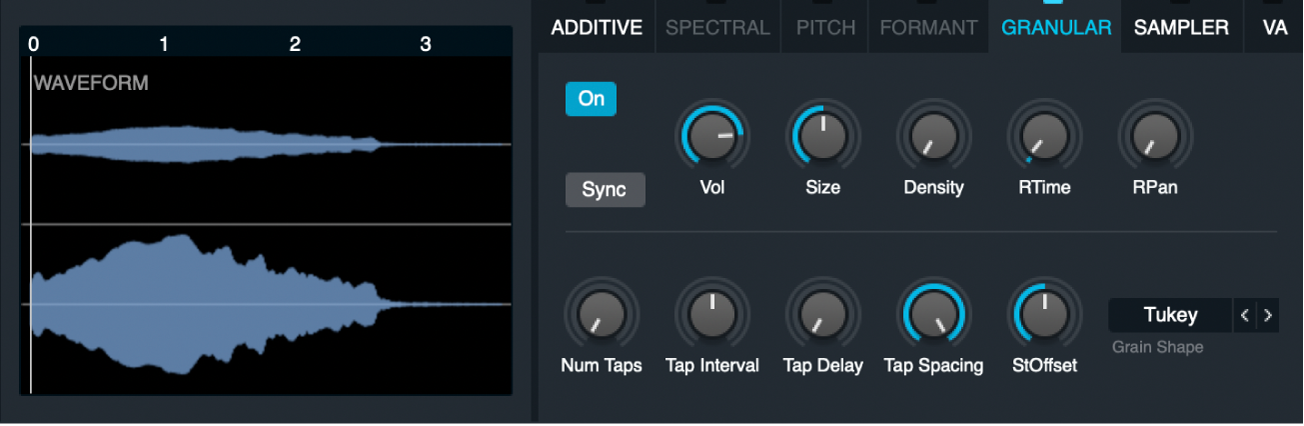
Granular synthesis
Unlike a conventional sampler that plays back a loaded audio file as-is, the granular synthesis engine in Alchemy generates sound from many small fragments called grains—tiny, windowed pieces of the original audio. Instead of a single linear playback, grains are continuously generated from around the current playhead position in the sample, often overlapping to form a continuous sound. You can adjust the duration of each grain (2–230 milliseconds) and the rate at which grains are produced with the available controls. Each grain is shaped in amplitude and can be modified in pitch and pan before being mixed into the output. Additional taps introduce parallel grain streams, offset in time or position, allowing for more complex and spatially rich textures.
You can modulate all those parameters, including grain position, timing, and pitch, allowing for continuous variation of the resulting sound. Through modulation and the interaction of these controls, even a simple source sample can be transformed into a wide range of textures.
In addition to the granular parameters themselves, the resulting sound is also influenced by other controls in the Source section, such as playback position, speed, and loop modes, which determine how the sample is scanned and therefore where grains are generated from. See Alchemy source subpage controls in MainStage.
Modulations of the granular element update with each new grain. For an example of the impact this has, modulating the source Coarse Tune parameter with an LFO causes the stream of grains to rise and fall in pitch, but does not create pitch sweeps within each grain. If a large Size value is used in conjunction with a low Density value, modulations of source parameters such as pitch may sound stepped, rather than smooth.
You can choose between two granular modes, classic and sync. In granular sync mode, also referred to as pitched grains, you can control the formant modulation of the grain’s pitch.
Main granular element parameters
Waveform display: Displays the waveform of the loaded audio sample. The white vertical line indicates the current playback position and serves as a reference for where grains are generated from within the sample. Depending on the settings and modulation, this position may move, remain static, or vary dynamically. The scale above the waveform shows the duration of the sample in seconds.
On/Off button: Turn on to use the granular element in the source.
Sync button: Click to switch the granular engine between classic mode (Sync button inactive) and sync mode (Sync button active).
In granular sync mode, the Size knob and Density knob are replaced by the Formant Shift knob that you use to adjust the formants of the sound.
Volume knob: Set the volume of the granular element, independent of other source elements.
Size knob: Adjust the duration of each grain from 2–230 ms, which determines the length of the audio signal extracted from the sample around the current playhead position in the waveform overview.
Density knob: Determine how frequently grains are generated from the audio sample around the current playhead position in the waveform display. The perceived result depends on the Size setting. Lower density values produce fewer, more separated grains, while higher values increase the number of overlapping grains.
The Size and Density parameters interact with each other. When the Density value is 1, a single grain is sent to the output stream. As soon as one grain finishes, the next one is sent. A Size value of 100 msec sends a new grain every 100 msec.
Increasing Density to 2 adds a second grain that is sent in between those of the first, resulting in a new grain every 50 msec, assuming a Size value of 100 msec. The first and second grains overlap each other. Higher Density values inject additional new grains into the output stream. These new grains occur more frequently and overlap more heavily.
Setting Size to around 100 msec and Density to around 5 grains is often suitable for smooth pad sounds with no sharp transients. Setting Size between 40 and 80 msec and Density to around 2 grains is useful for drums and other sounds featuring sharp transients. Small Size values tend to produce a buzz that masks the original pitch of the sample. Large Size values tend to break up the sound. You can counteract both tendencies by increasing the Density.
Note: Also important to the Size and Density parameters is the shape chosen in the Grain Shape pop-up menu. This can have a significant or subtle impact on sonic artifacts that may be introduced in the stream of grains.
Formant Shift knob: Adjust the formants of the sound, up to a maximum shift of 36 semitones up or down.
Use an LFO to modulate the formant shift parameter to achieve interesting results. RTime should be set to 0% to have a really clear effect.
Note: The Formant Shift knob is only available when the Sync button is activated.
RTime knob: Add a small random offset to grain extraction positions in the sample. The default value is 3% because a small amount of randomization helps to smooth the output of the granular element.
RPan knob: Add a random offset to the stereo position of each grain. The source Stereo button next to the Edit button must be on for RPan to have an effect.
Grain Shape pop-up menu: Choose the envelope shape that is applied to each grain. At a basic level, this applies a small fade-in and fade-out to each grain, but some shapes may have a more significant impact, depending on the current Size and Density values (and the source material). You can also step through the available grain shapes with the Previous and Next buttons (the arrows).
This function is primarily intended to reduce or remove glitches, clicks, and crackles in the playback of a stream of grains, but it can introduce buzzy gaps between grains and can affect the tonality of grains. The effect of the chosen grain shape can also be quite subtle in many cases, particularly when you avoid extreme Size and/or Density values. There are no fixed rules when it comes to the choice of grain shape, given the infinite variety of source audio material. Therefore, you may want to experiment to achieve the required results.
Tap parameters
The granular engine generates grains from the audio sample, primarily controlled by the Grain Size and Density parameters. This produces a continuous audio stream of overlapping, envelope-shaped grains, as defined by the selection from the Grain Shape pop-up menu. To create more complex textures, the Tap controls introduce additional parallel grain streams. Each stream follows the same settings but can be offset and varied using the available tap parameters, resulting in a denser and more spatially complex sound.
Num Taps knob: Set the number of parallel grain streams (layers). Each tap generates its own grains using the same settings but with positional offsets, increasing density and creating a thicker, more diffuse sound.
Note: Taps that fall within a looped area are retriggered on each loop cycle.
Tap Interval knob: Choose a value of up to 12 semitones so that the second and subsequent taps are pitched up or down. You can set values between the quantized semitones with modifier shift while dragging the control.
Tap Delay knob: Set the time, up to 0.30 seconds, that each tap (set in the Num Taps knob) is delayed from the previous tap.
The volume of the initial and subsequent taps is fixed as tap 1: 100%, tap 2: 92%, tap 3: 87%, tap 4: 78%, tap 5: 71%, tap 6: 65%, tap 7: 57%, tap 8: 50%.This isn't editable.
Tap Spacing knob: Set the positional offset between the parallel grain streams (taps). Each tap reads from a different point in the sample, spaced according to this value, which is expressed as a percentage of the total sample length. Higher values distribute the taps more widely across the sample, while lower values place them closer together.
StOffset knob: Offset the stereo position to create a wider sound. The source Stereo button must be on for Stereo Offset to have an effect.