View presentation commands and take notes in Apple Immersive Video Utility on Mac
You can use detail view to see a list of presentation commands during playback, or to import, export, or take notes on video files.
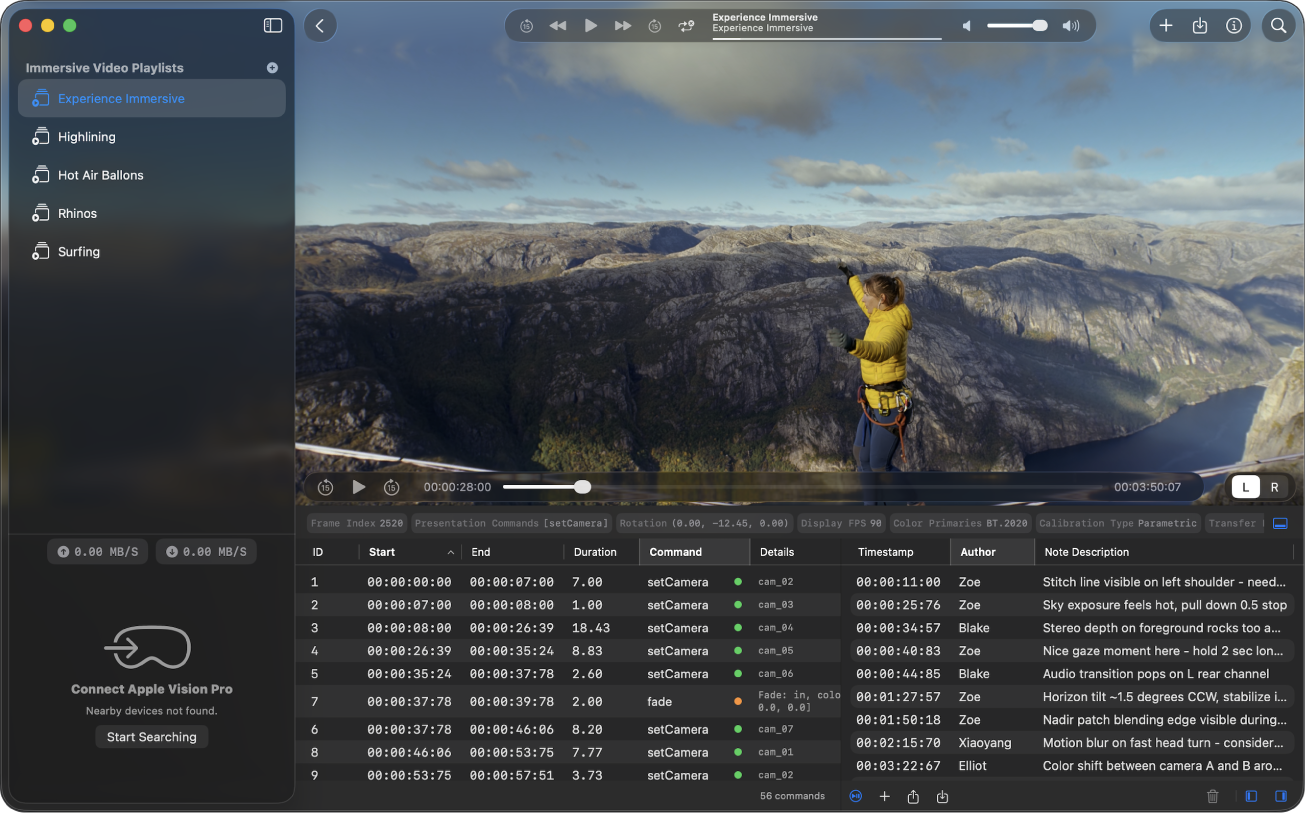
Show or hide detail view
During playback in Apple Immersive Video Utility on Mac, click
 below the playback window to show or hide detail view.
With detail view open, do either of the following:
Click
 to show or hide presentation commands.
Click
 to show or hide notes.
Tip: Double-click a presentation command or note to jump to that timestamp in the video.
Take notes during playback
During playback in Apple Immersive Video Utility on your Mac, click
to show detail view if it’s not already visible.With notes view open, click
 .
.If prompted, enter a name for the author of the note.
A note is added at the current timestamp.
Enter your note in the Note Description column.
To edit a note or its author, double-click the note or author in notes view, then enter your changes.
To delete a note, select it, then click
 .
.
By default, playback pauses when you add or edit a note. To allow playback to continue when you add or edit a note, click  at the bottom of detail view.
Import or export notes
During playback in Apple Immersive Video Utility on your Mac, click
to show detail view if it’s not already visible.With notes view open, do either of the following:
Click
 to export your notes as a .txt file.
Click
 to import a .txt file with notes for the current video.