تخصيص مظهر Mac
يمكنك تخصيص MacBook Neo بطرق عديدة، بدءًا من تغيير مظهر وشكل macOS وتخصيص سطح المكتب وشريط الأيقونات وشريط القوائم، وصولًا إلى ضبط حجم النص والمؤشر. تعرَّف على كيفية جعل Mac يعمل لك.
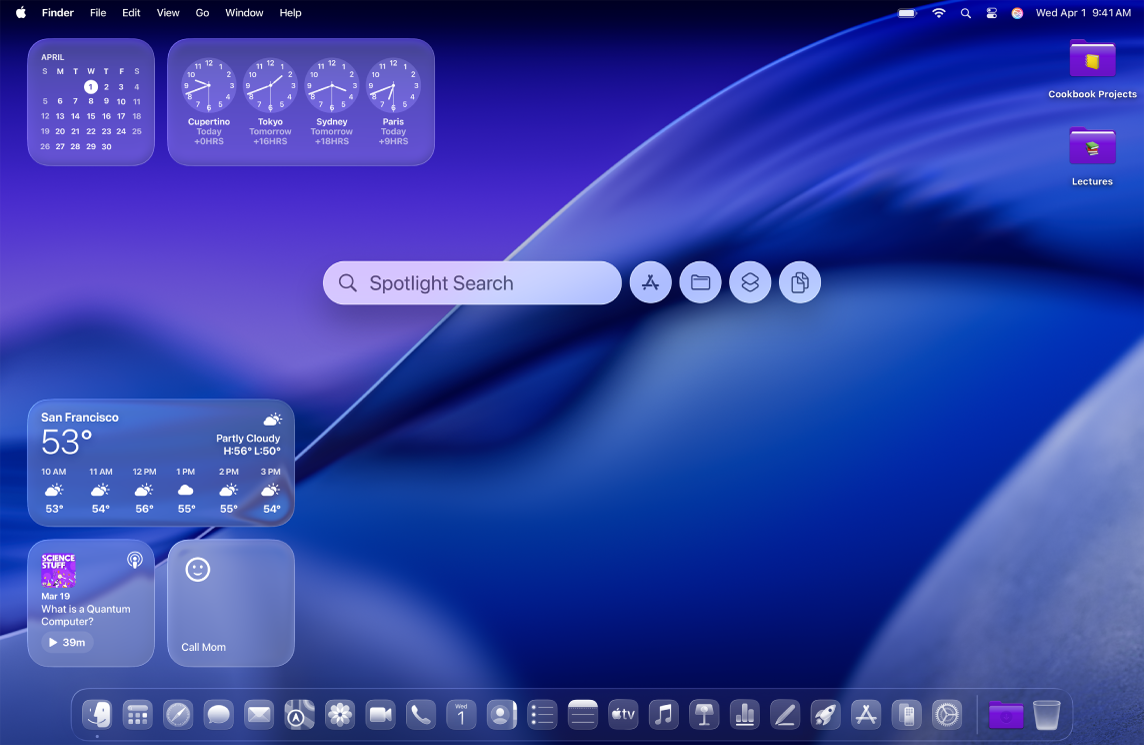
ضبط مظهر macOS وشكله
يمكنك تغيير مظهر macOS. على سبيل المثال، يمكنك التبديل إلى النمط الداكن، وتغيير شكل الأيقونات والأدوات، وتخصيص اللون الافتراضي للمجلدات، والمزيد.
 استخدام مظهر فاتح أو داكن انتقل إلى إعدادات النظام، وانقر على المظهر |  تغيير سمة الألوان اختر اللون المراد استخدامه للأزرار والقوائم المنبثقة وعناصر تحكم واجهة المستخدم الأخرى. انتقل إلى إعدادات النظام، انقر على المظهر |
 تغيير مظهر الأيقونات والأدوات انتقل إلى إعدادات النظام، انقر على المظهر |  تخصيص اللون الافتراضي للمجلدات انتقل إلى إعدادات النظام، انقر على المظهر |
 ,
, تخصيص سطح المكتب
يمكنك تخصيص سطح المكتب عن طريق تغيير خلفية الشاشة أو تخصيص شاشة التوقف أو إضافة مجلدات. يمكنك أيضًا إضافة أدوات، حيث تساعدك على الاطلاع على المعلومات، مثل تقويمك أو تذكيراتك، بنظرة سريعة.
 تغيير خلفية الشاشة انتقل إلى إعدادات النظام، انقر على خلفية الشاشة |  تخصيص شاشة التوقف انتقل إلى إعدادات النظام، انقر على خلفية الشاشة |
 إضافة الأدوات أو تعديلها لإضافة أداة، انقر مع الضغط على مفتاح control على سطح المكتب، ثم اختر تعديل الأدوات. يمكنك استخدام الشريط الجانبي للتصفح بين الأدوات المختلفة. بإمكانك سحب أدوات جديدة إلى أي مكان على سطح المكتب أو في مركز الإشعارات. لتعديل الأداة، اضغط على control مع النقر على الأداة، ثم اختر من الخيارات المتاحة، مثل صغير أو متوسط أو كبير. |  إضافة مجلدات مخصصة اضغط على مفتاح control مع النقر على سطح المكتب، ثم اختر مجلد جديد. يمكنك بعد ذلك تخصيص المجلد بتغيير لونه وإضافة أيقونة أو إيموجي، اضغط على control مع النقر على المجلد، اختر تخصيص المجلد، ثم جرّب حتى تكون راضيًا عن مظهر المجلد. |
 ،
، تخصيص شريط الأيقونات وشريط القوائم
يمكنك تكبير شريط الأيقونات أو تصغيره، ونقله إلى الجزء الأيمن أو الأيسر من الشاشة، وتعيينه بحيث يختفي أثناء عدم استخدامه، والمزيد. يمكنك أيضًا إضافة العناصر أو إزالتها من شريط القوائم ومركز التحكم.
 تغيير مظهر شريط الأيقونات انتقل إلى إعدادات النظام، وانقر على سطح المكتب وشريط الأيقونات |  إضافة أو إزالة العناصر في شريط الأيقونات لإضافة عنصر إلى شريط الأيقونات، افتح نافذة فايندر، ثم اسحب العنصر الذي تريد إضافته إلى شريط الأيقونات. إزالة عنصر عن طريق سحبه إلى أيقونة سلة المهملات في شريط الأيقونات حتى يظهر "إزالة من شريط الأيقونات". |
 إضافة العناصر المستخدمة بشكل متكرر إلى شريط القوائم أضف قوائم الحالة إلى الجانب الأيسر من شريط القوائم بحيث يمكنك عرض الإعدادات وضبطها بسرعة، مثل Wi‑Fi أو عدم الإزعاج. انتقل إلى إعدادات النظام، انقر على شريط القوائم |  تخصيص مركز التحكم انقر على |
 ,
,  ,
,  ,
,  في الزاوية العلوية اليمنى لإضافته إلى مركز التحكم.
تغيير حجم النص والمؤشر
يمكنك تغيير حجم النص في تطبيقات متعددة وكذلك على سطح المكتب، وزيادة حجم المؤشر لتسهيل رؤيته.
 زيادة حجم النص انتقل إلى إعدادات النظام، وانقر على تسهيلات الاستخدام |  زيادة حجم المؤشر انتقل إلى إعدادات النظام، انقر على تسهيلات الاستخدام |
 زيادة حجم النص والأيقونات في الأشرطة الجانبية انتقل إلى إعدادات النظام، انقر على المظهر |
 ,
, هل تريد معرفة المزيد؟
لتخصيص شريط القوائم وشريط الأيقونات ومركز التحكم، انظر تخصيص شريط القوائم واستخدام شريط الأيقونات واستخدام مركز التحكم.
للحصول على معلومات حول ميزات تسهيلات الاستخدام المختلفة، بما في ذلك الرؤية والسمع والحركة والنطق والإدراك، انظر الشروع في استخدام ميزات تسهيلات الاستخدام.
للتعرُّف على كيفية استخدام اختصارات لوحة المفاتيح وإيماءات لوحة التعقب، انظر اختصارات لوحة المفاتيح وتخصيص الإعدادات.
تحتوي عديد من نوافذ التطبيقات على شريط أدوات به الأزرار التي توفر الوصول إلى الميزات، الأدوات، أو الإجراءات الأكثر استخدامًا. لمعرفة كيفية تخصيص أشرطة الأدوات، انظر تخصيص أشرطة الأدوات.
لمعرفة كيفية تغيير الإشعارات التي تتلقاها، انظر تغيير إعدادات الإشعارات. يمكنك أيضًا إعداد تركيز لإيقاف كل الإشعارات أو بعضها مؤقتًا وإسكاتها حتى تتمكن من تقليل المشتتات والإنجاز.