Logic Pro User Guide for iPad
- Welcome
-
- What is Logic Pro?
- Working areas
- Work with the menu bar
- Work with function buttons
- Work with numeric values
- Undo and redo edits in Logic Pro for iPad
-
- Intro to tracks
- Create tracks
- Create tracks using drag and drop
- Choose the default region type for a software instrument track
- Select tracks
- Duplicate tracks
- Reorder tracks
- Rename tracks
- Change track icons
- Change track colors
- Use the tuner on an audio track
- Show the output track in the Tracks area
- Delete tracks
- Edit track parameters
- How to get help
-
- Intro to recording
-
- Before recording software instruments
- Record software instruments
- Record additional software instrument takes
- Record to multiple software instrument tracks
- Record multiple MIDI devices to multiple tracks
- Record software instruments and audio simultaneously
- Merge software instrument recordings
- Spot erase software instrument recordings
- Replace software instrument recordings
- Route MIDI internally to software instrument tracks
- Record with Low Latency Monitoring mode
- Use the metronome
- Use the count-in
-
- Intro to arranging
-
- Intro to regions
- Select regions
- Cut, copy, and paste regions
- Move regions
- Remove gaps between regions
- Delay region playback
- Trim regions
- Loop regions
- Repeat regions
- Mute regions
- Split and join regions
- Stretch regions
- Separate a MIDI region by note pitch
- Bounce regions in place
- Change the gain of audio regions
- Normalize audio regions in the Tracks area in Logic Pro for iPad
- Create regions in the Tracks area
- Convert a MIDI region to a Session Player region or a pattern region
- Replace a MIDI region with a Session Player region in Logic Pro for iPad
- Rename regions
- Change the color of regions
- Delete regions
-
- Intro to chords
- Add and delete chords
- Select chords
- Cut, copy, and paste chords
- Move and resize chords
- Loop chords on the Chord track
- Color chords on the Chord track
- Edit chords
- Work with chord groups
- Use chord progressions
- Change the chord rhythm
- Choose which chords a Session Player region follows
- Analyze the key signature of a range of chords
- Use Chord ID to analyze the chords in an audio or MIDI region
- Create fades on audio regions
- Extract vocal and instrumental stems with Stem Splitter
- Access mixing functions using the Fader
-
- Intro to Step Sequencer
- Use Step Sequencer with Drum Machine Designer
- Chords and pitch in Step Sequencer
- Record Step Sequencer patterns live
- Step record Step Sequencer patterns
- Load and save patterns
- Modify pattern playback
- Edit steps
- Edit rows
- Edit Step Sequencer pattern, row, and step settings in the inspector
- Customize Step Sequencer
-
- Intro to mixing
-
- Channel strip types
- Channel strip controls
- Peak level display and clipping
- Set channel strip volume
- Set channel strip input format
- Set the output for a channel strip
- Set channel strip pan position
- Mute and solo channel strips
- Reorder channel strips
- Replace a patch on a channel strip using drag and drop
- Work with plug-ins in the Mixer
- Search for plug-ins in the Mixer
-
-
- Effect plug-ins overview
-
- Instrument plug-ins overview
-
- ES2 overview
-
- Modulation overview
- Use the Mod Pad
-
- Vector Envelope overview
- Use Vector Envelope points
- Use Vector Envelope solo and sustain points
- Set Vector Envelope segment times
- Vector Envelope XY pad controls
- Vector Envelope Actions menu
- Vector Envelope loop controls
- Vector Envelope point transition shapes
- Vector Envelope release phase behavior
- Use Vector Envelope time scaling
- Modulation source reference
- Via modulation source reference
- Use macro controls
-
- Sample Alchemy overview
- Interface overview
- Add source material
- Save a preset
- Edit mode
- Play modes
- Source overview
- Synthesis modes
- Granular controls
- Additive effects
- Additive effect controls
- Spectral effect
- Spectral effect controls
- Filter module
- Low, bandpass, and highpass filters
- Comb PM filter
- Downsampler filter
- FM filter
- Envelope generators
- Mod Matrix
- Modulation routing
- Motion mode
- Trim mode
- More menu
- Sampler
- Studio Piano
- Copyright and trademarks
Find sounds in the Browser in Logic Pro for iPad
In the Browser, you can use keywords, filters, and other search criteria to quickly find instrument and audio patches, Apple Loops, and samples contained in sound packs downloaded from the Sound Library.
An extensive set of filters lets you refine your search based on criteria such as genre, instrument, musical properties, sound packs, and more. When no filters are applied, two rows of suggested filters are displayed above the results list. When you tap a filter, it is applied to the results and moves to the top row. The bottom row continues to show suggested filters based on the current applied filter combination.
When you add and remove keywords and filters, the results are automatically updated based on your filter criteria. Exact matches appear at the top of the list, followed by any partial matches.
In the All Filters window, you can access all available filters grouped into various categories.
Advanced filters
Some filters have additional functions to help you find what you’re looking for.
Some filters have a More button  that you can tap to view a list of related subfilters you can use to narrow your search even further. For example, you can use the Drums filter by itself and see all drum-related sounds. However, you can also choose specific drum kit pieces (like Kick or Hi-Hat) from the subfilter menu to see just those pieces.
Group filters in the All Filters window have a pop-up menu containing a list of filters that describe an amount, value, or other attribute pertaining to the name of the enclosing button. For example, in the Loops view of the Browser, you can tap the Key group filter in the Musical Properties category and choose one or more keys from the menu to limit your search to loops in those keys. You can’t use a group filter on its own; you need to choose one of the options in the group filter menu.
Paired filters contain two mutually exclusive descriptors (for example, Analog/Digital, Cold/Warm, or Bright/Dark). When you choose one of the descriptors, you exclude the other.

If you add patches, loops, or samples from the Browser to your project and want to find something that fits well with what you’re working on, you can find similar items in the Browser.
Search by keyword
In the Browser in Logic Pro, you can use keywords to search for sounds. In the Browser views for instrument patches, audio patches, loops, and samples, the suggested search results include filters and various items whose name contains your keyword.
Tap the Search button, then enter a search term in the search field.
As you type, matches for filters containing your search term are updated in the list below the search field.
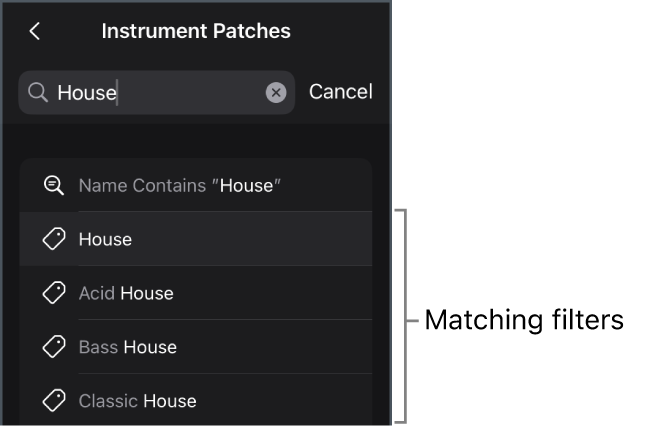
Do any of the following:
Tap Search on the onscreen keyboard, or tap “Name Contains” near the top of the list.
If your search term exactly matches the name of a filter, the filter is applied to the search results.
Tap one of matching results.
Use music understanding to find loops
In Logic Pro, music understanding, built on Apple Intelligence, lets you use natural language to find loops with musical characteristics that fit the instrumentation, style, or genre or your project. For example, you can search for loops using phrases like “Funky upbeat drums” or “Jangly electric guitar,” and Logic Pro will return matching loops based on your input. When you find a loop you like, you can find more loops with similar characteristics.
In the Loops view of the Browser, do either of the following:
Search with natural language:
Tap the Search button, then enter a descriptive phrase into the search field using natural language.
Tap “Sounds like” at the top of the results list.
Find similar-sounding loops:
Drag the loop from the results list to the area above it.
Select a loop in the results list, tap the More button
at the bottom of the Browser, then tap Find Similar.
Use filters
You can filter the results in the Browser views for instrument patches, audio patches, loops, and samples. When no filters are active, two rows of suggested filters are displayed above the results list. Once you apply a filter, the top row shows any active filters. The bottom row continues to show suggested filters based on the active filters.
In the Logic Pro Browser, do any of the following:
Apply a filter: Tap one or more filters above the results list.
Clear a filter: Tap the Clear button
 next to the filter name.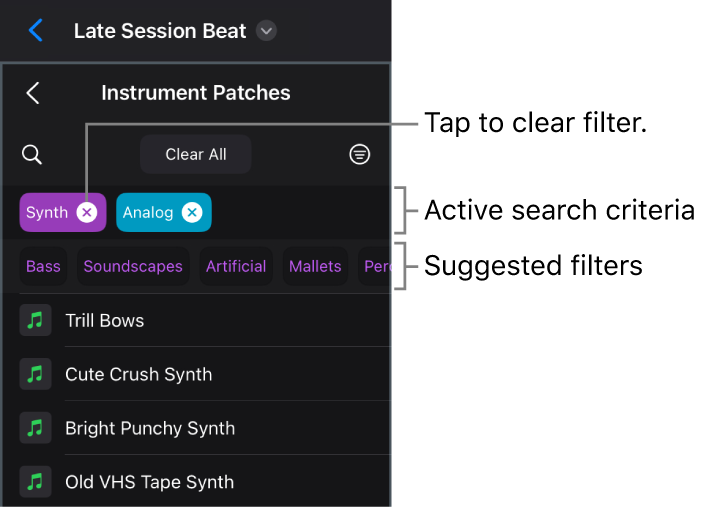
Clear all search criteria: Tap the Clear All button.
Show all filters
Tap the All Filters button
 .
.The All Filters window opens.
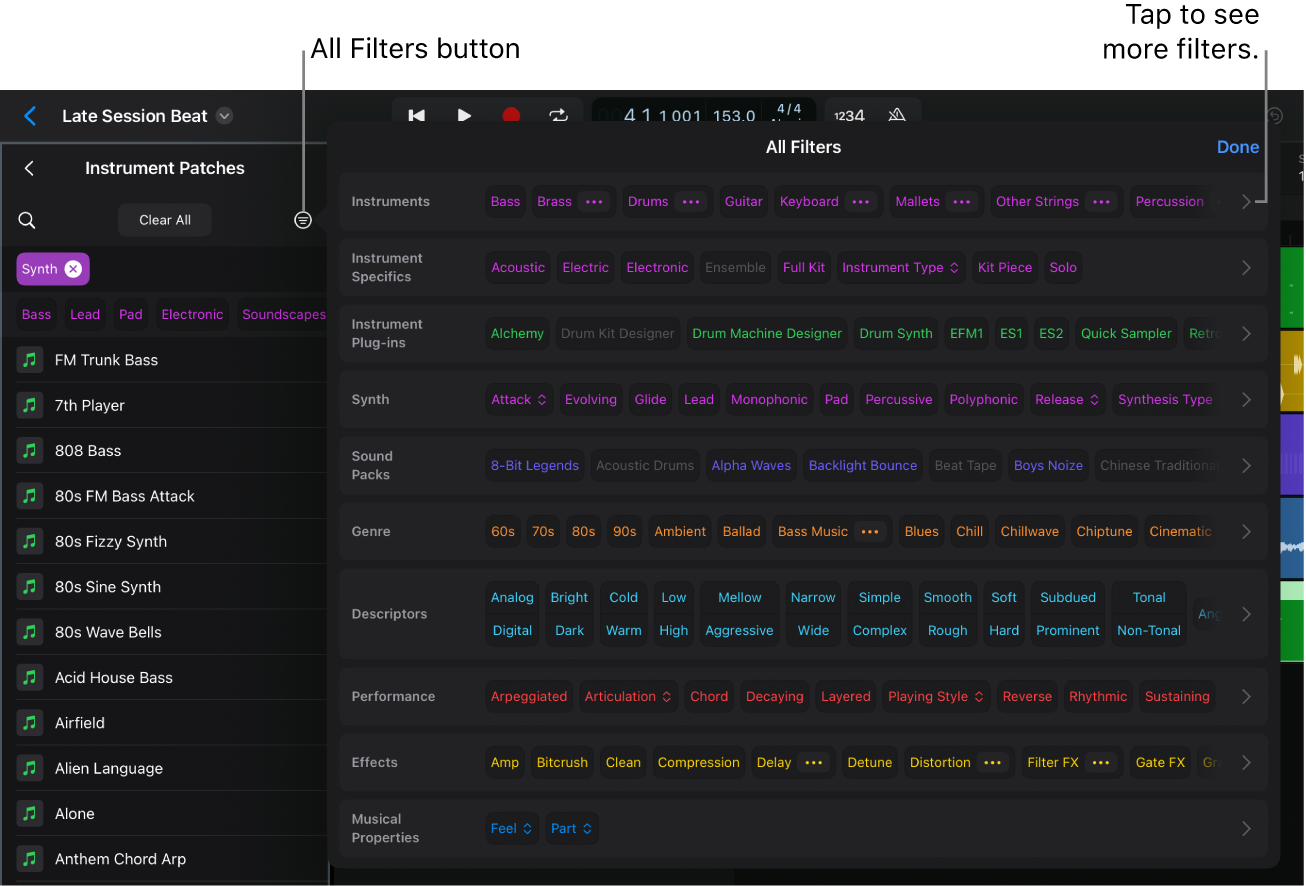
Tap different filters in the All Filters window to refine your search.
Tap active filters to remove them from the search criteria.
Tap Done or tap anywhere outside of the All Filters window when you’re finished.
View material from a particular sound pack
After you download sound packs in the Sound Library, you can set your filters in the Browser to view material from one or more sound packs.
In the Browser, tap the All Filters button
.In the Sound Packs category of the All Filters window, tap the filter for the sound pack you want to see in the results.
To view filters for all sound packs, tap the disclosure arrow on the right.
Recall original search criteria in the Browser
If you use any combination of filters to find an item in the Browser and then add it to your project, you can recall the original search criteria you used to find it.
In Logic Pro, do one of the following:
For instrument or audio patches added from the Browser: Tap the track header of the track, tap it again, then tap Show Original Search.
For Apple Loops or samples added from the Browser: Tap a selected region or cell containing an Apple Loop or sample, tap Browser, then tap Show Original Search.
Save and access your favorite patches, Apple Loops, or samples
You can save patches, Apple Loops, and samples you use frequently as “favorites” so that you can quickly access them in the Browser. This feature is ideal for compiling a collection that you use regularly. You can easily replace and manage your favorites as your project advances.
To add a patch, Apple Loop, or sample to your favorites in the Browser, drag it slowly to the left, then tap the Favorite button
 .
.To add a favorite in a single gesture, swipe all the way to the left.
When you save a favorite, a Favorite icon appears to right of the item in the Browser.
To access your favorites, tap Favorites in the top-level view of the Browser.
To remove an item from the your favorites, touch and hold the item, then choose Remove from Favorites.
Download this guide: PDF