Find or filter clips in Final Cut Pro for iPad
The media browser displays your imported and recorded media. By entering a description using natural language, you can search your media for spoken words or phrases or for visual moments in your videos, including objects and actions. You can also filter clips in the browser to show clips with specific characteristics.
To change the order of clip thumbnails in the browser, see Sort clips in the browser.
Find clips in the browser
You can enter a description using natural language to search your media for visual objects and actions, as well as for spoken words and phrases in English. You can also search for clips by rating, media type, keywords, name, and recording or import date.
Go to the Final Cut Pro app on your iPad.
Open a project, then tap
 in the toolbar.
Tap
 at the top of the browser, then enter text in the search field.
The browser updates to show the clips that match the text you entered.
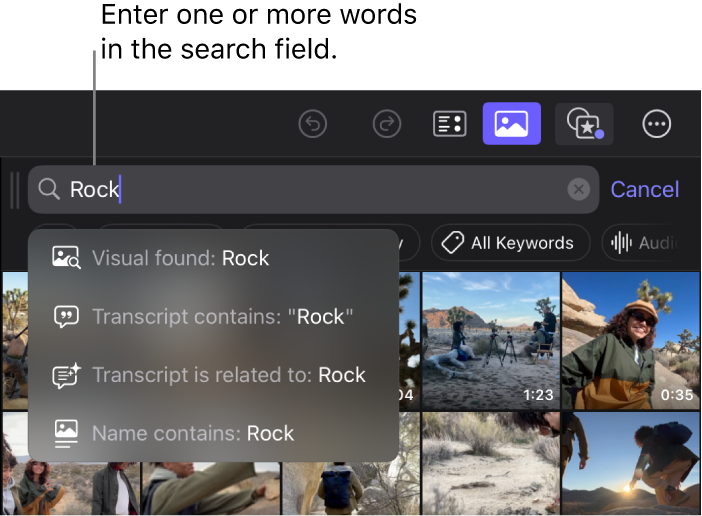
A list appears with suggestions for narrowing your search:
Visual found: Find clips that include a visual object or action that matches or is related to the text you entered.
Transcript contains: Find clips with spoken words that exactly match the text you entered.
For example, entering the search text “Joshua Tree National Park” finds all spoken instances of that phrase.
Note: When you’re working with multichannel audio, only dialogue in the first audio channel is analyzed and presented in search results.
Transcript is related to: Find clips with spoken words or phrases related to the text you entered.
For example, entering “Joshua Tree National Park” might find any references to trees or parks.
Name contains: Find clips whose names include the text you entered.
Date Imported: Find clips whose import dates match the text you entered.
Date Captured: Find clips whose recording dates match the text you entered.
To narrow your search, tap a suggestion in the list.
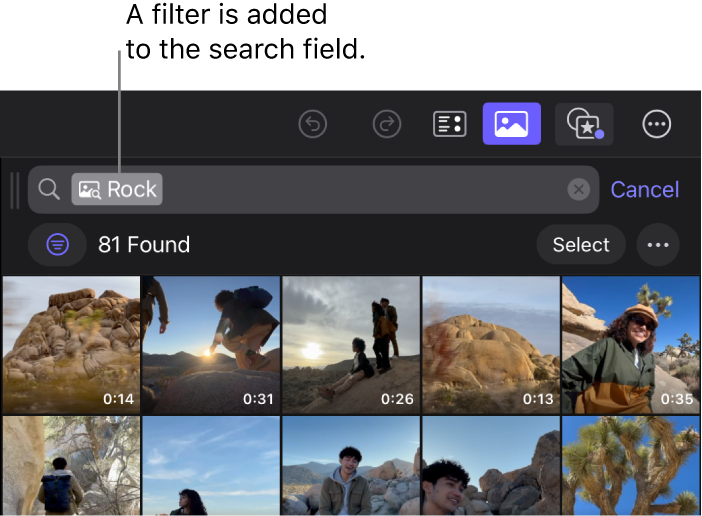
Final Cut Pro creates a filter in the search field, and the browser updates to show the clips that match the active filters.
To provide context in the case of Transcript (spoken dialogue) searches, the clips include a few seconds before and after the spoken word or phrase.
Note: Transcript search is available in English only. To use Transcript search, make sure Transcribe Audio is turned on for your project. In the Projects screen, tap
 , tap Settings, tap Project Settings, then turn on Transcribe Audio.


For more ways to find clips, see Filter clips in the browser by a combination of criteria, below.
Quickly filter clips in the browser
Access the most frequently used filters with a single tap.
Go to the Final Cut Pro app on your iPad.
Open a project, then tap
in the toolbar.Tap
at the top of the browser, then tap an option:Favorites: Show all ranges and clips with the Favorite rating.
Imported today: Show clips imported with today’s date.
All Keywords: Show clips with keywords applied.
Audio Only: Show audio-only clips.
To add to or adjust the current filters, tap
 at the top of the browser. See Filter clips in the browser by a combination of criteria, below.
Filter clips in the browser by a combination of criteria
You can use a variety of filters to find clips with specific characteristics, and combine filters with search text to display just the clips you want to work with.
Go to the Final Cut Pro app on your iPad.
Open a project, then tap
in the toolbar.Tap
at the top of the browser, then tap .To choose whether to show clips that match all active filters or clips that match any active filter, tap
 at the top of the Filters list and choose an option:
Match Any: Show media matching any active filter.
Match All: Show media matching all active filters.
Tap a filter to add it to the search criteria, then tap
next to the filter to make adjustments to it:Ratings: Filter clips by rating, such as Favorite or Rejected. Choose whether to show favorite clips and ranges, hide favorite clips and ranges, or hide rejected clips and ranges.
Media Type: Filter clips by media type, such as Video with Audio, Audio Only, or Photos. Tap the media types to include, then choose whether to show clips that match any selected media type or all selected media types.
Keywords: Filter clips by applied keywords. Tap the keywords to include (or tap Select All), then choose whether to show clips with any selected keyword or all selected keywords.
Visual: Filter clips by visual moments in your videos. Enter a word or description to search for a visual object or action.
Transcript: Filter clips by spoken dialogue. Enter text, then tap
next to Transcript and choose an option:Includes: Include clips with spoken words that exactly match the text you entered.
Doesn’t Include: Exclude clips with spoken words that exactly match the text you entered.
Is Related To: Include clips with spoken words or phrases related to the text you entered.
Note: When you’re working with multichannel audio, only dialogue in the first audio channel is analyzed and presented in search results.
Clip Names: Filter clips by name. Enter text, then choose whether to include or exclude clips with names that match the text you entered.
Content created: Filter clips by the date the media was created. Choose a date or time frame.
Date imported: Filter clips by the date they were imported. Choose a date or time frame.
Analysis Status: Filter clips by whether the media has been analyzed.
The browser updates to show the clips that match the active filters. In the case of Visual and Transcript searches, the clips include a few seconds before and after the matched item, to provide context.
Remove search filters
Go to the Final Cut Pro app on your iPad.
Open a project, then tap
in the toolbar.Tap
at the top of the browser.Do one of the following:
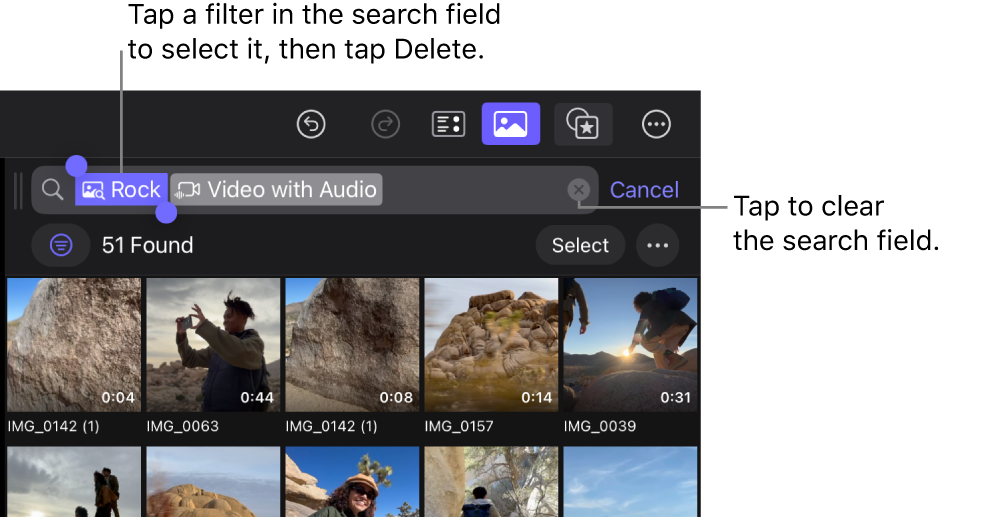
Clear the search field: Tap
 at the right side of the search field to remove all search criteria.
Remove an individual filter: Tap the filter in the search field to select it, then tap Delete in the onscreen keyboard.
Reset all filters: Tap
, then tap Reset at the top of the Filters list.