MainStage User Guide
- Welcome
-
- Overview of Edit mode
-
- Select patches and sets in the Patch List
- Copy, paste, and delete patches
- Reorder and move patches in the Patch List
- Add and rename patches
- Create a patch from several patches
-
- Overview of the Patch Settings Inspector
- Select patch settings in the Patch Library
- Set the time signature for patches
- Change the tempo when you select a patch
- Set program change and bank numbers
- Defer patch changes
- Instantly silence the previous patch
- Change patch icons
- Transpose the pitch of incoming notes for a patch
- Change the tuning for a patch
- Add text notes to a patch
-
- Overview of channel strips
- Add a channel strip
- Change a channel strip setting
- Configure channel strip components
- Show signal flow channel strips
- Hide the metronome channel strip
- Create an alias of a channel strip
- Add a patch bus
- Set channel strip pan or balance positions
- Set channel strip volume levels
- Mute and solo channel strips
- Use multiple instrument outputs
- Use external MIDI instruments
- Reorganize channel strips
- Delete channel strips
-
- Overview of the Channel Strip Inspector
- Choose channel strip settings
- Rename channel strips
- Change channel strip colors
- Change channel strip icons
- Use feedback protection with channel strips
- Set keyboard input for a software instrument channel strip
- Transpose individual software instruments
- Filter MIDI messages
- Scale channel strip velocity
- Set channel strips to ignore Hermode tuning
- Override concert- and set-level key ranges
- Add text notes to a channel strip in the Channel Strip Inspector
- Route audio via send effects
-
- Screen Control Inspector overview
- Replace parameter labels
- Choose custom colors for screen controls
- Change background or grouped screen control appearance
- Set screen controls to show the hardware value
- Set parameter change behavior for screen controls
- Set hardware matching behavior for screen controls
- Reset and compare changes to a patch
- Override concert- and set-level mappings
-
- Overview of mapping screen controls
- Map to channel strip and plug-in parameters
- Map screen controls to actions
- Map a screen control to multiple parameters
- Use screen controls to display PDF document pages
- Edit the saved value for a mapped parameter
- Set drum pads or buttons to use note velocity
- Map screen controls to all channel strips in a patch
- Undo screen control parameter mappings
- Remove screen control mappings
- Work with graphs
- Create controller transforms
- Share patches and sets between concerts
- Record the audio output of a concert
-
- Overview of concerts
- Create a concert
- Open and close concerts
- Save concerts
- How saving affects parameter values
- Clean up concerts
- Consolidate assets in a concert
- Rename the current concert
-
- Overview of the Concert Settings Inspector
- Set MIDI Routing to channel strips
- Transpose incoming note pitch for a concert
- Define the program change message source
- Send unused program changes to channel strips
- Set the time signature for a concert
- Change the tuning for a concert
- Set the pan law for a concert
- Add text notes to a concert
- Control the metronome
- Silence MIDI notes
- Mute audio output
-
- Layout mode overview
-
- Screen control parameter editing overview
- Lift and stamp screen control parameters
- Reset screen control parameters
- Common screen control parameters
- Keyboard screen control parameters
- MIDI activity screen control parameters
- Drum pad screen control parameters
- Waveform screen control parameters
- Selector screen control parameters
- Text screen control parameters
- Background screen control parameters
- How MainStage passes through MIDI messages
- Export and import layouts
- Change the aspect ratio of a layout
-
- Before performing live
- Use Perform mode
- Screen controls in performance
- Tempo changes during performance
- Tips for performing with keyboard controllers
- Tips for performing with guitars and other instruments
- Tune guitars and other instruments with the Tuner
- The Playback plug-in in performance
- Record your performances
- After the performance
- Tips for complex hardware setups
-
- Overview of keyboard shortcuts and command sets
-
- Concerts and layouts keyboard shortcuts
- Patches and sets (Edit mode) keyboard shortcuts
- Editing keyboard shortcuts
- Actions keyboard shortcuts
- Parameter mapping (Edit mode) keyboard shortcuts
- Channel strips (Edit mode) keyboard shortcuts
- Screen controls (Layout mode) keyboard shortcuts
- Perform in Full Screen keyboard shortcuts
- Window and view keyboard shortcuts
- Help and support keyboard shortcuts
-
-
- Use MIDI plug-ins
-
- Arpeggiator overview
- Arpeggiator control parameters
- Note order parameters overview
- Note order variations
- Note order inversions
- Arpeggiator pattern parameters overview
- Use Live mode
- Use Grid mode
- Arpeggiator options parameters
- Arpeggiator keyboard parameters
- Use keyboard parameters
- Assign controllers
- Modifier controls
- Note Repeater controls
- Randomizer controls
-
- Use Scripter
- Use the Script Editor
- Scripter API overview
- MIDI processing functions overview
- HandleMIDI function
- ProcessMIDI function
- GetParameter function
- SetParameter function
- ParameterChanged function
- Reset function
- JavaScript objects overview
- Use the JavaScript Event object
- Use the JavaScript TimingInfo object
- Use the Trace object
- Use the MIDI event beatPos property
- Use the JavaScript MIDI object
- Create Scripter controls
- Transposer controls
-
-
- Alchemy overview
- Alchemy interface overview
- Alchemy Name bar
- Alchemy file locations
-
- Alchemy source overview
- Source master controls
- Import browser
- Source subpage controls
- Source filter controls
- Source filter use tips
- Source elements overview
- Additive element controls
- Additive element effects
- Spectral element controls
- Spectral element effects
- Pitch correction controls
- Formant filter controls
- Granular element controls
- Sampler element controls
- VA element controls
- Wide unison mode
- Source modulations
- Morph controls
- Alchemy master voice section
- Alchemy Extended parameters
-
- Playback plug-in overview
- Add a Playback plug-in
- Playback interface
- Use the Playback waveform display
- Playback transport and function buttons
- Playback information display
- Playback Sync, Snap To, and Play From parameters
- Use the Playback group functions
- Use the Playback Action menu and File field
- Use markers with the Playback plug-in
-
- Sample Alchemy overview
- Interface overview
- Add source material
- Edit mode
- Play modes
- Source overview
- Synthesis modes
- Granular controls
- Additive effects
- Additive effect controls
- Spectral effect
- Spectral effect controls
- Filter module
- Lowpass, bandpass, and highpass filters
- Comb PM filter
- Downsampler filter
- FM filter
- Envelope generators
- Mod Matrix
- Modulation routing
- Motion mode
- Trim mode
- More menu
-
- Sculpture overview
- Sculpture interface
- Global parameters
- Amplitude envelope parameters
- Use the Waveshaper
- Filter parameters
- Output parameters
- Define MIDI controllers
- Extended parameters
-
- Studio Piano
- Copyright and trademarks
Use the Alchemy browser in MainStage
The browser displays all presets matching the current search criteria. A number of columns are shown from left to right.
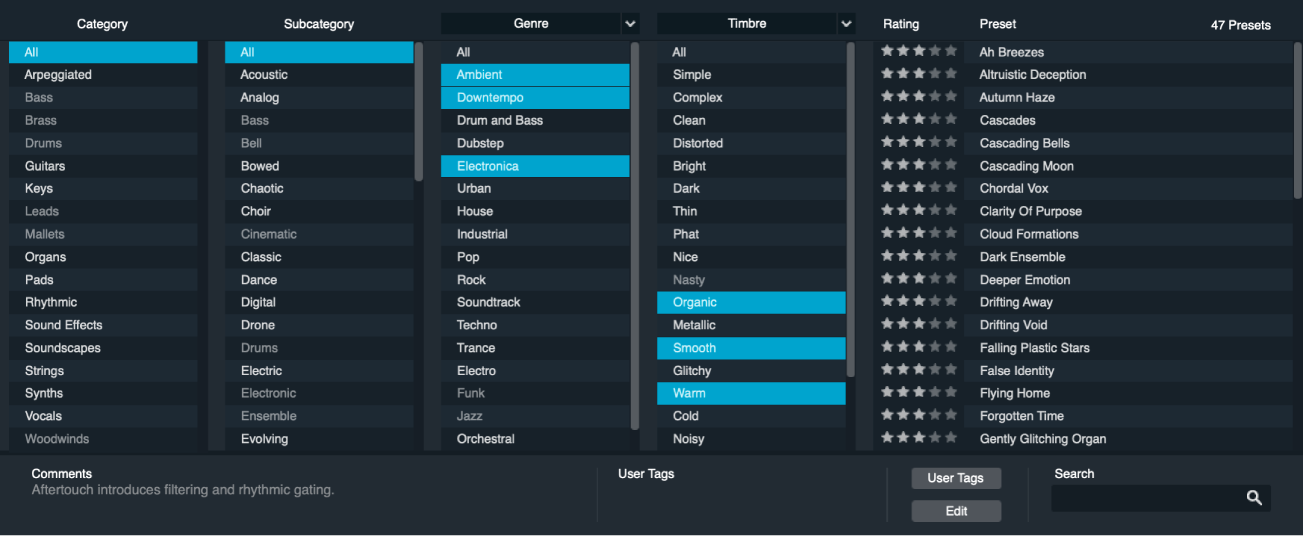
Browser parameters
Category column: Shows preset categories. Command-click multiple categories to refine your criteria. Click All to show all categories.
Subcategory column: Shows subcategories of preset categories. Command-click multiple subcategories to refine your criteria. Click All to show all subcategories.
Attribute menu selection: Choose a preset attribute type to refine the preset results list and to apply attributes to presets when in Edit mode.
Tip: Combine Attributes such as Newer Than and Sound Designer to show presets that you created within a date range, without also showing supplied presets installed in the same date range.
Attributes columns: Show the Articulation, Genre, Newer Than, Older Than, Sound Designer, Sound Library, Timbre, or User Tags attributes. Command-click multiple attributes to refine your criteria. Click All to show all matching attributes.
Rating column: Shows user preset ratings. Click the column header to sort the results list. A second click reverses the current sort order. Click the stars to rate a preset.
The highest-rated presets appear first in the list. User-rated presets always take precedence over unrated presets. Three dim stars indicate that a preset has not yet been rated.
Browser results list: Shows preset names. Click the column header to sort the results list. A second click reverses the current sort order.
The number of presets returned by the current search criteria is displayed to the right of the Preset column header.
Matching Presets: Shows the number of presets that match the search criteria chosen in the Category, Subcategory, and Attributes columns, and the typed search term.
Comments field: Shows comments stored with the selected preset. In preset edit mode, click to edit the comments.
User Tags field: Shows user tags stored with the selected preset. In preset edit mode, click to edit the user tags.
User Tags button: Open a pop-up menu with commands for creating and deleting user tags. A list of existing user tags is shown below the menu commands.
Edit button: Switch to preset edit mode where you can edit user tags and can enter comments for the current preset.
Search field: Use to type a search term for presets. This is restricted by the criteria chosen in the Category, Subcategory, and Attributes columns.
Clear Search field button: Clear the search term you have entered in the search field.
Search button: Perform a search for the term you have entered in the search field.
Close button: Exit preset edit mode.
Set criteria to refine the preset results list
In Alchemy in MainStage, click an entry such as Guitars in the Category column to limit the preset results list to include only presets belonging to the Guitars category.
Click an entry such as Acoustic in the Subcategory column to further limit the preset results list to include only presets belonging to the Acoustic subcategory of the parent category (Guitars, in this example).
Click the header of one or more attribute columns to open a pop-up menu where you can choose the attributes you want to use.
Click a keyword in each attribute column.
You can choose multiple entries in any column by doing one or more of the following:
Click an entry, then hold down Shift while clicking another entry in the same column. All items between the clicked entries are selected and used as search criteria for the preset results list.
Hold down Command, then click any entries you want to use as search criteria.
Click the All entry at the top of a column to reset the selection criteria.
Use the search field
The search field is used for manual searching of presets by name, attributes, user comments, artist name, or tags. The most recent search term is saved and recalled with the project.
In Alchemy in MainStage, type your search term, then click the magnifying glass icon or press Enter.
The Preset browser results list updates to reflect your search criteria.
You can refine a text search with the minus symbol. For example, to search for all presets matching analog but not bass, use the search term analog -bass.
This may also be used to remove all bass presets from the results list by entering only -bass in the search field. Presets in the Bass category and presets with bass or basses in the preset name, user tags, or comments field are removed from the preset results list.
To clear the current search term, click the Clear Search field button.
Use preset edit mode
Preset edit mode displays six columns in an enlarged Preset browser window. Edits made to multiple selected presets apply attributes, user tags, or comments to all presets in the group. All changes made in edit mode are immediately applied and saved in the preset database. The Sound Designer is determined by the settings in Logic Pro > Settings > My Info > Artist Name. If this is not set, “Unknown Artist” is shown.
Note: It is not possible to change the Sound Library for a preset; this column is displayed for reference only.
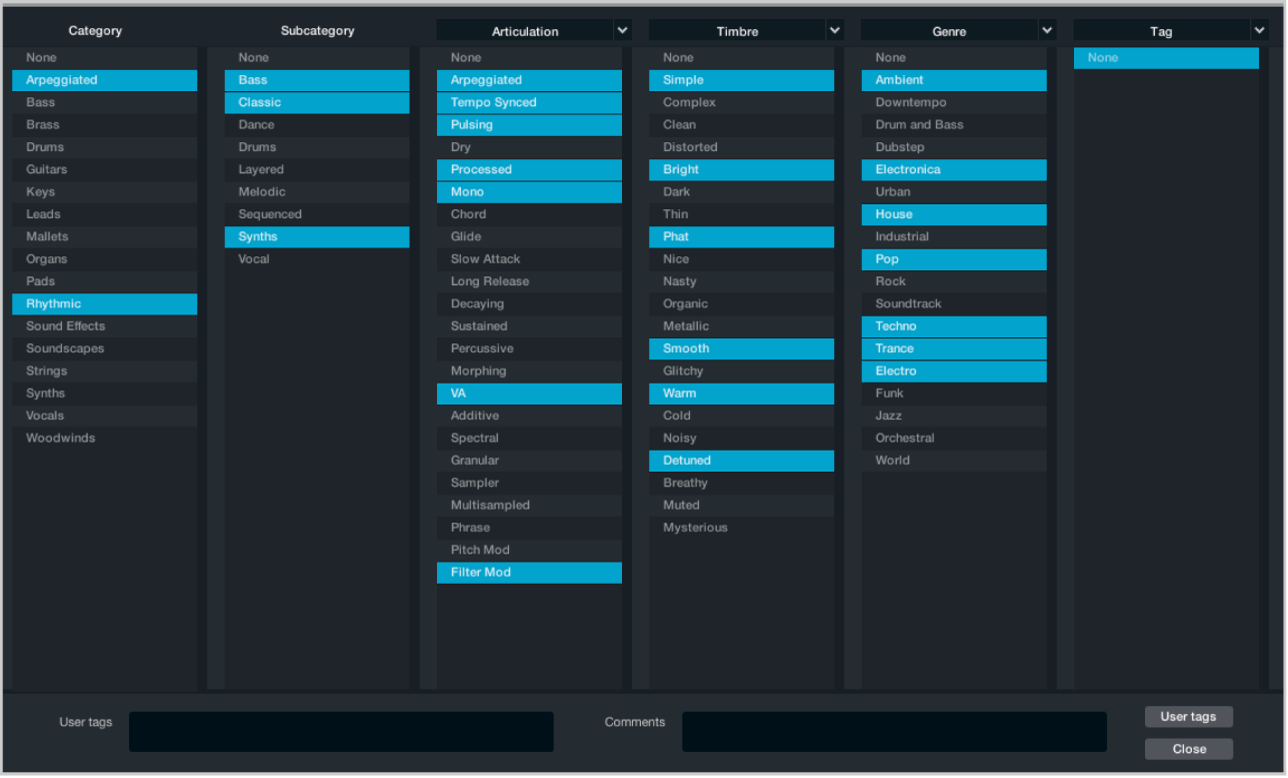
In Alchemy in MainStage, click the Edit button to switch to preset edit mode.
Choose a preset from the Preset pop-up menu in the Name bar if a preset is not already loaded. You can also use the Previous and Next buttons in the Name bar to select a preset.
To select multiple presets, do one of the following:
Click a preset name from the Preset pop-up menu in the Name bar. Reopen the Preset pop-up menu in the Name bar, then hold down Shift while clicking another preset name. All items between the clicked entries are selected. Edits performed in the Preset Edit window apply to all selected presets.
Type in the User Tags or Comments fields, as required.
Terms entered in these fields can be searched using the text search function.
Change the Category, Subcategory, or Attributes for the preset.
Changing the preset category updates only the preset category database. The preset itself is not moved to a new category folder on disk.
Click the Close button to exit preset edit mode.
Create, remove, and delete user tags
In Alchemy in MainStage, select the preset that requires user tag changes.
Click the User Tags button, then choose New Tag from the pop-up menu.
The Enter New Tag field is shown.
Type in the Enter New Tag field, then click OK. Click Cancel if you don't want to switch to a new tag or want to close the Enter New Tag field.
The Enter New Tag field closes, and the user tag is added to the User Tags field. It is also added to the New Tags pop-up menu with a checkmark, indicating that it is assigned to the selected preset.
To remove an assigned tag, click the User Tags button, then choose the tag name from the pop-up menu. Assigned tags are indicated by a checkmark beside the tag name.
The tag is removed from the preset, but the tag is not deleted. No checkmark is shown beside the tag name. This tag can be reassigned to another preset.
To delete a user tag, click the User Tags button, then choose the tag from the Delete Tag From All Presets submenu.
The tag is immediately removed from all presets.
Rate a preset
In Alchemy in MainStage, click a preset name to select it.
Click a star in the Ratings column to set the rating between 1 and 5. Unrated presets display 3 stars.
Orange stars indicate a user ratings. Presets without a user rating display a default rating of 3 white stars.
Note: You can limit the preset results list to match any star rating by entering the number of stars in the text search field. A search for **** displays only 4-star rated presets.
Drag left on orange stars to remove a custom rating and set it back to 3 white stars.