Apple Wireless Keyboard, Mouse, and Trackpad: How to install batteries
Learn how to install batteries in your Apple Wireless Keyboard, Apple Wireless Mouse, or Apple Magic Trackpad.
Identify your wireless input device below, then click the link for detailed information.
 |  |  |
 | | |
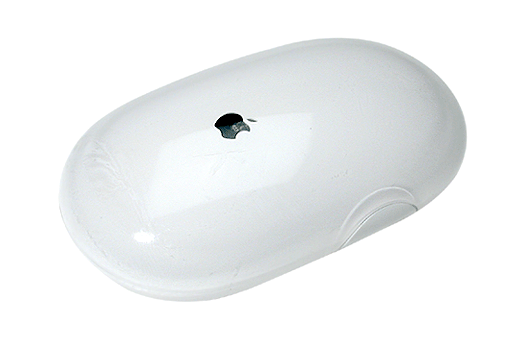 |  |
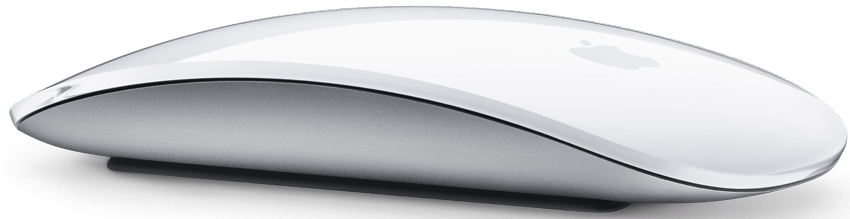
Apple Magic Mouse
Note: This mouse requires two (2) AA batteries.
To replace the batteries of an Apple wireless mouse:
Turn over the mouse and turn it off.
Remove the battery compartment cover and insert two AA batteries. Make sure the positive and negative ends are facing the correct direction, as shown below.

Replace the battery compartment cover.
Find more details about the batteries in Apple Magic Mouse.
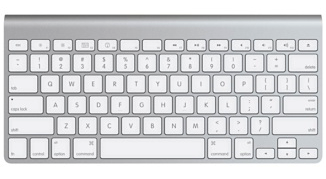
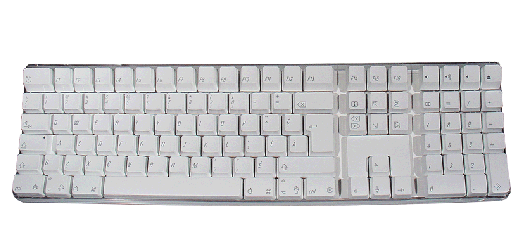
Apple Wireless Keyboard (2009)
Note: This keyboard requires two (2) AA batteries.
Turn the keyboard off.
Use a coin to remove the battery compartment cover.
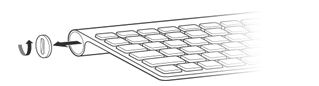
Slide two AA batteries into the battery compartment. Make sure the positive ends are pointing the correct direction.
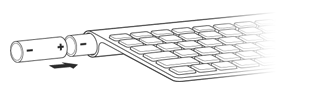
Replace the battery compartment cover.
Turn on the keyboard.
Find more details about the batteries in Apple Wireless Keyboard (2009).
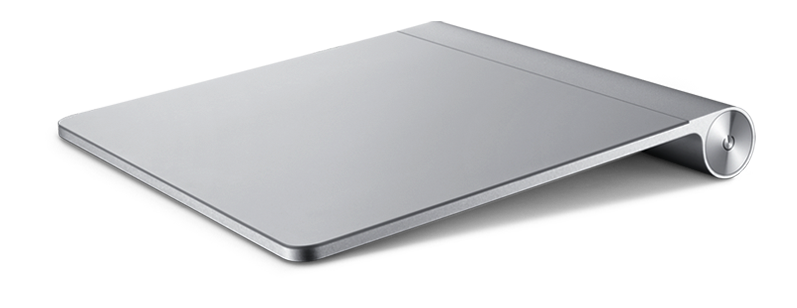
Apple Magic Trackpad
Note: This device requires two (2) AA batteries.
Turn the trackpad off.
Use a coin to remove the battery compartment cover.
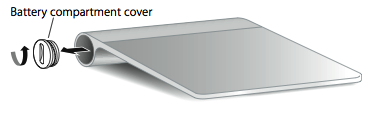
Insert the batteries into the battery compartment as shown below.
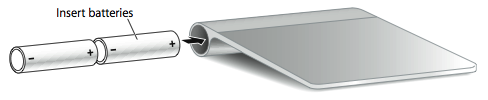
Important: Make sure to put the positive and negative ends of the batteries in the trackpad as shown above. The trackpad will not turn on if the batteries are installed incorrectly.
Find more details about the batteries in Apple Magic Trackpad.
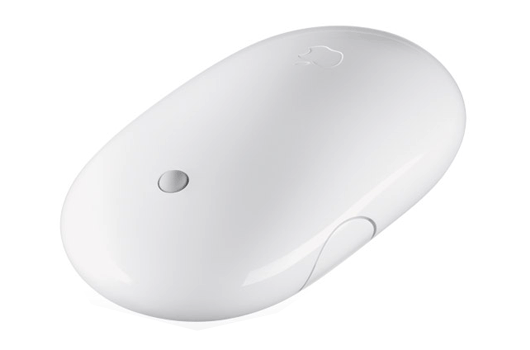
Apple Wireless Mighty Mouse
Note: This mouse requires two (2) AA batteries.
Turn the mouse over and turn it off.
Remove the battery compartment cover.
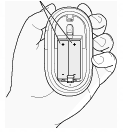
Slide the batteries into the battery compartment as shown above. Make sure to put the positive and negative ends of the batteries in the mouse as shown. The mouse will not turn on if the batteries are incorrectly installed.
Replace the battery compartment cover.
Turn the mouse on.
Find more details about the batteries in Apple Wireless Mighty Mouse.
Apple Wireless Keyboard (2007)
Note: This keyboard requires three (3) AA batteries.
Turn the keyboard off.
Use a coin to remove the battery compartment cover.
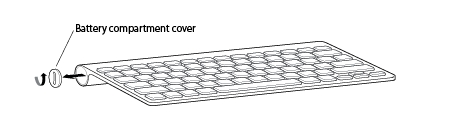
Slide the batteries into the battery compartment. Make sure to put the positive and negative ends of the batteries into the keyboard as shown. The keyboard will not turn on if the batteries are installed incorrectly.
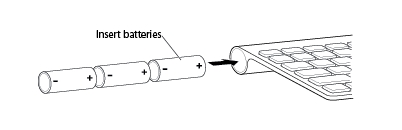
Replace the battery compartment cover.
Find more detail about the batteries in Apple Wireless Keyboard (2007).
Apple Wireless Mouse
Note: This mouse requires two (2) AA batteries.
Turn the mouse over and turn it off.
Remove the battery compartment cover.
Slide the batteries into the battery compartment. Make sure to put the positive and negative ends of the batteries in the mouse as shown. The mouse will not turn on if the batteries are installed incorrectly.
Replace the battery compartment cover.
Turn the mouse on if you are ready to use it.
Find more details about the batteries in Apple Wireless Mouse.
White Extended Apple Wireless Keyboard
Note: This keyboard requires four (4) AA batteries.
Turn the keyboard over and turn it off.
Remove the battery compartment cover and batteries.
Slide the batteries into the battery compartment. Make sure to put the positive and negative ends of the batteries in the keyboard as shown. The keyboard will not turn on if the batteries are installed incorrectly.
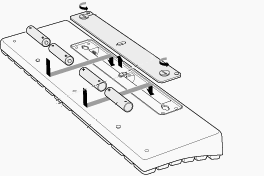
Replace the battery compartment cover.
Turn the keyboard on.
Find more details about the batteries in White Extended Apple Wireless Keyboard.
Learn more
Battery Types
Your Apple wireless device came with AA batteries installed. You can replace them with alkaline, lithium, or rechargeable AA batteries.
Warning: Don’t mix battery types (for example, alkaline and lithium batteries), and don’t mix old batteries with new batteries. Don’t open or puncture the batteries, install them backwards, or expose them to fire, high temperatures, or water. Don’t charge non-rechargeable AA batteries. Keep batteries out of the reach of children. Replace or recharge all batteries at the same time.
Important: Dispose of batteries according to your local environmental laws and guidelines.
Battery level indicator
To check the battery level, choose Apple () > System Preferences then select the device you want to check from the View menu (mouse, keyboard, or trackpad).
The battery level indicator is in the lower-left corner.
Long term storage
Apple wireless devices are designed to go to sleep to conserve battery power when you aren’t using them. If you won’t be using a wireless device for an extended period, turn it off. If you won't use the wireless device for more than three weeks, you should remove the batteries for long term storage.