If you can't update or restore your iPhone or iPod touch
You can put your iOS device in recovery mode, then restore your iOS device using your computer.
In these situations, you might need to use recovery mode to restore your device:
Your screen displays the Apple logo for several minutes with no progress bar.
Your computer doesn't recognize your device or says it's in recovery mode.
You see the "Connect to computer" screen.
Your device repeatedly starts up to Recovery Assistant, which isn't able to recover your device.
If you see the progress bar on your screen for several minutes, learn what to do.
Put your device in recovery mode
If you tried updating your device using a computer and it still won't start up:
Ensure your Mac is up to date. On PC, get the latest version of the Apple Devices app.
Connect your device to your computer with a USB cable.
Open the Finder on your Mac, or open the Apple Devices app on your PC.
Keep your device connected and wait until the "Connect to computer" screen appears.
Choose your device type:
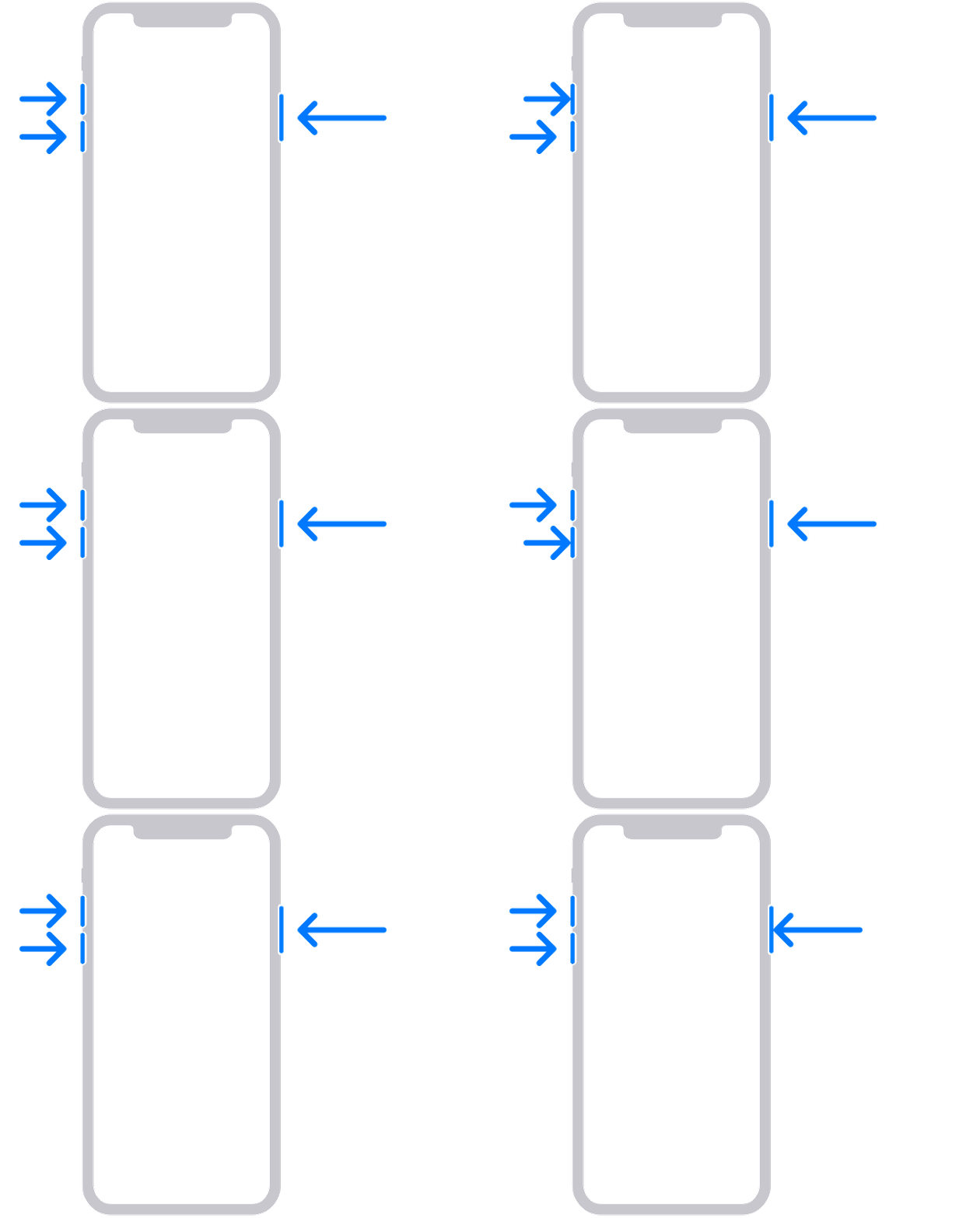
iPhone 8 or later, including iPhone SE (2nd generation and later):
Press and quickly release the Volume Up button.
Press and quickly release the Volume Down button.
Press and hold the side button until you see the "Connect to computer" screen.
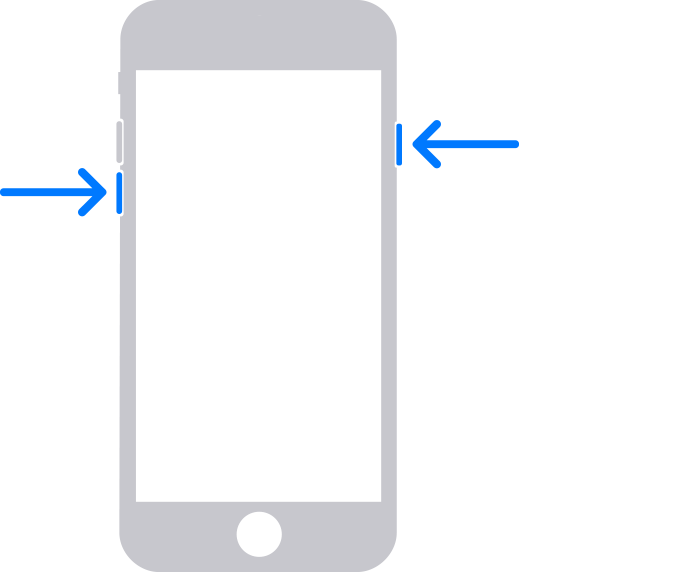
iPhone 7, iPhone 7 Plus, and iPod touch (7th generation):
Press and hold the top (or side) and Volume Down buttons at the same time.
Hold the buttons until you see the "Connect to computer" screen.
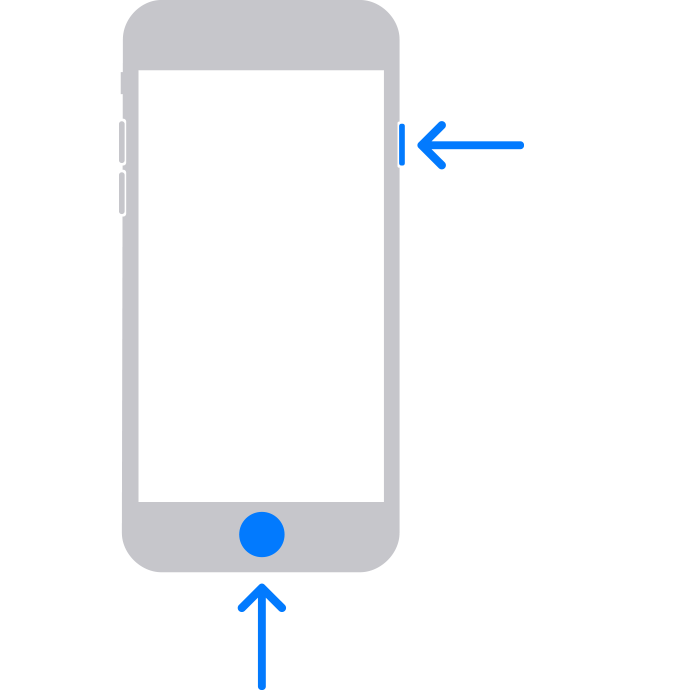
iPhone 6s or earlier, including iPhone SE (1st generation), and iPod touch (6th generation) or earlier:
Press and hold both the Home and the top (or side) buttons at the same time.
Hold the buttons until you see the "Connect to computer" screen.
Restore your device
Choose Restore when the Update or Restore options appear. Restore reinstalls iOS and erases all your data. If you haven't tried updating yet, try updating first.
Wait while your computer downloads software for your device. If the download takes more than 15 minutes, your device might exit the "Connect to computer" screen. Let the download finish first, then repeat step 3 and step 4.
After the Restore process completes, set up your device. Did you get an error code or alert when trying this step?
Get help
You might need service if:
You can't update or restore your device with recovery mode.
You can't use recovery mode because a button doesn't work or sticks.